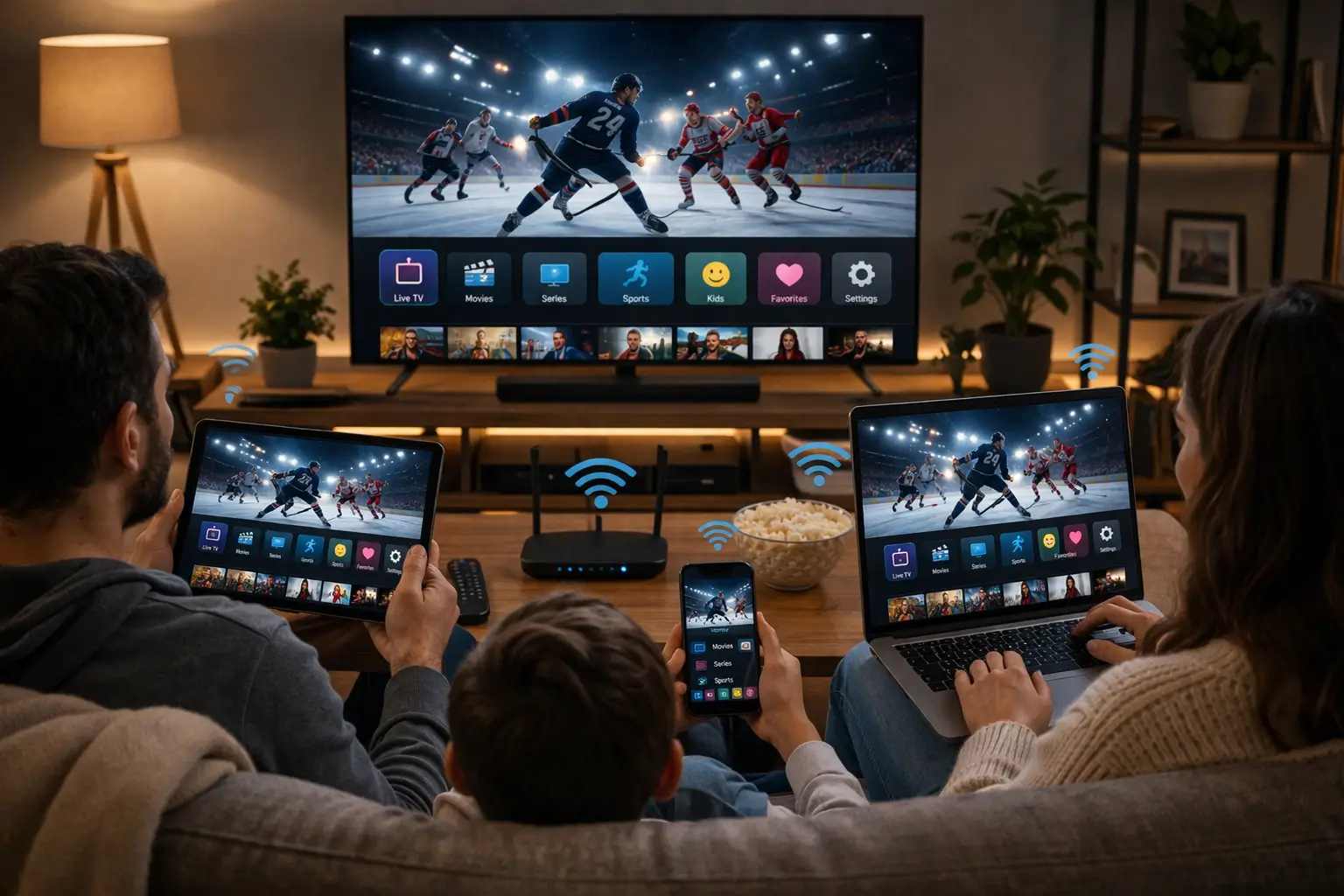
IPTV Toronto viewers often live in the same kind of space: a one- or two-bedroom condo, a router left in the entry closet by the building’s installer, a wall-mounted TV in an open living area, and a list of neighbouring Wi-Fi names that scrolls off the screen every time you open your phone’s settings. The service itself is simple. Channels, series and movies arrive over the internet and play in a player app on your TV, stick, phone or laptop. What decides your evening in a tower is the last few metres of wireless signal inside your unit, and how you handle viewing once you step into the elevator.
This guide is written for that life, from the studio near the lake to the two-bedroom on a high floor and the stacked townhouse a few blocks from the subway. It skips generic advice and goes deep on the things that are specific to vertical living: reading a crowded Wi-Fi environment, choosing between bands, getting the router out of the closet, hiding a cable in a rental without drilling, keeping a stick behind a wall-mounted TV happy, working from home on the same line, streaming on the commute, and sharing a unit with a partner or a roommate.
IPTV Toronto in a condo: why the tower changes everything
A detached house might see two or three neighbouring networks. A unit in the middle of a tower can see far more, above, below and on both sides, all broadcasting at once. Your streaming stick has to pick your signal out of that noise. That is why a plan that looks fast on paper can still stutter on a Friday night, when everyone on your floor is streaming too, and run perfectly at noon on a Tuesday.
Crowded airwaves
Every unit around you runs its own router on the same bands as yours.
Router in a closet
Installers often leave it by the door, behind a solid wall.
Concrete and steel
Slabs and structural walls absorb the faster 5 GHz signal.
Evening peak
The building gets busiest exactly when you sit down to watch.
Wall-mounted TVs
A stick behind the panel sits in the worst possible Wi-Fi spot.
Life on the move
Phones become a second screen on the subway and at lunch.
The good news is that condos are small. Short distances mean that simple changes, like moving the router a couple of metres, picking the right band or adding a short cable, often solve the problem completely. You rarely need new equipment, and you almost never need a technician. Most of the fixes on this page take an evening and cost little or nothing.
For an even deeper look at signal problems in shared buildings, including mesh systems and channel settings, read our IPTV condo Wi-Fi guide. This page focuses on how those fixes fit a typical Toronto unit and the way people in towers actually watch.
Reading the Wi-Fi around your unit
Before you change anything, find out what you are dealing with. Open the Wi-Fi list on your phone while standing next to the TV, not next to the router, and count the networks you can see. Then do the same in the bedroom. You are looking for clues rather than exact numbers.
You are in a crowded spot, which is normal in a tower. The 2.4 GHz band is likely saturated in the evening.
Then: move the main screen to 5 GHz or a cableDistance and walls are the problem, not just neighbours. The router is probably in the closet.
Then: move the router or run a cableYour router already shows its two bands separately, which makes the next steps easy.
Then: connect the TV to the 5 GHz nameNeighbouring traffic is the cause. Your plan speed is not the issue.
Then: test again at nine in the evening on the TVA speed test is the second clue. Run it from the TV’s own browser or a speed app on the stick, at the hour you usually watch. A phone test next to the router at lunchtime tells you almost nothing about a Friday night on the sofa. Write down the number, because you will compare it after every change you make. If the evening number on the TV is comfortably above the per-screen need for the quality you want, your problem lies elsewhere, and the IPTV buffering guide lists the other causes in order.
2.4 GHz or 5 GHz: choosing the right band
Most routers broadcast two networks, sometimes under one name, sometimes with a suffix such as “-5G”. They behave very differently, and in a tower the difference is easy to feel.
| Option | Strength | Weakness | Best use in a condo |
|---|---|---|---|
| 2.4 GHz | Travels further and through walls more easily | Very crowded in towers, slower, more interference | A den far from the router, smart plugs, older devices |
| 5 GHz | Faster, far less crowded | Shorter reach, weakened by concrete | The main TV, a stick in the same room as the router |
| Ethernet cable | Steady, no interference at all | Needs a cable route | The TV closest to the router, any 4K screen |
| Mesh point | Brings 5 GHz to a far room | One more box to place and power | A bedroom behind a structural wall |
In most one-bedroom units, the living room TV and the router end up within a few metres of each other once the router leaves the closet. At that distance, 5 GHz wins easily. The bedroom is the harder case: one concrete wall can drop 5 GHz sharply, and 2.4 GHz may get through but bring the neighbours’ congestion with it. For a bedroom TV in HD, 2.4 GHz is often good enough. For anything sharper, a mesh point in the hallway or a cable along the baseboard is the better answer.
Splitting the bands on your router
If both bands share one name, your device decides which to join, and it does not always decide well. A stick behind the TV may cling to 2.4 GHz because it looked stronger at the moment it connected. Many routers let you give each band its own name, so you can choose for every device.
The wording varies by router; look for band steering, smart connect or a single-name option in the wireless settings.
Once the bands are separate, go to the TV or stick, forget the shared network, and join the 5 GHz name. Leave the 2.4 GHz network for smart plugs, the robot vacuum and anything that cannot reach 5 GHz. If the router belongs to your internet provider and the settings are locked, the provider’s own app or support line can usually make the change for you.
Do not worry if your router has no such option. You can still get most of the benefit by moving it into the open, where your devices see a strong 5 GHz signal and choose it on their own.
Getting the router out of the closet
In many units, the line comes into the building’s wall outlet in the entry closet or the laundry nook, and the router stays there because that is where the installer put it. Behind a closet door and a solid wall, it covers the hallway nicely and the living room poorly.
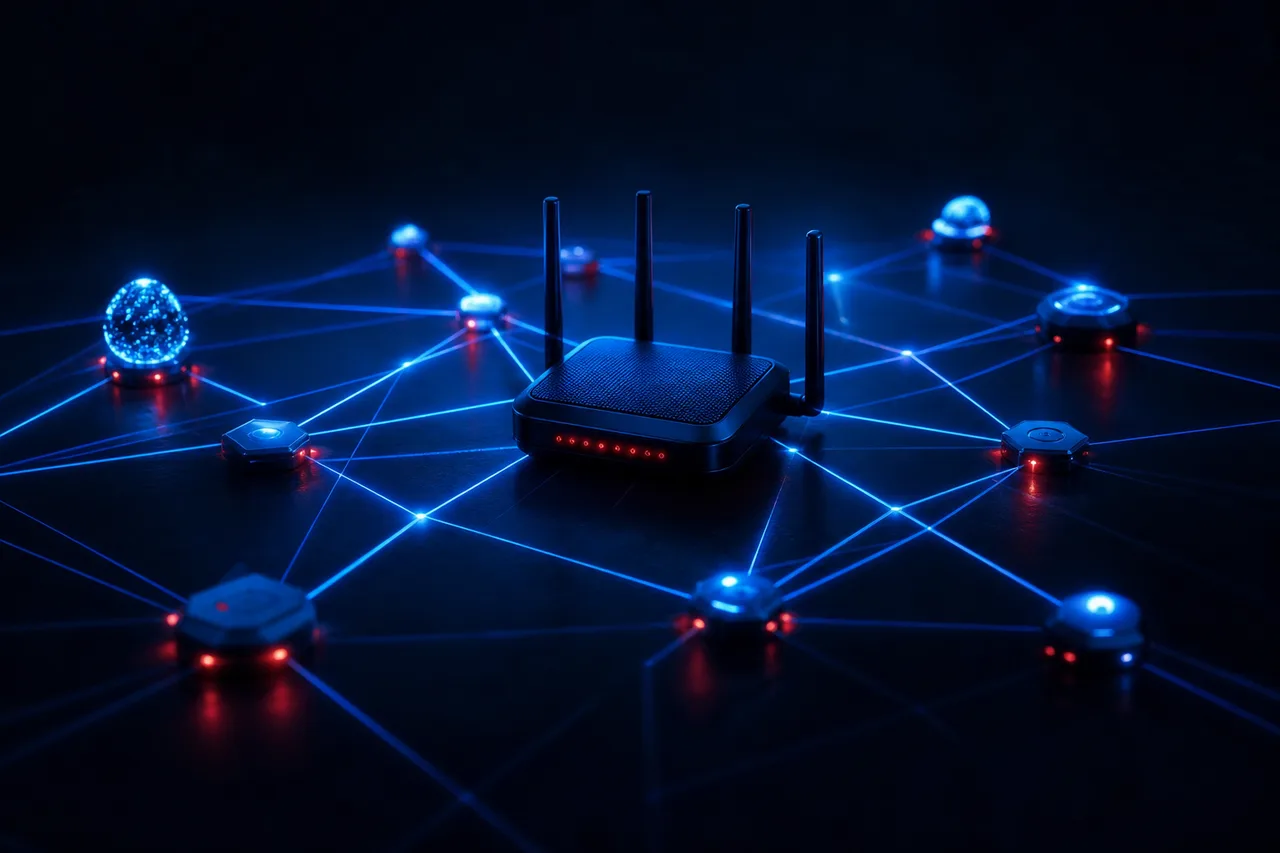
Move it a few metres, gain a whole room
A longer patch cable from the wall outlet lets you place the router on a shelf or the top of a media console in the living area. Out in the open, at roughly chest height and away from the TV’s metal back, it reaches the whole unit with fewer walls in the way.
- Longer cable from the wall outlet to the router
- Router on an open shelf, not on the floor
- At least an arm’s length from the TV and the microwave
- Bedroom checked again after the move
If the cable route crosses a hallway, flat cables slip under door thresholds and along baseboards, and adhesive cable clips hold them out of the way. In a rental, choose clips that peel off cleanly so you leave the walls as you found them. One afternoon of tidy routing usually does more for your picture than any upgrade to the internet plan.
Check your building’s rules before you touch anything outside your own unit. The wall outlet and whatever sits behind it usually belong to the building or the provider, so leave them as they are and work only with the cable that runs from the outlet to your router. Inside your unit, the router is yours to place wherever it covers best, and nobody will notice a slim cable along the baseboard.
Ethernet in a small space, without drilling
People skip cables because they picture holes in walls. In a condo you rarely need any. Once the router sits in the living area, the TV is often only a couple of metres away, and a flat Ethernet cable can run along the baseboard or under a rug without anyone noticing.
Why a cable is worth it
- No interference from neighbouring networks at all
- Same speed at nine in the evening as at noon
- Leaves the Wi-Fi to phones and laptops
- The safest way to feed a 4K screen
When Wi-Fi is the better call
- The device has no Ethernet port, like most sticks and phones
- The route crosses a doorway you cannot cover neatly
- The screen is in the bedroom behind a structural wall
- You watch in HD and the 5 GHz test is already strong
A wired connection removes the tower from the equation, which in a busy building is worth more than any speed upgrade. Keep the cable for the screen where you watch the most, and let the others use 5 GHz. If your favourite device has no port, an Android TV box or an Apple TV with Ethernet can replace a stick on the main TV; our Android TV box guide explains the wiring options.
Colour helps in a small space. Flat cables come in white, grey and black, so pick the one that matches your baseboard or floor. Run it along the side of the room furniture already hides, behind the sofa or under the media console, and the only visible part is the short stretch into the back of the TV. Guests will never see it, and you will never think about Friday-night congestion again.
The stick behind a wall-mounted TV
Wall-mounted TVs are everywhere in condos because they save floor space. The catch is that a streaming stick plugged straight into the back of the panel ends up pressed against a large sheet of metal and electronics, facing the wall. It is the worst seat in the house for Wi-Fi reception.
Give the stick some air
Use the short HDMI extender that often comes in the box, or any short HDMI extension, so the stick hangs below or beside the TV instead of hiding behind it. Even a small move away from the panel can make a clear difference to signal strength. If the stick has a power-saving mode for its Wi-Fi, switch it off, and power it from the wall adapter rather than the TV’s USB port so it does not reboot when the TV sleeps.
After the move, run the speed test again on the stick and compare with the number you wrote down earlier. If it has improved but still dips in the evening, switch to 5 GHz if you have not already. If the TV itself has a built-in Ethernet port and a supported player in its own store, plugging a cable into the TV and dropping the stick altogether is another tidy option; the smart TV guide covers Samsung and LG.
The same logic applies to soundbars and media consoles. Keep the router and any stick away from the inside of closed metal cabinets, and avoid stacking the router directly on top of the TV’s power brick.
How much speed a condo really needs
Most condo households watch on one or two screens. The per-screen figures are simple, and they apply to the speed that actually reaches the device, not the number printed on your internet bill.
Speed needed per screen, measured on the device
With 1 simultaneous connection, only one of those bars applies at a time. A couple who watches together on the living room TV in 4K needs about 25 Mbps reaching that TV, plus room for phones and laptops in the background. If support has arranged a second screen for you, add the two figures together, for example 25 Mbps for the 4K living room plus 10 Mbps for an HD bedroom, which makes 35 Mbps at the busy hour.
In a tower, the gap between the advertised plan and the speed at the TV can be large, and it changes through the evening. That is why every recommendation on this page comes back to the same test: on the device, at your viewing hour, after each change. If the number at the TV stays far below your plan even on a cable, then it is time to talk to your internet provider.
Keep a simple log for the first week: the time, the device, the band or cable, and the number you saw. Three or four entries are enough to show a pattern. If the evening dips disappear once the TV is wired, the tower was the cause. If they remain even on a cable, the line itself is struggling at that hour, and your log gives your provider something concrete to look at.
Studio, one-bedroom or two-bedroom: layouts that work
The size and shape of your unit decide where the router, the TV and any extra screen should go. Long, narrow units with the living room at the window end behave differently from square corner units with rooms on two sides. The table gives a starting layout for the most common condo floor plans; adjust it to your own walls.
| Unit type | Where the router does best | Main screen | Second screen |
|---|---|---|---|
| Studio or bachelor | Open shelf near the middle of the room | TV on 5 GHz or a short cable | Phone or laptop on the same 5 GHz network |
| One-bedroom, long and narrow | Living area, halfway between the door and the window | Living room TV on a cable along the baseboard | Bedroom TV on 2.4 GHz in HD, or a mesh point |
| One-bedroom plus den | Living area, facing the den doorway | Living room TV wired | Den laptop on 5 GHz |
| Two-bedroom corner unit | Central hallway or living area | Living room TV wired | Mesh point for the far bedroom |
In a long, narrow unit, the classic mistake is leaving the router at the door end while the TV sits by the window. Every metre of hallway, bathroom and closet between them eats into the 5 GHz signal. Moving the router to the middle of the unit halves the distance to both ends and usually rescues the bedroom too.
Corner units with two bedrooms are the one case where a small mesh system earns its place. Put the main router in the living area and a second unit in the hallway outside the far bedroom, roughly halfway, not inside the bedroom itself. The bedroom TV then connects to a strong, nearby signal instead of a weak one through a structural wall.
A den is often the quietest corner of the unit for Wi-Fi because it rarely has a structural wall between it and the living area. It makes a good spot for a laptop or a second TV in HD, even without extra equipment.
Working from home in the same few rooms
In a small unit, the home office is often the dining table, a corner of the bedroom or the desk next to the TV. Video calls, cloud backups and large file uploads share the same line and the same Wi-Fi as your streaming, and in a one-bedroom they compete in the same room.
| Situation | What happens | Simple fix |
|---|---|---|
| Partner on a video call, you stream in 4K | Both compete for the evening Wi-Fi | Wire the TV, or drop the stream to Full HD during the call |
| Laptop backing up to the cloud | Uploads can slow the whole line | Schedule backups overnight |
| Desk and TV in the same room | Both on 5 GHz near the router | Usually smooth; cable whichever is closest |
| Office in the bedroom behind a wall | Laptop drifts onto crowded 2.4 GHz | Mesh point in the hallway or a cable for the laptop |
The habit that helps most is simple: if someone has an important call, they say so, and the TV goes down a notch in quality or waits until the call ends. With one connection, the TV is only ever one stream, so a single household rule covers most clashes.
Watching on the subway and at lunch
A subway or streetcar ride is a natural time to catch up on a series, and a lunch break at the office is another. The supported players run on iPhone and Android phones, and your same access details work there. Three things are worth knowing before you rely on it.
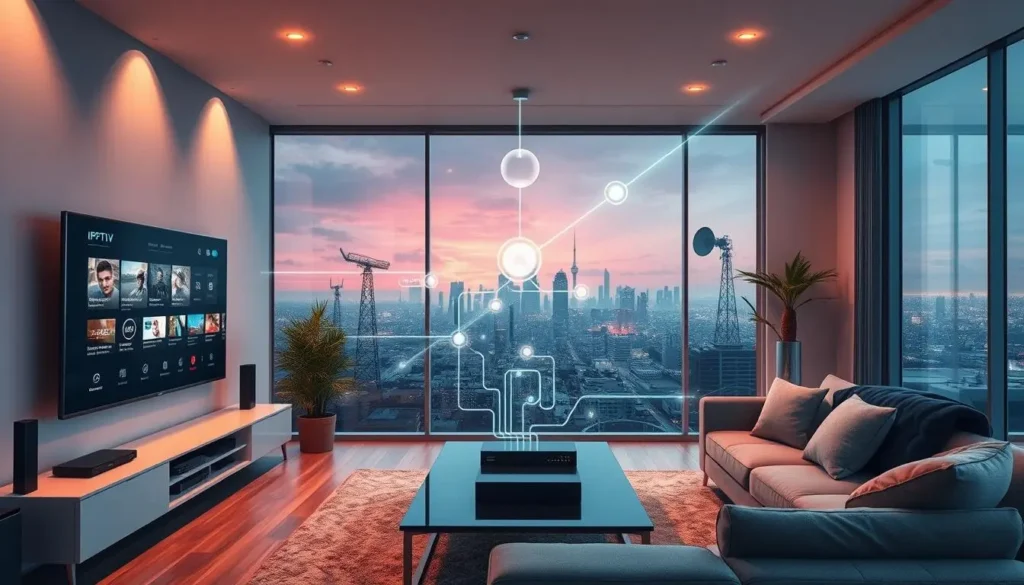
Prepare the phone at home
Install the same player you use on the TV from your phone’s official app store, enter your details over your home Wi-Fi and build a short favourites list. On the move, you want one tap to your series, not a long scroll on a patchy signal.
- Player installed and signed in at home
- Favourites ready for the ride
- Lower quality selected for mobile data
- Usage counter checked after the first week
First, streaming uses mobile data continuously. HD draws data for as long as it plays, and Full HD or 4K draws more. On a phone screen, HD looks sharp enough, so lower the quality in your player or choose an HD version of a channel before you leave home. Second, coverage underground and between stations can drop. A stream that pauses in a tunnel is not a service fault; series and movies cope with short gaps better than live channels, so they are the smarter pick for the ride. Third, use earphones. Your neighbours on the streetcar will thank you.
Watch the one-connection rule: if your partner is watching on the living room TV while you stream on the subway, that is two streams at once. With 1 simultaneous connection, one of them will stop. Agree on who watches when, or ask support about more screens.
Small unit, simple choice
One payment, no contract, no automatic renewal. Compare the packs and durations in one place.
Couples, roommates and shared units
Condo households are often small, but small does not always mean simple. A couple shares a unit, roommates split the rent, a sibling sleeps on the sofa bed for a month. Each case looks a little different under the one-connection rule.
One connection matches one viewer. Your phone, laptop and TV all hold the same details.
Then: no planning neededMost couples watch together most evenings. The clash comes when one streams on a phone while the other uses the TV.
Then: agree a simple rule, or ask support about a second screenRoommates often keep different hours and different tastes, and they may each want their own screen in the evening.
Then: talk to support before ordering, or each order a packThey live with you for now, so they are part of the household while they stay.
Then: add them to your rotaRoommates deserve a word of caution. Living in the same unit, you share a home, so one access can serve the unit as long as you are happy to take turns. But roommates move out, change jobs and keep their own schedules, and an arrangement that suited both of you in September can grate by winter. If each of you wants to watch independently, the cleanest solution is either extra screens arranged through support or a pack each. Never keep using a login after one of you has moved to another address: the access is for one household.
Setting up IPTV Toronto in your unit
With the Wi-Fi sorted, the setup itself is short. Your access details arrive by e-mail within minutes of ordering, so you can do everything below in a single evening.
- Map your unit. Note where the router sits and where you watch. Run a speed test on the TV at your usual viewing hour and write it down.
- Move the router into the open. Use a longer cable from the wall outlet and place it on a shelf in the living area.
- Split or choose your band. Give 5 GHz its own name if your router allows it, and connect the main screen to it.
- Run a cable where it is easy. If the TV is within reach, a flat Ethernet cable along the baseboard is the most reliable fix.
- Bring the stick out from behind the TV. Use an HDMI extender and the wall power adapter.
- Install a player. Get IPTV Smarters Pro, TiviMate or another supported player from your device’s official app store, then enter your Xtream Codes details or M3U link.
- Prepare your phone. Install the same player, sign in on home Wi-Fi and set a lower quality for mobile data.
Your programme guide should follow Eastern Time. If listings look an hour off after setup, the TV guide on Eastern Time page shows where the offset hides in each player. For the login fields themselves, the Xtream Codes setup guide explains each one.
Condo tip: redo your speed test on the TV after each step, not just at the end. You will see which change made the difference, and you will know exactly what to restore if something gets moved later.
Choosing an IPTV Toronto pack for one or two viewers
Condo households are often small, so the deciding question is usually what you want to watch rather than how many screens. All three packs include HD, Full HD and 4K and 1 simultaneous connection.
Ultimate 4K Pack
- 57,000+ 4K channels
- 47,000+ series
- 179,000+ movies
- 20 servers in Europe
The Premium Pack covers plenty for most singles and couples. If your commute is your series time and you get through a lot of episodes, the larger series library in the VIP Premium Pack is worth comparing. If you have a large 4K TV on the wall and a cable feeding it, the Ultimate 4K Pack makes the most of that setup.
Durations of 1, 3, 6 or 12 months are paid once in Canadian dollars by card or PayPal, with no contract and no automatic renewal. See current prices on the plans page. If you are new to the building and still sorting out the Wi-Fi, the monthly IPTV subscription lets you check how your unit performs before committing to longer.
IPTV Toronto in stacked townhouses and low-rise rentals
Not everyone in the city lives in a tower. Stacked townhouses, low-rise walk-ups and units above shops come with their own mix of problems: fewer neighbouring networks than a tower, but more floors and stairs inside your own home, and thinner shared walls.
The router often sits on the entry level while the TV is upstairs or down. One floor between them is usually manageable on 5 GHz.
Then: place the router near the stairwellCommercial equipment and long, narrow rooms can weaken Wi-Fi from front to back.
Then: router in the middle, cable to the main TVYour router may be installed there, out of reach and behind several walls.
Then: ask your landlord about moving the line inside your unitThe general rule still holds. Test on the device at your viewing hour, move the router toward the middle of the space you actually use, and give the most-watched screen a cable if you can. In a two-level stacked town, the stairwell is often the best spot for the router because it sits between both floors with few walls in the way. If the bedroom level is still weak, a mesh point on the landing usually solves it.
Low-rise buildings also tend to have older wiring for the internet line itself. If the speed on a cable plugged straight into the router is well below your plan in the evening, that is a matter for your internet provider rather than your Wi-Fi setup, and no change inside the unit will fix it.
Moving units or renewing a lease
Condo life comes with moves: a new lease, a bigger unit in the same building, a jump to another neighbourhood. Your access is not tied to an address, so it moves with you. The Wi-Fi in the new place is a different story.
- Before the move
Check the new unit’s layout
Find the wall outlet for the internet line and the spot where the TV will go. Note any structural walls between them.
- Moving day
Router first, TV second
Set up the router in the open, then mount the TV and plug in the stick with its extender.
- First evening
Test before you settle
Run a speed test on the TV at your usual hour and compare it with your old unit.
- First week
Adjust and retest
Move the router, split bands or add a cable until the evening number is comfortable.
Your player keeps your login and favourites on each device, so after a move you usually only need to reconnect the TV and the stick to the new Wi-Fi. If you change router at the same time, every device has to join the new network name, and you may be asked to sign in to the player again. Keep the welcome e-mail somewhere you can find it.
Evening buffering in a tower: quick checks
When the picture pauses at the busiest time of night, work through these in order. Most tower problems are solved by the first three lines.
- Is the TV or stick on 5 GHz, or better on a cable
- Has the stick been moved out from behind the TV
- Is the router in the open rather than in the closet
- Is anyone else in the unit running a big upload or a video call
- Does the evening speed test on the TV cover the quality you chose
- Does the same channel play smoothly on your phone on 5 GHz
- Have you restarted the router, then the stick, in that order
Deep dive: why the same router can change its mind at night
Many routers pick their Wi-Fi channel automatically, often when they restart. In a tower, the channel that was quiet when your router last rebooted may be crowded by evening, when neighbours come home. Some routers re-scan on their own; others stay put until the next restart. Restarting the router when the building is busy lets it choose a quieter channel for that time of day. If your router lets you set the channel manually, a quiet channel picked during the evening peak can hold up better than the automatic choice.
If the checks above do not help, the IPTV not working checklist covers login errors, black screens and endless spinners.
Other homes, other guides
In a tower, the fix is almost always inside your own four walls, and almost always within a few metres of the TV.
Not in a tower? A house with a basement has the opposite problem, distance and floors rather than crowding, and the Mississauga guide deals with exactly that. A bilingual household will find menu and content language settings in the Ottawa guide, and a family with three generations under one roof should read the Brampton guide. All four city guides are listed on the Ontario cities page.
Ready to set up your unit
Access arrives by e-mail within minutes. Start with the pack most condos choose.
FAQ
Why does my stream buffer only in the evening?
In a tower, evening is when neighbouring networks are busiest. Move the TV to the 5 GHz band or use Ethernet, take the stick out from behind the TV, and test the speed again at that hour.
Should I use 2.4 GHz or 5 GHz for IPTV Toronto viewing?
Use 5 GHz for screens near the router and Ethernet where possible. Keep 2.4 GHz for distant rooms or devices that cannot reach 5 GHz.
Can I move the router out of the entry closet?
Usually, yes. A longer cable from the wall outlet lets you place the router on an open shelf in the living area, where it covers a small unit much better.
Can I watch on my phone on the subway?
Yes, with the same access details in a player from your phone’s official app store. Lower the quality to save mobile data, and remember that only one stream can play at a time.
Do I need a technician to install anything?
No. You install a player app and enter the Xtream Codes details or M3U link you receive by e-mail within minutes.
What speed do I need for a 4K TV?
Count about 25 Mbps for that screen alone, measured on the TV itself. A wired connection is the safest choice for 4K in a condo.
Can my roommate and I watch different things at once?
Each pack includes 1 simultaneous connection. For two streams at once, contact support, who will explain the conditions and the price, or each of you can order a pack.
Does my access still work after I move to another unit?
Yes. The access is not tied to an address. Reconnect your devices to the new Wi-Fi and retest the speed on the TV in the new layout.
Is there a contract or automatic renewal?
No. You pay once for 1, 3, 6 or 12 months, by card or PayPal in Canadian dollars, and nothing renews on its own.
Can I keep using the login after my roommate moves out?
The person who ordered keeps the access for their household. Whoever moves to another address starts a separate household and should order their own pack.