If you want something that feels like the cable box you grew up with, but with far more control over menus and players, an Android TV or Google TV box is the device to look at. This page covers Android box IPTV from choosing the box to running it for years: what to look for on the spec sheet, which player to install, how to bring a cable to it in a house that was never wired for one, and how to keep it quick when the whole family uses it every night.
A box earns its place under the main TV. It usually has more memory than a stick, better cooling and a wired network port. In a home where phones, laptops, tablets and a game console all lean on one router, that cable is often worth more than any other upgrade. The sections below follow the order you will actually work in: choose, prepare, install, wire, organize, maintain and troubleshoot.
What makes Android box IPTV a strong choice
Three things set a box apart from the alternatives, and they all point the same way: a steadier picture on a busy evening and a guide that responds the instant you press a button.
Widest player choice
TiviMate, IPTV Smarters Pro, XCIPTV and GSE Smart IPTV are built with this platform in mind.
Wired port
An Ethernet socket on most models takes the box out of the Wi-Fi crowd.
Headroom
More memory keeps a large programme guide quick to scroll.
Guide-first viewing
Cable-style grids feel natural on a box and its remote.
Family-friendly
Favourites, hidden groups and parental locks are easy to manage.
Regular updates
System and player updates arrive the normal way from the official store.
Picture a hypothetical family home in Brampton with the main TV on the ground floor and teenagers who want their own screen downstairs. A wired box on the main TV takes the heavy evening load, while a stick or tablet covers the basement. Or think of a bilingual household in Ottawa where one parent scrolls a channel grid and the other jumps straight into series. A box runs the kind of player that keeps both of them happy, with menus in the language each one prefers.
The one thing to get right is the box itself. A box that runs the official Android TV or Google TV system, with its official app store, receives updates the normal way and runs the players as their publishers intended. Uncertified boxes with modified systems are behind a large share of the strange problems people describe: players that vanish, menus that freeze, updates that never arrive. The next section explains how to tell the difference.
Official Android TV or Google TV, and what to avoid
Android TV and Google TV are two generations of the same TV system. Google TV adds a home screen built around recommendations; Android TV shows a simpler row of apps. For IPTV, both work the same way: you open the official app store, install a supported player and log in. What matters far more than which of the two you have is whether the box runs a certified version at all.
Signs of a sound box
- The official Android TV or Google TV logo on the packaging and home screen
- The official app store opens and lets you sign in
- System updates appear in the settings menu
- An Ethernet port and a separate power adapter
- A known maker with support pages for the model
Warning signs
- A box sold as already “loaded” with channels or apps
- No official app store, or a store that looks unfamiliar
- No system updates offered, ever
- A phone-style interface stretched onto the TV
- Bold claims about content included with the hardware
A box never comes with television included. The hardware is the empty shell, the player is the frame, and your IPTV Ontario access is what fills it with channels, series and movies. Anyone who sells a box with content already inside is selling something you should be wary of. The technology is legal; whether a service is legal depends on the broadcasting rights it holds, so check before subscribing. Our article Is IPTV legal in Canada explains how to ask the right questions.
If you already own a box and you are unsure what it runs, open the settings, find the About section and look at the system name and the last update. If the official store is there and the system updates, you are in good shape.
Features to look for in a box
We never quote device prices, because they change constantly. What we can do is tell you which features make a real difference for IPTV, and which are nice to have. Use this table when you compare boxes in a store or online.
| Feature | Why it matters for IPTV | Must have |
|---|---|---|
| Official Android TV or Google TV | Players install and update from the official store | Yes |
| Ethernet port | Stable picture regardless of Wi-Fi congestion | Yes, for a main TV |
| 5 GHz Wi-Fi | Better wireless option when a cable is impossible | Yes |
| 4K output | Needed only if the TV is 4K and you plan 4K viewing | Only with a 4K TV |
| Generous storage | Room for the player, its guide data and updates | Yes |
| Vents or open design | Avoids slowdowns from heat during long evenings | Yes |
| Remote with number keys | Quick channel jumps in grid-style players | Nice to have |
| Bluetooth | Lets you pair a small keyboard for typing logins | Nice to have |
Storage deserves a word. A large programme guide, a few players and the system’s own updates add up. A box with very little storage starts to complain after a few months, and the first symptom is often a player that closes on its own. More room gives you years of quiet use.
For a second TV in a guest room, a basic certified box is plenty. For the main TV, where the family scrolls a big guide every night, it is worth choosing the more capable model in a range. If the TV is a 4K set and you want 4K, make sure the box outputs 4K and that you plug it into a 4K-capable HDMI port, often labelled HDMI 2.0 or HDMI 2.1.
Getting your box ready
Before you install a player, spend a few minutes on the basics. A box that is updated, wired and well placed from day one rarely needs attention afterwards.
The preparation checklist
- The box runs the official Android TV or Google TV system and opens its official app store.
- All system updates are installed from the settings menu.
- An Ethernet cable runs from the router to the box, or the box has a clear line to the router.
- The box sits on an open shelf with air around it, not in a closed cabinet.
- It is powered by its own adapter from a wall outlet.
- Your welcome e-mail is at hand, with the server URL, username and password, or the M3U link.
- You measured the speed on the box itself, using a speed test app from the official store.
Plan for 10 Mbps in HD, 15 Mbps in Full HD and 25 Mbps in 4K per screen. On a wired box, the reading is usually close to the full speed of your internet plan, which leaves plenty of room for the rest of the household. On Wi-Fi, test in the evening, when the network is busiest.
One small step that helps later: sign in to the box with an account that belongs to the household rather than one person’s personal account. When that person moves out or changes phones, the box keeps working without fuss.
Android box IPTV setup, step by step
The steps below work with every supported player listed on Android TV and Google TV. Menu labels change slightly from app to app, but the logic is the same.
- Finish the first-run wizard. Choose your language, connect the network (cable first if you have one) and sign in to the account linked to the official app store.
- Install system updates. Open the settings, find the system update option and install anything pending before you add apps.
- Find your player. Open the official app store, search for TiviMate, IPTV Smarters Pro, XCIPTV or GSE Smart IPTV, and install it.
- Add a login. Open the player and choose Xtream Codes when offered. Three short fields are quicker to enter than a long link.
- Enter your details. Type the server URL, username and password exactly as written in the e-mail. Watch for capitals, the port number and stray spaces.
- Wait for the first sync. The player builds its channel list, series, movies and guide. On a large catalogue, give it a few minutes.
- Set the time zone. In the guide settings, confirm Eastern Time or adjust the offset so listings match your clock.
- Organize your favourites. Hide the categories you never watch and build a short favourites group. Everyone in the house will thank you.
A typical playlist screen on Android TV. Some players ask for the name first.
If you own a small Bluetooth keyboard, pair it with the box before step 4. Typing a server address with a real keyboard takes seconds and almost eliminates errors. Our Xtream Codes setup guide explains each field and the typical mistakes behind an invalid login message, and the general IPTV setup overview covers the whole process for any device.
Players that work well on Android TV and Google TV
The box is the platform where every supported player feels at home. All of them accept Xtream Codes and M3U, and you can install more than one to compare. Here is how they differ.
| Player | Strength | Who it suits | Learning curve |
|---|---|---|---|
| TiviMate | Grid guide that looks like a cable box | Viewers who browse by time slot | Moderate |
| IPTV Smarters Pro | Clear tiles for live, series and movies | Families and first-time users | Gentle |
| XCIPTV | Light and quick to launch | Basic boxes and second TVs | Gentle |
| GSE Smart IPTV | Flexible playlist handling | People who like to tinker | Moderate |
Most households settle on one of two patterns. Either TiviMate on the main TV for the person who likes to see what is on now, or IPTV Smarters Pro for a household that mostly picks series and movies and wants big, obvious tiles. Nothing stops you from installing both and letting each person use the one they prefer, as long as only one plays at a time.
Our TiviMate guide goes into its grid, groups and premium upgrade, and the IPTV Smarters Pro guide covers its tiles and profiles. We are independent from app publishers. If a player sells a licence or premium upgrade, check the current price on the app’s official website.
Building a cable-style channel grid
Many people choose a box precisely because it can recreate the familiar grid: channels down the left, times across the top, a highlighted programme in the middle. Getting that grid to feel right takes a little setup, but it pays off every evening.
- Step 1
Trim the groups
Hide every category the household never watches. A shorter grid scrolls faster and is easier to read from the couch.
- Step 2
Create a favourites group
Add the channels people watch most into one group and put it at the top of the list.
- Step 3
Reorder channels
Place the most-watched channels first inside the favourites group, in the order the family thinks of them.
- Step 4
Set the guide refresh
Let the player refresh the programme guide automatically, ideally once a day at a quiet hour.
- Step 5
Check the clock
Confirm that the current programme in the grid matches what is actually playing, then adjust the offset if needed.
That last step matters in Ontario because the guide data does not always arrive in Eastern Time. If the grid shows the evening news an hour early, the offset is wrong, not the channel. Our guide to the TV guide on Eastern Time explains the setting in each player, including what to do when daylight saving changes the clocks in spring and fall.
Want a deep catalogue to fill that grid on a capable box and a 4K TV? The Ultimate 4K Pack includes 57,000+ 4K channels, 47,000+ series and 179,000+ movies, served from 20 servers in Europe. Compare it with the other packs and see current prices on the plans page.
Wiring: why Ethernet changes everything
A cable from the router to the box takes the box out of the Wi-Fi scramble entirely. It does not care how many phones are streaming upstairs, how many neighbours share the same channel in your building or whether the microwave is running. That is why it remains the most effective fix for evening buffering.
Not every home makes a direct cable easy. Here are the options, from simplest to most involved:
- A direct cable along the baseboard. Flat Ethernet cables slip under rugs and door gaps and can be painted to match the trim.
- Powerline adapters, which carry the network through your home’s electrical wiring. One plugs in near the router, the other near the box.
- Coax-to-Ethernet adapters, often called MoCA adapters, which reuse the old coaxial TV outlets many Ontario houses still have in several rooms.
- A mesh node with an Ethernet port placed near the TV, connected to the box by a short cable.
Powerline results vary with the age and layout of the wiring, so test before you commit. Coax adapters are often the hidden gem in houses built when every bedroom got a cable outlet: the wire is already in the wall, you just give it a new job. Whichever you pick, run a speed test on the box afterwards to confirm the gain.
Box wired, guide organized
Pick a pack and a duration that suits your home, pay once in Canadian dollars and start the same evening.
Placement in Ontario homes
Where the box sits matters almost as much as which box you buy. Each type of home has its own trap, and its own fix.
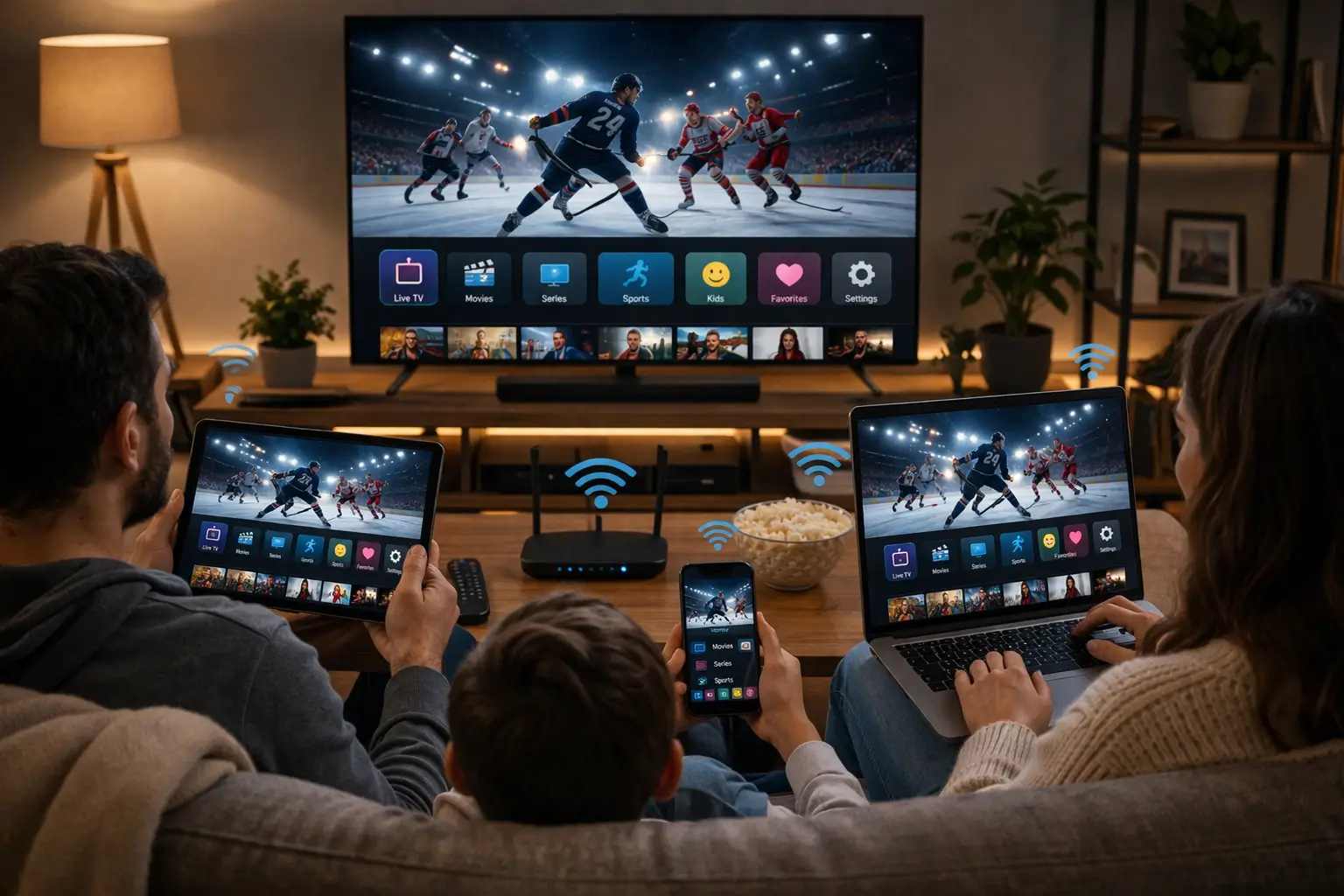
Match the fix to the floor plan
Start by noting where the router is, where the TV is and what stands between them: floors, brick, a kitchen full of appliances. That picture tells you whether a cable, an adapter or a mesh point is the right answer.
- Condo: flat cable along the baseboard
- Semi or detached: coax or powerline adapter
- Basement: cable or mesh node with a port
A condo tower in Toronto
In a tower, your Wi-Fi competes with dozens of networks around you, above and below. If the router sits by the entrance and the TV is on the far wall, a flat Ethernet cable along the baseboard is often the best single change. If you rent and cannot run cables, at least move the router into the open and connect the box on 5 GHz. The IPTV Toronto guide explains condo Wi-Fi in more depth.
A semi in Mississauga
Interior walls in older semis, and the floor between storeys, block more Wi-Fi than people expect. If the TV is on a different floor from the router, look for a coax outlet near the TV first; if there is one near the router too, coax adapters may give you a near-wired connection with no new cable at all. Our IPTV Mississauga guide covers multi-floor homes.
A Brampton basement
A finished basement is often the family’s favourite TV room and the worst spot for Wi-Fi. Concrete and ductwork absorb the signal. A cable down from the utility room, often where the internet line enters, is usually the cleanest answer.
Keeping it cool
Whatever the home, avoid closed cabinets. A box that heats up slows down, and on a long evening that shows as stutter and laggy menus. An open shelf with a few centimetres around it is enough. If the remote uses infrared, keep a clear line of sight from the couch.
4K on Android box IPTV: HDMI, resolution and frame rate
A capable box on a 4K TV can produce a superb picture, but only when every link in the chain supports it. Here is the chain, link by link.
First, the HDMI port. Plug the box into a port that supports 4K at full quality, often labelled on the back of the TV. Use a cable rated for 4K; an old cable from a previous setup may limit the picture. Second, the box settings. In the display section, set the resolution to 4K, or to automatic if the box detects the TV correctly. Third, the player. Some players have their own quality or decoder settings; leave them on automatic unless a specific channel misbehaves.
Deep dive: frame rate matching on a box
Television in North America is traditionally shown at a different frame rate from much of the content produced elsewhere. When the box outputs one rate and the content uses another, motion can look slightly jerky, especially in slow camera pans. Many boxes and some players offer a setting to switch the output to match the content. When it is on, the screen may go black for a moment as each channel starts, while the TV adapts. That brief blink is normal. If it bothers you more than the occasional judder, switch the option off.
Finally, the signal. A 4K stream needs about 25 Mbps at the box, and that figure adds up with every other screen playing at the same time. On a wired box, this is rarely an issue. On Wi-Fi, it is the main reason to plan carefully before choosing 4K.
Remote, keyboard and voice tips
The remote is where the family meets the box, and small changes here remove most of the daily friction.
Pair a small Bluetooth keyboard with the box, or use the remote app offered by the box maker on your phone, where available.
Then: keep the keyboard in a drawer for the next updateSet the player to open on the favourites group and show large tiles.
Then: tape a small note with the three buttons they needReplace the batteries first, then re-pair the remote from the box settings.
Then: check nothing blocks the line of sight to the boxTurn on the HDMI device control option on both the TV and the box.
Then: the box remote can wake the TV and control volumeSome remotes include a voice button, which is handy for searching the official app store. Inside the IPTV player, search usually works by typing, so voice is mostly useful around the edges. The number keys on a remote, when it has them, are more valuable: in grid-style players they let you jump straight to a channel number once you have arranged your favourites.
Organizing the box for a multi-generation household
Ontario homes often hold more than two generations under one roof, and one box on the main TV may serve a grandparent who wants the news, parents who follow series and kids who want cartoons. A little planning keeps everyone happy.
- Set the box’s system language to the one most people read comfortably, and the player’s menu language separately if it allows.
- Create one favourites group per main viewer, named after them, so each person finds their channels in one press.
- Use the player’s parental lock for adult categories and keep the PIN to the parents.
- Put the player in the first position of the home screen row.
- Teach one simple routine: home button, player, favourites, channel.
A good box setup is invisible: each person presses three buttons and lands on their own channels.
For homes with several languages, audio tracks and subtitles also come into play. The catalogue includes French-language and international content; if a specific language matters to your family, ask support before ordering. Our IPTV for multilingual homes guide walks through menu languages, audio and subtitles, and the IPTV for families guide covers screens and parental controls.
Sound through a soundbar or receiver
A box often sits in the same cabinet as a soundbar or an audio receiver, and the way you connect them decides whether voices come through clearly and whether one remote can do everything. The goal is simple: the picture goes to the TV, the sound goes to the speakers, and nothing falls out of step.
Two common layouts
Box into TV, TV into soundbar. Plug the box into the TV, then connect the TV to the soundbar through the HDMI port marked ARC or eARC. The TV passes the sound along. This is the tidiest option and lets the TV remote control the volume.
Box into receiver, receiver into TV. With a home theatre receiver, plug the box into the receiver and the receiver into the TV. The receiver handles the sound directly, which suits larger speaker setups in a basement theatre.
If voices arrive slightly before or after lips move, look for an audio delay or lip-sync setting, first in the soundbar or receiver, then in the TV. Some players also offer an audio offset of their own; use only one of these settings at a time, or you will chase the problem around. If a channel plays with no sound at all through the soundbar but works on the TV speakers, set the box’s audio output format to automatic or to a standard stereo format, then test again.
In a hypothetical Mississauga basement with a receiver and a projector, the receiver route keeps the sound rich and the box remote handles everything once HDMI device control is switched on. In a Toronto condo with a slim soundbar under a wall-mounted TV, the ARC route avoids an extra cable on display. Either way, the IPTV setup inside the box is the same.
Switching from a cable box: what changes day to day
Many households come to a box straight from years of a cable box. The good news is that the evening routine feels familiar once the grid is set up. The differences are worth knowing so nobody is surprised in the first week.
Arrange your favourites group in a fixed order so the same number always opens the same channel.
Then: use the remote’s number keys in a grid-style playerMost grid players open the guide with the centre or menu button, or show it as the start screen.
Then: set the player to open on the guideTile-style players put series and movies one press away from the home screen.
Then: install IPTV Smarters Pro alongside the grid playerThe new box belongs to you, and the IPTV access is paid once for a fixed duration with no contract.
Then: note the end date of your plan in a calendarThe biggest practical change is the network. A cable box used its own line; a box shares your home internet with everything else. That is why the wiring and placement sections above matter so much. Our neutral comparison of IPTV vs cable in Ontario covers equipment, payment and network needs side by side, without naming any company, so you can judge the switch on the criteria that matter in your home.
Keeping the box healthy for years
A certified box needs very little care, but the little it needs makes a difference. Follow this rhythm and the box will feel as quick next winter as it does tonight.
| When | What to do | Why |
|---|---|---|
| When offered | Install system updates | Fixes and compatibility with newer players |
| When offered | Update the player from the official store | Bug fixes and better stream handling |
| Every week or two | Restart the box from the settings | Clears memory and background tasks |
| Every few months | Remove apps nobody uses | Keeps storage clear for guide data |
| When menus slow | Clear the player cache | Removes temporary files without logging you out |
| Each season | Dust the box and check the shelf | Heat is the quiet enemy of performance |
Keep a note of which player and which profile name you used, along with where the welcome e-mail is stored. If the box ever needs a full reset, you will rebuild it in minutes rather than an evening. And if you replace the box, the same access details work on the new one; just remember that only one device can play at a time.
Fixing common Android box IPTV problems
Most box problems have simple causes. Work through the table from the top, and test after each change.
If channels freeze but your speed test looks good, the cause is often the box running short of memory or storage. Close background apps, clear the player cache from the system settings and restart the box before trying anything more drastic, such as a factory reset.
| Symptom | Likely cause | Fix |
|---|---|---|
| Login refused | Typing error or missing port | Retype the server URL, username and password slowly |
| Connection in use | Another device is playing | Close the player on the other device, then retry |
| Soft picture on a 4K TV | Box resolution set too low | Set the box display to 4K or automatic |
| Picture blinks when changing channel | Frame rate matching | Normal; switch it off if it bothers you |
| Grid shows the wrong programme | Guide offset or time zone | Set Eastern Time or adjust the offset |
| Player closes on its own | Storage full | Remove unused apps, clear cache, restart |
| Buffering only in the evening | Wi-Fi congestion | Use Ethernet or an adapter |
When the connection is in use, close the player on your phone or on the Fire TV Stick in the other room, wait a moment, then reopen it on the box. For more screens at once, contact support for the conditions and price. The IPTV not working checklist covers deeper cases, and the buffering guide focuses on network fixes. If you still need help, support answers 7 days a week by e-mail and WhatsApp, in English and French.
Choosing a pack for your Android box IPTV setup
Every pack plays on a box, and a capable box on a 4K TV can show the full range from HD to 4K. The choice depends on how your household watches.
VIP Premium Pack
- 27,000+ channels
- 61,000+ series
- 155,000+ movies
- HD, Full HD and 4K
Ultimate 4K Pack
- 57,000+ 4K channels
- 47,000+ series
- 179,000+ movies
- 20 servers in Europe
A wired box on a 4K TV is the natural partner for the Ultimate 4K Pack. A household that mostly follows series gets the most from the VIP Premium Pack, and a smaller home on a Full HD set is usually well served by the Premium Pack. All three come in 1, 3, 6 or 12 months, paid once in Canadian dollars by card or PayPal, with no automatic renewal and no contract. See current prices on the plans page, and read how payment works if you want the details first.
Box and player terms in plain language
- Android TV
- The TV version of Android, with a row of apps and its own official store.
- Google TV
- A newer home screen on the same system, organized around recommendations.
- Certified box
- A box running an official version of the system, with the official app store and updates.
- Ethernet
- The wired network connection, through a cable from the router or an adapter.
- Coax adapter
- A pair of adapters that carries the network over existing TV coaxial cable.
- Powerline
- Adapters that carry the network through the home’s electrical wiring.
- Frame rate matching
- A setting that changes the box output to suit each channel for smoother motion.
- Guide offset
- A shift, in whole hours, that aligns the programme guide with your clock.
Other words you meet in players, such as EPG, M3U and Xtream Codes, are explained in our What is IPTV guide.
Other devices and related guides
A box is often the main device, with others filling the gaps. These pages help you complete the picture.
Ready to fill your box with channels
Three packs, four durations, one payment and no renewal. Your access arrives by e-mail within minutes.
FAQ
Is an Android TV box better than a smart TV app?
Often, yes. A box usually opens menus faster, offers more players and has an Ethernet port. A recent smart TV can still do the job well if the signal at the TV is strong.
Android TV or Google TV: which should I pick?
Either works. Both use the official app store and run the same players. What matters more is that the box is certified and receives updates.
Which player should I install first?
Start with IPTV Smarters Pro if you want simple tiles, or TiviMate if you prefer a cable-style grid. Both come from the official app store on your box.
Do I really need a cable connection?
It is not required, but it is the most reliable option. Wi-Fi works if the box gets enough speed: about 10 Mbps in HD, 15 Mbps in Full HD and 25 Mbps in 4K.
Can I use old coax outlets to wire the box?
Often, yes. Coax-to-Ethernet adapters reuse the TV cable already in the walls of many houses. Test the speed on the box once they are in place.
Can I use the same login on my box and my phone?
Yes, one at a time. Each pack includes 1 simultaneous connection, and your credentials work on several devices.
Why are the guide times off by an hour?
The player is not set to Eastern Time. Open the guide settings and adjust the time zone or offset until listings match your clock.
Can I watch French-language content on the box?
The catalogue includes French-language and international content. If a specific language matters to you, ask support before ordering.
Does a box come with channels included?
No. The box is hardware and the player is an empty frame. Your channels come from your IPTV Ontario access, entered in the player.
What should I do if the box gets slow after a few months?
Restart it, clear the player cache and remove apps nobody uses. Check that it sits on an open shelf, since heat slows boxes down.