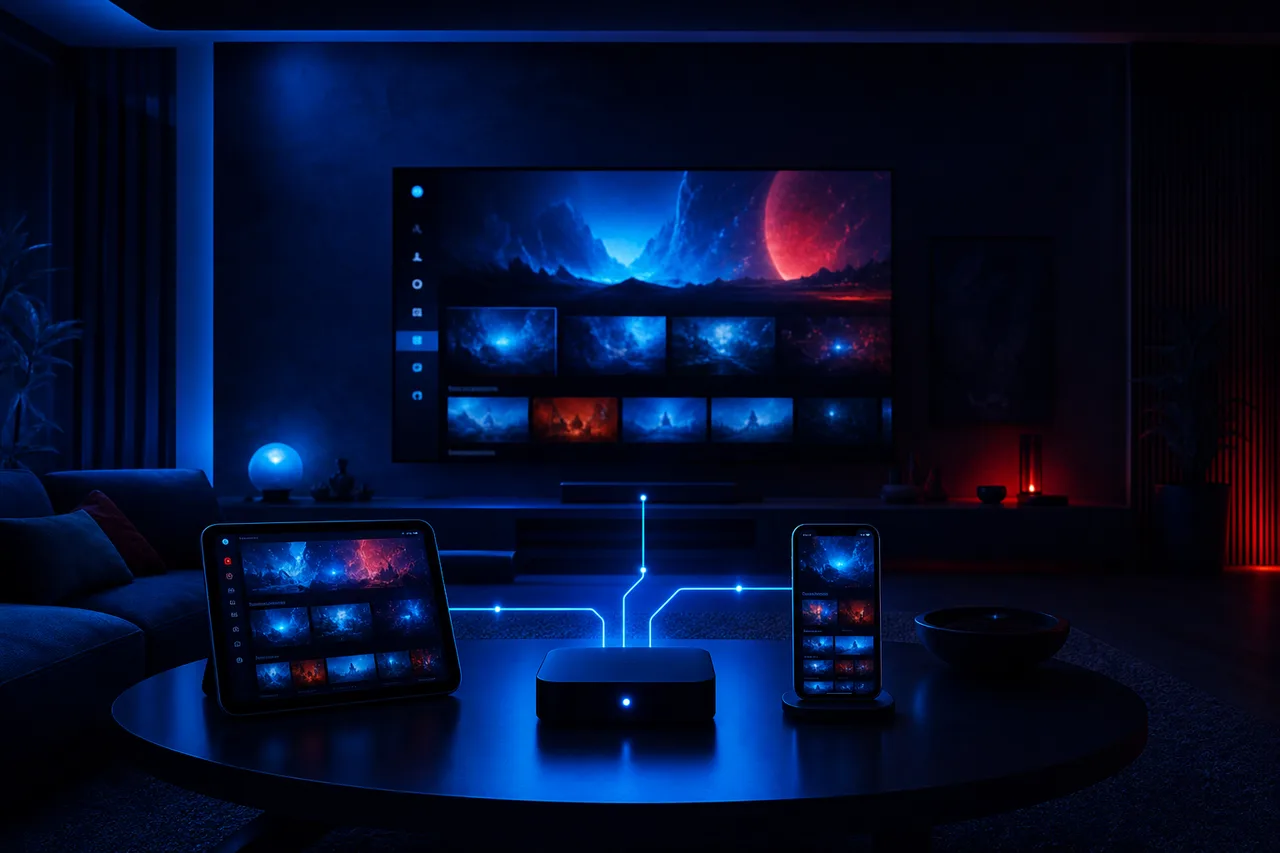
What is IPTV, and why does it keep coming up at the dinner table in so many Ontario homes? The short version: it is television that travels over the same internet line you already use for e-mail, school portals and video calls. No dish on the balcony, no antenna on the roof, no technician booked for a weekday morning. If you have Wi-Fi in your Toronto condo or a router blinking in your Brampton basement, you already have the pipe.
This article explains the rest in plain terms, from the meaning of the letters to the moment the first channel plays on your TV. It covers how the picture travels, how IPTV compares with antenna, cable, satellite and on-demand apps, what you actually receive when you order, what your home network has to carry, which devices work, and what IPTV cannot do. Each term is explained the first time it appears, and a short glossary sits near the end for quick reference.
What is IPTV, in plain terms
IPTV stands for internet protocol television. Strip away the acronym and the idea is simple. Instead of a signal arriving through a coaxial cable or bouncing off a satellite, the picture arrives as data over your internet connection, the same way a web page or a video call does.
On your side, a player app receives that data and turns it into live channels, series and movies on your screen. The app gives you a channel list, a programme guide and a library you can browse with your remote. It looks and feels much like the television you already know. The difference is under the hood, in the road the picture travels.
Internet
The picture travels as data over your existing home connection.
Protocol
The common set of rules every device online uses to send and receive data.
Television
Live channels with a guide, plus series and movies on demand.
Think of it as a change of road. Cable is a lane built only for TV. IPTV uses the general road network your household already drives on every day. That road is usually more than wide enough, but how well it flows depends on the traffic inside your home and on the condition of your own driveway: the router, the Wi-Fi and the device at the end.
That idea, television on the household’s shared road, is the key to everything else on this page. It explains why IPTV needs no special wiring, why it works on phones and tablets as easily as on TVs, and why your router suddenly matters to the evening’s viewing.
How the picture travels, step by step
When you pick a channel, a lot happens in the moment before it appears. You do not need to know the engineering, but a rough picture of the journey helps you understand where things can slow down and what to check when they do.
The picture is cut into a stream of small data packets on the provider’s side. They cross the internet, reach your router, travel through the air or along a network cable to your device, and the player puts them back together into moving pictures. It all happens continuously, many times a second, for as long as you watch.
The player keeps a small reserve of picture in memory, called a buffer, so that a brief hiccup on the road does not interrupt what you see. When the road is clear, the buffer stays full and you never notice it. When the road slows for longer than the buffer can cover, the picture pauses while it refills. That pause is what people call buffering, and it almost always points to the stretch of road inside the home.
Two things follow from this. First, the stretch you control, from the router to the screen, is often the weakest link, and it is also the easiest to improve. Second, a fast internet plan alone is not enough if the Wi-Fi between the router and the TV is crowded or blocked by walls. The IPTV buffering guide covers the fixes in order of impact.
Deep dive: why live channels and on-demand titles behave a little differently
An on-demand episode already exists in full on the provider’s servers, so the player can fetch a little ahead and build a comfortable reserve before and during playback. A live channel is being sent as it airs, so the reserve can only be as long as the short delay the player keeps behind the live moment. That is why a weak Wi-Fi spot sometimes shows its limits first on live channels while series still play smoothly. The fix is the same in both cases: give the device a steadier link to the router.
What is IPTV compared with antenna, cable and satellite
Ontario homes have watched television through several roads over the years: an antenna on the roof, a cable line in the wall, a dish on the balcony or the side of the house. IPTV is simply the newest road. Here is how they differ in principle, without naming any company.
| Delivery method | How the signal arrives | Equipment at home | Depends on your internet |
|---|---|---|---|
| Antenna | Broadcast through the air from local transmitters | An antenna and a TV tuner | No |
| Cable | A dedicated TV line into the home | A provider box and a wall plate | No |
| Satellite | A signal sent down from orbit to a dish | A dish and a receiver | No |
| IPTV | Data over your existing internet connection | Your own device with a player app | Yes, fully |
The last column is the one to remember. The older methods bring their own road, so your home internet has no effect on them. IPTV shares the road with everything else you do online, which is both its strength and its demand. Its strength: no extra wiring, any supported screen, any room within Wi-Fi reach. Its demand: a home network that can carry the picture at the hour you watch.
For a deeper look at the switch from cable in particular, including costs to count and a test week before cancelling anything, read IPTV vs cable in Ontario.
Many Ontario homes end up mixing roads. An antenna in the attic may still serve a cottage TV, while IPTV runs in the city home. A household can keep one method for a while and add another, then decide which one earns its place. Nothing about IPTV requires removing what you already have; it only needs your internet line and a device with a player.
IPTV and on-demand streaming apps: the difference
Many households already use streaming apps for films and series, so the natural question is whether IPTV is the same thing. They share the same road, the internet, but they are built for different jobs.
What IPTV centres on
- Live channels, watched as they air
- A programme guide showing what is on now and next
- A large on-demand library of series and movies alongside
- Your own access details, entered in a player of your choice
What an on-demand app centres on
- A library you browse and start whenever you like
- Little or no live schedule
- An app built and controlled by one company
- Its own account, separate from any player
In practice, IPTV feels closer to traditional television: you can turn it on, see what is airing, and flip between channels with the guide. The on-demand library then sits beside the live channels inside the same player, so a household can switch from the evening’s live programme to a series episode without changing apps.
The other key difference is the player. With an on-demand app, the app and the service are one product. With IPTV, they are separate: the service provides your access, and you choose the player that opens it. That separation is why the next sections talk about access details and players as two distinct things.
The three pieces that work together
Every IPTV setup has three parts. When something needs adjusting, knowing which piece does what tells you where to look first.
The service
The provider hosts channels and the library on its servers and gives you access through Xtream Codes or an M3U link.
Your connection
Your internet plan and home network carry the stream to the device. Router placement matters as much as the plan.
The player app
Installed on your TV, box, phone or computer, it logs in, loads the lists and plays what you pick.
The house is busy online and the connection runs short.
Then: look at the connection firstA character in the access details is off.
Then: compare each field with the e-mailThe TV or its spot in the house is the weak point.
Then: move closer to the router or use a cableIn a hypothetical Mississauga semi with the router upstairs and the TV in the basement, the connection is the first suspect. On a brand-new box with a fresh player, a typo in the login details is more likely. On a stick that has run for weeks without a restart, the device itself may simply need a fresh start. The IPTV help centre starts from the symptom and points you to the right piece.
A simple test separates the pieces quickly. Open the same access on a phone connected to the same Wi-Fi, standing next to the TV. If the phone plays smoothly, the service and the login are working, and the issue lies with the TV device or its link to the router. If the phone struggles as well, look at the internet line or the router. One test, two minutes, and you know which piece to work on.
What you receive when you order
An IPTV subscription is not a physical product. Nothing ships to your door. Instead, you receive access details by e-mail, within minutes of ordering. They come in one of two formats, and your player decides which one is easier to use.
| Format | What you get | When it suits you |
|---|---|---|
| Xtream Codes | A server URL, a username and a password | Most players; the guide and categories usually load more neatly |
| M3U link | A single web address that contains your playlist | Players that ask for a playlist link instead of a login |

Treat the details like a house key
They belong to your household. You can enter them on several of your own devices, the living room TV and a tablet for example, but only one device plays at a time, because each pack includes 1 simultaneous connection. Keep the e-mail somewhere safe; you will need it again for a new device.
- Type capital letters exactly as written
- Keep the colon and port in the server URL
- Never post the details in a group chat
The Xtream Codes setup guide explains each field and the common typing mistakes, and the M3U playlist setup guide covers the link format. Both work with the same subscription; the choice depends on your player.
Need more than one screen playing at once? That is possible on request. Write to support before ordering and they will explain the conditions and the price for extra simultaneous screens.
The player app: the part you actually touch
The player is what you see every evening, so pick one that feels comfortable. We support IPTV Smarters Pro, TiviMate, Smart IPTV, IBO Player, XCIPTV and GSE Smart IPTV. Each has its own look, menus and strengths. Which ones appear depends on the official store of your device.
The typical home screen of a player once your access is entered.
Always install your player from your device’s official app store. That keeps updates coming and avoids unpleasant surprises. Some players charge for a publisher licence after a while; check the current price on the app’s official website. We are independent from app publishers, so we do not sell, bundle or modify them.
The player does not include any channels on its own. It is an empty frame until you enter the details from your provider. That surprises many first-timers, who open a fresh player and go hunting through menus for a list that is not there yet. Enter your access, wait for the first sync to finish, and the lists appear. You can compare players in the guide to IPTV player apps.
Players also differ in how they organize what loads. Some show every category at once; others let you hide whole groups, reorder lists or create several favourites lists for different people. Spend ten minutes in the settings after the first sync. Hiding what nobody watches is the single change that makes a large catalogue feel small and friendly, especially for the less technical members of the household.
The programme guide and Eastern Time
Live channels come with a programme guide, often called the EPG, for electronic programme guide. It is the grid that shows what is on now, what comes next and what airs later in the evening. In a good setup, you open the guide, see the evening at a glance and jump straight to the right channel.
One setting that matters in Ontario
The guide needs the right time zone to line up with the programmes. Most Ontario homes are on Eastern Time; homes in the far northwest follow Central Time. Set the time zone on your device first, then check the guide in the player. If listings are off by whole hours, adjust the guide offset in the player settings. Check again when the clocks change in spring and fall.
The guide loads from data supplied with your access, and the player refreshes it from time to time. If the guide looks empty after a fresh install, give the first sync a few minutes, then use the refresh option in the settings. Our guide to the TV guide on Eastern Time explains the offset setting in each major player.
Once the guide is right, it becomes the heart of the evening. Families tend to use it the way they once used the printed listings: a quick look after dinner, a choice, and the remote set down. Favourites lists then make the guide shorter and easier to read.
Picture quality: HD, Full HD and 4K
Every pack offers HD, Full HD and 4K picture. Which one you actually see depends on the content, your TV and the speed reaching the device. The figures below are per screen playing at the same time.
Speed to plan at each screen
| Quality | Resolution | Speed to plan per screen | Worth it on |
|---|---|---|---|
| HD | 720p | 10 Mbps | Phones, tablets, small bedroom TVs |
| Full HD | 1080p | 15 Mbps | Most living room TVs |
| 4K | 2160p | 25 Mbps | 4K TVs with a strong connection, ideally wired |
4K brings real detail on a large screen, but only when everything in the chain supports it. The TV must be a 4K model, the device must output 4K, an external box or stick needs an HDMI port and cable that handle it, such as HDMI 2.0 or newer, and the connection must deliver 25 Mbps to that screen. If one link falls short, the picture drops to a lower quality or pauses.
For many homes, Full HD on the living room TV is the comfortable everyday choice, with 4K reserved for the evenings and programmes where it shines. On a phone or small tablet, HD looks sharp and asks much less of the network.
Understand the basics, then compare
Three packs, all with HD, Full HD and 4K, for 1, 3, 6 or 12 months.
What is IPTV asking of your home network
Because the picture travels over your internet line, the line and the Wi-Fi need enough room for it. If two screens play together, add the figures up: a 4K TV and a Full HD tablet together come to 40 Mbps, plus whatever else the household is doing online at that moment.
The figure on your internet bill is a ceiling, not a promise. Test the speed on the device you will use, in the room where you watch, during your usual evening hours in Eastern Time. That is when your street and your building are busiest online. A phone test next to the router at lunchtime tells you very little about the basement TV on a Friday night.
Distance is rarely the issue; dozens of neighbouring networks crowd the same airwaves.
Then: use 5 GHz or a network cable to the TVFloors, ducts and concrete weaken the signal between the router and the TV.
Then: move the router up and into the open, or add a mesh pointThe router often sits in a front corner, far from the family room.
Then: move it to a central, raised spotA wired Ethernet connection to the TV or box is the most reliable fix whenever a cable can reach. Where it cannot, the 5 GHz Wi-Fi band is usually faster and less crowded than 2.4 GHz, at the cost of a shorter range. Condo residents will find practical steps in the IPTV condo Wi-Fi guide.
Devices that can play IPTV
You probably own a compatible device already. IPTV runs on most screens that can install apps from an official store. Here is the overview.
| Device | Strength | Good to know |
|---|---|---|
| Samsung or LG smart TV | No extra box, one remote | Players depend on the TV’s own store |
| Android TV or Google TV box | Widest choice of players, Ethernet port | A strong pick for the main TV |
| Fire TV Stick | Compact, easy to move between TVs | Usually on Wi-Fi; keep it in reach of the router |
| Apple TV | Smooth menus for Apple households | Ethernet on most models |
| iPhone, iPad, Android phones and tablets | Watch in any room at home | HD looks sharp on small screens |
| Computer | Large screen at a desk | Handy in a home office or student room |
When the TV is too old
An older TV that cannot install apps still works with IPTV. Plug a box or stick into an HDMI port, install a player from that device’s official store, and the old TV becomes a full IPTV screen. Many households give the basement or cottage TV a second life this way.
- An open HDMI port on the TV
- Power for the box or stick
- Wi-Fi in reach, or a network cable
Each device has its own setup guide: IPTV on smart TVs, IPTV on an Android TV box, IPTV on Firestick and IPTV on Apple TV. The devices overview compares them side by side.
If you are choosing a device for the main TV, favour one that can take a network cable, since the living room screen is the one that most often plays in Full HD or 4K for long evenings. Phones and tablets are better treated as second screens for other rooms, used when the main TV is off. That way the best link goes where the most demanding picture plays.
The catalogue: live channels, series and movies
Behind the player sits the catalogue, the collection of live channels and on-demand titles your access opens. Our three packs differ in its size and, for the top pack, in its focus on 4K channels.
VIP Premium Pack
- 27,000+ channels
- 61,000+ series
- 155,000+ movies
- HD, Full HD and 4K
Ultimate 4K Pack
- 57,000+ 4K channels
- 47,000+ series
- 179,000+ movies
- 20 servers in Europe
Catalogues of this size change how you watch. Nobody scrolls through tens of thousands of channels. Instead, you use categories, search and, above all, favourites: a short list of what your household actually watches, built on the first evening and refined over the first week. Hide the categories nobody uses and the player becomes as quick to navigate as an old cable box.
The catalogue includes French-language and international content. If a specific language matters to your household, ask support before ordering; the guide for multilingual homes explains menus, audio tracks and subtitles.
Who IPTV suits, and who it does not
Knowing what IPTV is also means knowing whether it fits your household. The answer has less to do with how much television you watch and more to do with your connection, your rooms and your patience for one evening of setup.
IPTV tends to suit a home with a solid internet line, at least one supported screen and someone willing to install an app and type a login. It suits households that like choosing a duration and paying once rather than receiving a monthly bill, and homes where viewers take turns on the TV or are happy to ask support about extra screens. It suits families who want the same access on the living room TV and a tablet at home, used one at a time.
IPTV rewards a good home network and a household that agrees on who watches when.
It suits less well a home where the internet freezes on video calls at dinner time, because IPTV inherits every weakness of the line. It suits less well a household where nobody wants to touch a settings menu, ever. And it suits less well a home where four rooms play four different channels every night, unless the extra screens are arranged with support first and the connection can carry them all.
None of these is permanent. A weak line can be upgraded, a router can be moved, a reluctant household can be won over by a calm first evening. If you are unsure, a short duration lets you find out on your own TV, at your own busy hour, without a long commitment. Hypothetical examples help too: a couple in a Toronto condo with fibre and one TV is an easy fit; a rural home on a struggling line may want to wait until the connection improves.
Choosing a first pack and duration
Once the idea is clear, the practical choice is short: a pack and a duration. For a first-timer, both choices can be simple.
For the pack, start from how your household watches. A smaller home that mostly watches live channels in the living room is usually well served by the Premium Pack. A family that binges series tends to appreciate the deeper library of the VIP Premium Pack. A home with a large 4K TV and a strong, ideally wired, connection is the natural match for the Ultimate 4K Pack.
For the duration, the question is how sure you are. If IPTV is new to you, a shorter period such as 1 month or 3 months lets you check how it behaves on your devices and at your busiest hour. If you already know your network is solid and your player is set, a longer duration means one decision instead of several. Either way, nothing renews automatically, so the end date is simply a moment to choose again. The 1-month subscription guide and the 12-month subscription guide look at both ends in detail, and current prices are always on the plans page.
What IPTV cannot do
Understanding a technology includes knowing its limits. These are not flaws of one service; they come with the way IPTV works.
No internet, no picture
When the connection drops, the stream stops too, and returns when the line is back.
It cannot outrun the line
If the speed at the TV falls short, no setting or player makes up for it.
One connection, one stream
Each pack plays on one screen at a time; more screens are arranged through support.
The player brings no content
Without your access details, a player shows an empty screen.
A provider should never ask you to install apps from outside your device’s official app store, change security settings or use access details someone else passed around. If one does, step back. Also remember: the technology is legal; whether a service is legal depends on the broadcasting rights it holds, so check before subscribing. Our article is IPTV legal in Canada lists the questions to ask.
None of these limits is surprising once you know that IPTV is television on the household’s internet road. They simply mean that the network deserves a little care, that the household agrees on who watches when, and that the provider you choose deserves a few careful questions.
Your first evening, from order to first channel
Here is the typical first evening. Allow some unhurried time, ideally after dinner when nobody is waiting for the TV.
- Test your speed. Run a test on the TV or box itself, in its usual spot, in the evening.
- Pick a pack and a duration. Choose 1, 3, 6 or 12 months on the plans page and pay once in Canadian dollars by card or PayPal.
- Open the e-mail. Your access arrives within minutes. Check the spam folder if it does not show up.
- Install the player. Get it from your device’s official app store and enter your details exactly as written.
- Let the first sync finish. The channel lists and guide take a moment to load the first time.
- Set Eastern Time. Make sure the guide matches your clock so evening listings line up.
- Build favourites. Add the channels the household watches most and hide categories nobody uses.
That is the whole process. There is no installation visit, no equipment to return later and no renewal to cancel. If anything stalls, support answers 7 days a week by e-mail and WhatsApp, in English and French. The guide on how to set up IPTV covers each device in more detail.
Living with IPTV: the first weeks
After the first evening, IPTV quickly becomes ordinary, which is exactly the goal. A few small habits keep it that way.
- First week
Watch at the busy hour
Note any pause and the time it happened; it tells you whether the network needs attention.
- Second week
Tidy the lists
Trim favourites, hide unused categories and set up other devices in the home.
- Every week
Restart the stick or box
A weekly restart clears memory and prevents many small problems.
- Clock change
Check the guide
In spring and fall, make sure listings still match Eastern Time.
- Before the end date
Decide what comes next
Nothing renews automatically, so choose whether to order again.
Exiting the player properly when you finish, rather than just switching off the TV, is the other habit worth teaching the household. It frees the connection so the next device starts without a message saying it is in use.
When something does go wrong, a good message to support saves time. Name the device, the player, what you see on screen and when it started, and attach a photo of any error. Support answers 7 days a week by e-mail and WhatsApp at +33 6 44 65 43 13, in English or French. Before writing, the IPTV not working checklist often solves the problem on its own.
Before you order: a quick check
Run through this list once. It only takes a moment and saves a lot of back-and-forth later.
- Your device is on the supported list: Samsung or LG smart TV, Android TV or Google TV box, Fire TV Stick, Apple TV, iPhone, iPad, Android phone or tablet, or a computer.
- Your speed test at the TV shows enough room for the picture quality you want.
- You know which player you will use, and it is available in your device’s official app store.
- You know how many screens need to play at the same moment.
- If you need a specific language, you have asked support before ordering.
- You have a safe place to keep the welcome e-mail.
If every box is ticked, the IPTV plans page lists every pack and duration with current prices. The IPTV guide for Ontario gathers the other articles in this series.
What is IPTV vocabulary, explained
The words that come up in player menus, the welcome e-mail and this site, in plain language.
- IPTV
- Internet protocol television: programmes delivered over your internet connection.
- Player app
- The app on your device that opens your access and plays channels and titles.
- Xtream Codes
- A login in three fields: server URL, username and password.
- M3U link
- A single playlist link, an alternative to Xtream Codes.
- EPG
- Electronic programme guide: the grid of what is on now and later.
- Buffer
- A small reserve of picture the player keeps in memory to smooth out hiccups.
- Simultaneous connection
- One stream playing at a given moment; each pack includes one.
- Ethernet
- A network cable from the router to the device, steadier than Wi-Fi.
Ready for your first channel
Pick a pack, pay once in Canadian dollars and receive your access by e-mail within minutes.
FAQ
Is IPTV the same as a regular streaming app?
Not quite. Both use your internet connection, but IPTV centres on live channels with a programme guide, plus series and movies, all opened in a player with your own access details.
Do I need a special box?
No. A Samsung or LG smart TV, an Android TV or Google TV box, a Fire TV Stick, an Apple TV, a phone, a tablet or a computer will do.
Does the player app come with channels?
No. The player is an empty frame until you enter the Xtream Codes details or M3U link from your provider.
What happens if my internet goes down?
The stream stops too, because IPTV depends on your connection. Once the line is back, reopen the player and carry on.
What is buffering?
A pause while the player refills its small reserve of picture. It usually means the connection between the router and the device is running short.
Do I need 4K?
Only if you have a 4K TV and 25 Mbps reaching it. Full HD at 15 Mbps suits most living rooms, and HD at 10 Mbps looks sharp on phones and tablets.
Can I use it on my phone?
Yes, at home, with a player from your phone’s official store. Your credentials work on your own devices, one at a time, and stay within your household.
How quickly do I get access?
Within minutes, by e-mail, as Xtream Codes details or an M3U link. Check your spam folder if nothing arrives.
How do I pay?
Once, in Canadian dollars, by card or PayPal. There is no contract and no automatic renewal. See current prices on the plans page.