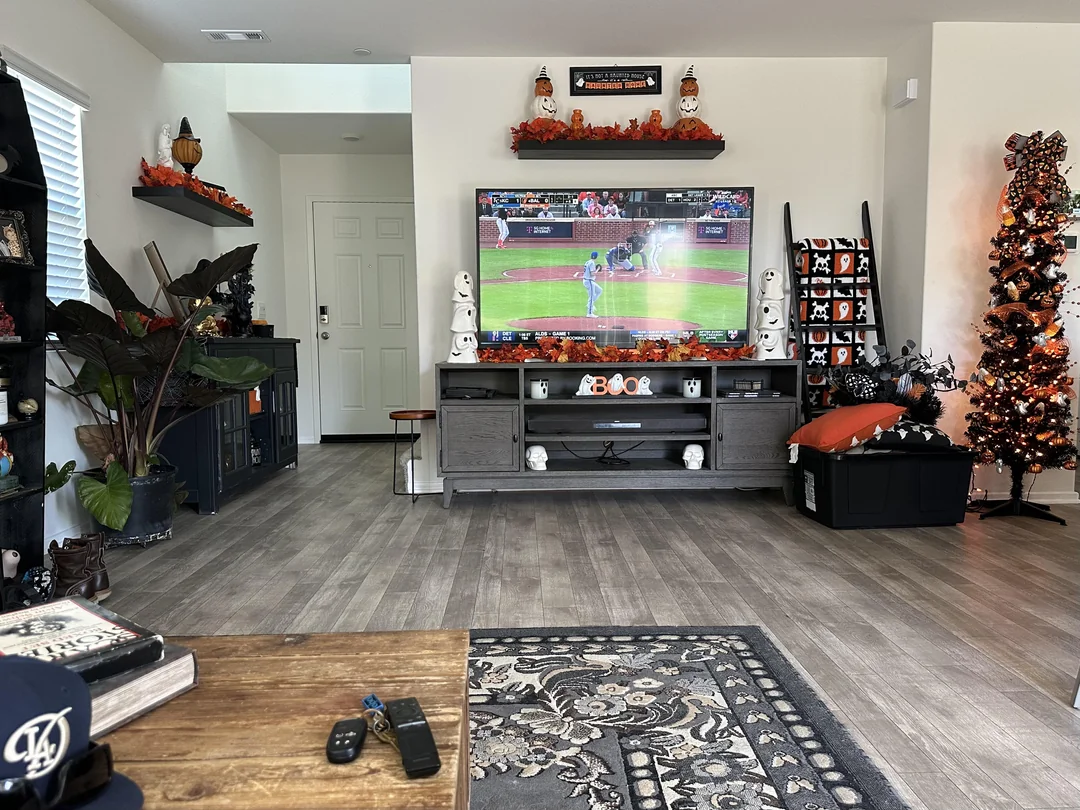
The TV on your wall may already be the only device you need. This page explains IPTV smart TV viewing on Samsung and LG sets in detail: how their built-in app stores work, which players to look for, what MAC address activation really means, which TV settings quietly hurt the picture, and how to keep the stream steady when the router is two rooms away. It also tells you honestly when a small box or stick will serve you better than the TV’s own apps.
Watching through the TV itself has an obvious appeal: one remote, one power button, nothing hanging off the back and no extra cable along the wall. For a Toronto condo with a slim wall-mounted screen, or an Ottawa home where grandparents want things simple, that matters a great deal. The trade-off is that a TV is upgraded less often than a box, and its processor and Wi-Fi age with it. Knowing those limits up front lets you get the best from the set you already own.
How IPTV smart TV viewing works
A smart TV is a computer with a large screen attached. It runs its own operating system, Tizen on Samsung and webOS on LG, and each has its own official app store. That store is where you find a player. The TV never contains IPTV content by itself; the player is an empty frame, and your IPTV Ontario access is what fills it with channels, series and movies.
There are two ways a player on a TV can receive your access. Some players ask you to type your Xtream Codes details directly with the remote. Others, like IBO Player, show a MAC address and a device key on screen; you then enter those on the publisher’s official website, on your phone or computer, and attach your playlist there. The player on the TV picks it up the next time it opens. Both paths end in the same place: a full channel list and programme guide on your TV.
The second method sounds technical, but it has a real advantage on a TV. Typing a long playlist link with a TV remote is slow and error-prone. Pasting it on a phone or a laptop takes seconds. That is why so many TV players use it, and why the steps below focus on it.
Samsung or LG: what to know before you start
The two brands behave a little differently, and the table sums up the points that matter for IPTV. Model years, menu names and app availability vary, so treat it as a guide rather than a rulebook.
| Point | Samsung (Tizen) | LG (webOS) |
|---|---|---|
| Where players live | The Apps section of the home screen | The app store tile on the home screen |
| Players to look for | IBO Player, Smart IPTV | IBO Player, Smart IPTV |
| Typical activation | MAC address and device key, or a direct login | MAC address and device key, or a direct login |
| Where to find the MAC address | Shown by the player, also in network settings | Shown by the player, also in network settings |
| Menu speed | Good on recent sets, slower on older ones | Good on recent sets, slower on older ones |
| Wired port | On most models | On most models |
| Remote style | Compact, with a few shortcut keys | Pointer-style remote on many models |
Player availability changes over time and differs between TV generations and the region set on the TV. If a player does not appear on your model, try another one from our list, or consider a separate device such as an Android TV box or a Fire TV Stick. Both plug into the same TV and give you a wider choice of players.
LG’s pointer-style remote deserves a mention. You move a cursor around the screen like a mouse, which makes on-screen typing quicker than on most remotes. It does not change the setup steps, but it makes the typing parts less tedious.
Is your TV ready: a quick model check
Not every smart TV is equally suited to IPTV. The age of the set matters more than the brand. Before you install anything, find where your TV sits in the scenarios below.
The official app store should list at least one supported player, and menus will feel quick.
Then: follow the setup steps belowThe player may install but feel slow with a large programme guide, or the store may not list it at all.
Then: try it, and keep a box or stick in mind as a backupNewer player versions may refuse to install, and older ones may stop working.
Then: plug in an Android TV box, Fire TV Stick or Apple TV insteadOther TV systems may not list our supported players.
Then: a separate device is the reliable routeTo find out whether your TV still updates, open the settings, look for the support or general section and find the software update option. If it reports a recent update or offers one, you are in good shape. If it has not changed in a very long time, the TV is probably at the end of its update cycle. That does not make it a bad TV; it just means a small device plugged into its HDMI port will do the IPTV work better.
A useful middle path for an older set is to try the TV app first for a few evenings. If it loads the guide, plays your favourite channels and keeps up at the busiest hour, there is no reason to buy anything. If it lags every time you scroll, or drops the connection when the house gets busy, you have your answer and can plug a small device into the same TV without changing your access. Your pack works on both; only the player changes.
Before you start: what to gather
A little preparation keeps the setup short. You will move between the TV and your phone or computer, so have both ready.
The preparation checklist
- The TV software is up to date, from the settings menu.
- The TV is connected by Ethernet cable, or to the 5 GHz Wi-Fi band.
- Your phone or computer is nearby, with a web browser.
- The welcome e-mail is open, with the M3U link or the Xtream Codes details.
- You ran a speed test on a phone in front of the TV, in the evening.
- For 4K: the TV is a 4K set and the line delivers about 25 Mbps at the screen.
Keep your phone’s camera handy too. When the player shows its MAC address and device key, a photo of the screen is the safest way to copy them. A single wrong character on the publisher’s website and the TV will not find your playlist, so reading from a clear photo beats squinting across the room.
If your welcome e-mail went to a shared family inbox, forward it to the device you will use for the website step. Copying and pasting the playlist link is far safer than retyping it.
IPTV smart TV setup with a MAC address and device key
Here is the routine for a player that uses a MAC address and device key, the most common case on Samsung and LG. If your player offers a direct Xtream Codes login instead, the next section covers that path.
- Update the TV. Open the settings, find software update and install anything pending. Old firmware is a frequent source of player glitches.
- Install the player. Open the TV’s official app store, search for a supported player such as IBO Player or Smart IPTV, and install it.
- Open it and note the codes. The player shows a MAC address and, for some players, a device key. Take a clear photo with your phone.
- Go to the publisher’s official website. On your phone or computer, open the player’s official website and find the page for adding a playlist.
- Enter the codes and your access. Type the MAC address and device key, then paste your M3U link, or the Xtream Codes details if the site offers that option.
- Restart the player. Close the app completely on the TV and open it again. Your categories appear after the first sync.
- Set Eastern Time. In the player settings, check the guide time zone or offset so listings match your clock.
The kind of screen a MAC-based player shows on first launch. Labels differ between players.
A MAC address is made of pairs of letters and digits separated by colons. The letters A to F and the digits 0 to 9 are easy to confuse when read from a distance, especially B and 8 or D and 0. That is exactly why the photo matters. Our IBO Player guide goes through the publisher’s website step by step, and the M3U playlist guide explains how to copy the link without breaking it.
Players with a direct login on the TV
Some players on Samsung and LG, depending on model and store, let you skip the website step and type your access straight into the TV. It is the same idea as on a box: choose Xtream Codes and fill three fields.
Direct login, in four moves
Open the player and choose the Xtream Codes or login option. Type the username, the password and the server URL from your welcome e-mail, exactly as written, including the port number if one appears after a colon. Confirm, and let the first sync build the channel list. Then set the guide to Eastern Time in the player settings.
Typing with a TV remote is slow, so take your time and check each field before confirming. LG’s pointer remote speeds this up; on a Samsung, the on-screen keyboard works but rewards patience. If the TV supports a USB or Bluetooth keyboard, plugging one in for the few minutes of setup is a real help. Our Xtream Codes setup guide explains what each field means and the small errors behind an invalid login message.
Which method should you prefer when a player offers both? On a TV, the MAC and website route is usually faster and less error-prone, because you paste instead of type. The direct login is handy when you are setting up a TV away from a computer, or when the publisher’s website is not convenient at that moment.
What MAC activation means, and what it does not
The MAC address is a hardware identifier built into your TV’s network connection. MAC-based players use it, sometimes with an extra device key, to recognize your specific TV. When you attach a playlist to that address on the publisher’s website, the player on that TV, and only that TV, loads it.
- MAC address
- A fixed identifier of the TV’s network hardware, shown by the player and in the TV’s network settings.
- Device key
- An extra code some players add, so that knowing the MAC address alone is not enough to change your playlist.
- Playlist upload
- The step on the publisher’s website where you attach your M3U link or login to your TV.
- Player licence
- A separate purchase some publishers ask for after setup. It is not part of your IPTV Ontario pack.
Deep dive: why the MAC address can change
On some TVs, the wired and wireless connections each have their own MAC address. If you set up the player while the TV was on Wi-Fi, then plug in an Ethernet cable later, the player may show a different address and lose your playlist. The fix is simple: open the player, note the address it now shows, and attach your playlist to that address on the publisher’s website. To avoid the issue, decide on cable or Wi-Fi before you activate, and stick with it.
Two practical consequences follow. First, the playlist is tied to the TV, not to you, so if you replace the TV, you repeat the website step with the new set’s address. Second, we are independent from app publishers. If the player asks for a licence after setup, check the current price on the app’s official website; that licence is separate from your pack.
Your first evening on the TV app
The first time the player opens with your playlist, it has a lot to do: read thousands of entries, build categories and fetch the programme guide. Knowing what is normal on that first evening, and what is not, keeps you from reaching for the reset button too early.
A slow first load
The first sync takes a few minutes on a large catalogue. Later launches are much quicker.
A guide that fills in gradually
Programme data may appear channel by channel. Give it a little while before judging.
Many categories
The full list is long. Hiding unused groups is the first thing most households do.
Favourites to build
Mark a few channels as favourites so the next evening starts in one press.
Use that first evening to test rather than to settle in for a film. Open a few live channels in different categories, start a series episode and a movie, and change channels a few times. Then check the guide against the clock. If everything plays and the times line up, the hard part is over. If one category stutters while others play smoothly, note which one and look at your signal at the busiest hour of the evening before drawing conclusions.
A sensible order for that first session: live channels first, because they show any network weakness quickly; then on-demand content, which buffers a little before starting; then the guide and the time offset. Write down anything odd with the time you saw it. If you end up writing to support, those notes make the answer much faster.
Getting a steady picture on your TV
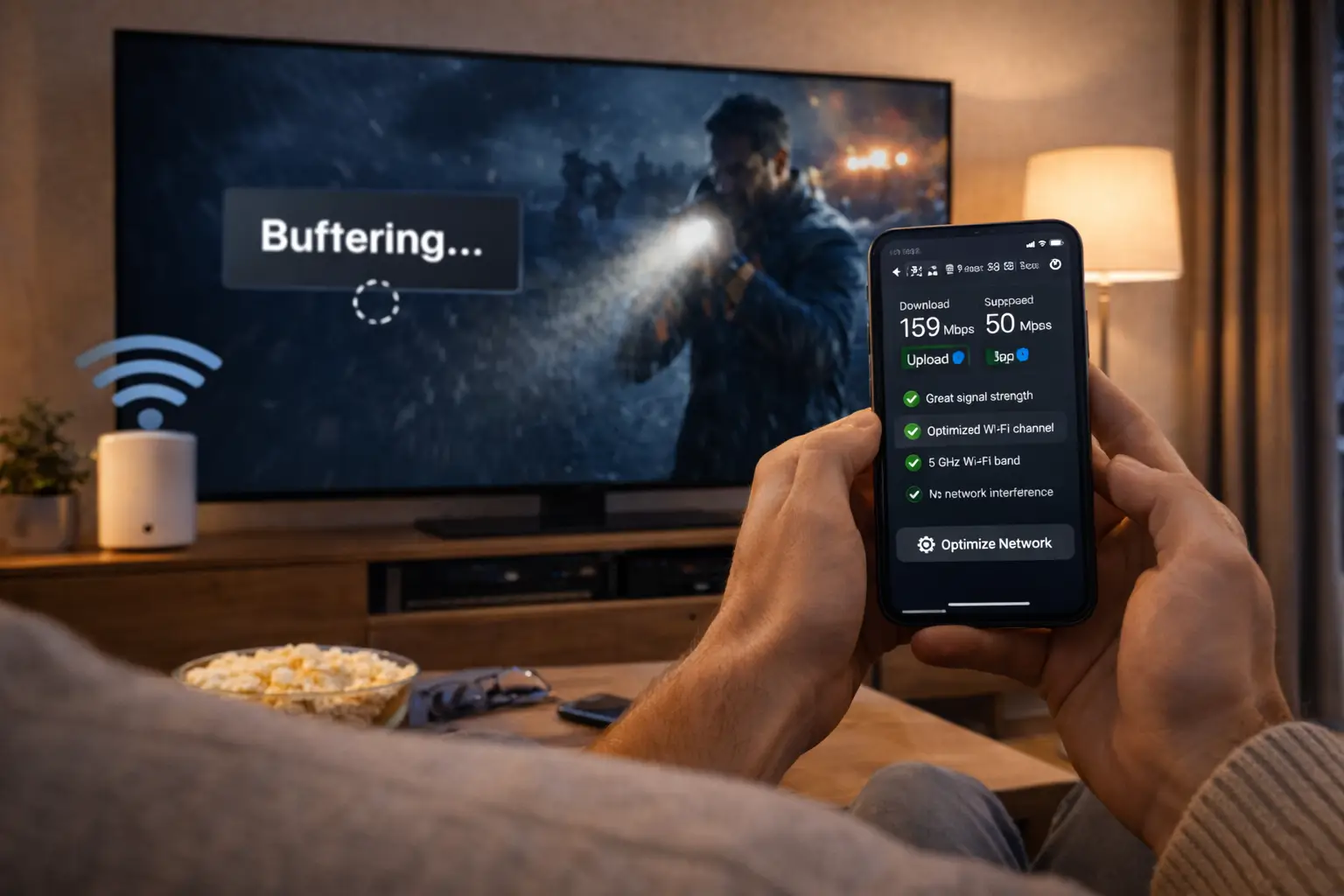
Smart TVs are often mounted far from the router, and their built-in Wi-Fi is rarely as strong as a dedicated box’s. Measure before you blame anything else. Use a phone held right in front of the screen, in the evening, when your street is busiest.
Speed to plan per screen, measured at the TV
In a hypothetical Mississauga semi with the router in the front hall, the family room TV at the back may get far less than the full speed of the plan. A cable from the router, a mesh point near the TV, or powerline or coax adapters usually close the gap. In a Brampton basement, a wired connection is almost always worth the effort; concrete and ductwork are hard on Wi-Fi.
If the picture freezes every few minutes, check the TV’s network settings before changing anything else. Many TVs quietly reconnect to the slower 2.4 GHz band after an update or a power cut. Reconnect to the 5 GHz band, or better still, plug in an Ethernet cable. If you switch to cable on a MAC-based player, check that the MAC address shown has not changed.
One more TV-specific quirk: on some sets, the wired port is an older design. If a speed test on the TV shows a lower figure on cable than on a strong 5 GHz signal, keep whichever measures better and gives a steadier picture over an evening. Our IPTV buffering guide walks through every network fix in order of impact.
TV updated, player activated
See which pack suits your screen, from Full HD to 4K, and choose 1, 3, 6 or 12 months.
TV settings that quietly affect IPTV
Smart TVs ship with settings designed for showroom floors and energy labels. A few of them work against IPTV. You only need to visit them once.
| Setting | What it does | What to choose for IPTV |
|---|---|---|
| Energy or eco saving | Dims the picture and may limit network activity in standby | A moderate level, or off if the player loses its connection |
| Quick start or instant on | Keeps the TV partly awake for a faster start | On, so the player and network wake quickly |
| Picture mode | Sets the overall look of the image | A natural, standard or cinema-style mode rather than vivid |
| Motion smoothing | Adds frames to make motion look fluid | Low or off, especially for films |
| Auto app updates | Updates apps in the background | On, so the player stays current |
| Network connection type | Wi-Fi or wired | Wired where possible, otherwise 5 GHz |
Motion smoothing is the one people notice most. On sport it can help, but on films and series it creates the overly smooth look that many viewers dislike. Some TVs let you set it per input or per app, so you can keep it for live events and turn it down for everything else.
The energy setting matters in a less obvious way. On some sets, a strong energy-saving mode reduces network activity when the screen is off, and the player may need a moment to reconnect when you turn the TV back on. If the player regularly shows a connection error for the first few seconds after power-on, try a lighter energy setting.
Making the TV app easy for grandparents and kids
A smart TV is often the device chosen for the least technical member of the household, precisely because it needs only one remote. A few minutes of organization turns it into a setup anyone can use.
Set it up once, for everyone
Put the player first in the TV’s app row, so it opens with two presses. Inside the player, build a favourites list per main viewer and hide categories nobody watches. Turn on the parental lock for adult categories if children use the TV.
- Player pinned first on the home screen
- Favourites group for each main viewer
- Unused categories hidden
- Parental PIN known only to adults
Languages add a layer in bilingual homes. The TV’s own menu language, set in its general settings, is separate from the player’s menu language, which is set inside the player. Audio tracks and subtitles, when a programme offers them, are chosen during playback. If grandmother reads French and the kids want English menus, the player can follow one language while the TV follows another.
For a grandparent, the best IPTV setup is the one that opens on their favourite channel.
The catalogue includes French-language and international content. If a specific language matters to your family, ask support before ordering. Our IPTV for multilingual homes guide covers audio and subtitle settings in more depth, and the IPTV Ottawa guide focuses on bilingual households.
IPTV smart TV in condos, semis and basements
The home around the TV decides how much help its Wi-Fi needs. Here is what to expect in the three most common Ontario layouts.
Condo tower
Distance is short but the air is crowded. Use 5 GHz, move the router into the open, or run a flat cable along the baseboard.
Semi or townhouse
Floors and old walls block the signal. Look for a coax outlet near the TV and try coax adapters.
Basement rec room
Concrete and ductwork absorb Wi-Fi. A cable from the utility room is usually the cleanest fix.
Several TVs
A mesh system with a node near each TV keeps every room covered.
Condo living has its own guide: the IPTV condo Wi-Fi guide explains why crowding, rather than distance, causes buffering in towers. For larger family homes with TVs on several floors, the IPTV Mississauga guide shows how to bring good Wi-Fi to every level.
A wall-mounted TV in a condo is the classic case where the TV’s own app shines: no stick behind the screen, no box on a shelf, nothing to hide. If the router is in the same open-plan room, the 5 GHz band often delivers plenty. If it is in a closet by the door, moving it into the open is the first and cheapest change to try.
One connection across several TVs
Each pack includes 1 simultaneous connection. You can activate the player on the living room TV, the bedroom TV and a tablet, but only one of them can play at a time. Here is a routine that avoids the common error message.
- Before switching off
Exit the player
Press back until you leave the player, then turn the TV off. A player left open may hold the connection.
- Moving rooms
Give it a moment
Let the session end before starting on another TV.
- On the other TV
Open and play
The player on the second TV starts normally.
- If you see an error
Check the first TV
Turn it back on, close the player properly and try again.
Remember that MAC-based players tie the playlist to each TV separately. If you want the same access on two TVs, you repeat the website step for each set’s MAC address. That does not add connections: the one-at-a-time rule still applies.
If your household needs two or more TVs playing at once, contact support before ordering through the contact page and ask about the conditions and price for extra screens. The IPTV for families guide helps with screen planning.
Sound from the TV: speakers, soundbars and lip sync
Many smart TVs in Ontario living rooms send their sound to a soundbar, usually through the HDMI port marked ARC or eARC. With IPTV running on the TV itself, the sound path is short and simple: the player plays, the TV decodes, and the soundbar receives the audio over that HDMI link.
If a channel plays with picture but no sound through the soundbar, open the TV’s sound settings and set the digital audio output format to automatic or to a standard stereo format. Some channels use audio formats that a particular soundbar does not accept, and the TV can convert them for you.
Lip sync is the other common question. If voices arrive slightly before or after the lips move, look for an audio delay or lip-sync setting, first on the soundbar, then on the TV. Change one setting at a time and test on a channel where someone speaks directly to the camera, such as a news programme. Some players also offer their own audio offset; use it only if the TV and soundbar settings do not solve the problem, so you are not correcting the same delay in two places.
If you watch late in a condo with thin walls, the TV’s night or dialogue mode, when available, keeps voices clear while softening loud effects. It is a small touch that neighbours on the other side of the wall will appreciate.
Moving to a new TV or a new home
Smart TV setups are tied to the set more closely than box setups. When something changes, a new TV, a new router or a move across town, a few steps bring everything back.
| What changed | What happens | What to do |
|---|---|---|
| New TV | New MAC address, empty player | Install the player, attach your playlist to the new address |
| New router | TV loses its network | Reconnect the TV to the new network, preferably 5 GHz or wired |
| Moved to another home | New network, maybe a new layout | Reconnect, then test speed in front of the TV in the evening |
| Switched from Wi-Fi to cable | The MAC address may change | Check the address in the player and update the website if needed |
| Old TV passed to a relative | Your playlist is still attached to it | Remove your playlist from that TV on the publisher’s site |
That last row matters. Your credentials are for your own household only. If you give an old TV to a relative who lives elsewhere, detach your playlist from it on the publisher’s website, or reset the player, before it leaves the house. The new owner can then set up their own access.
When you move, the welcome e-mail is your best friend. Keep it in a folder you can find, and the whole setup on a new TV takes only a few minutes. The general IPTV setup overview covers the steps for any device if you change platforms at the same time.
When a box or stick beats the TV’s own app
Sometimes the honest answer is that the TV is not the best device for IPTV, even if it can run a player. Here is how to tell.
Stay with the TV app when
- The TV is recent and still receives updates
- A supported player is listed in its app store
- Menus feel quick with your guide loaded
- The signal at the TV is strong or wired
- Simplicity matters more than player choice
Add a device when
- The TV no longer updates or lists no supported player
- Menus lag every time you open the guide
- You want a cable-style grid from a player the TV lacks
- The TV’s Wi-Fi is weak and it has no usable wired port
- You change TVs often and want the setup to follow you
Adding a device does not mean losing the one-remote simplicity entirely. Most TVs and boxes support HDMI device control, which lets the box remote turn on the TV and adjust its volume. Compare the options in our guides to the Android TV box, the Fire TV Stick and IPTV on Apple TV, or see them side by side in the devices section.
Quick checks before you contact support
Most smart TV issues have a simple cause. Run through this list first; it solves the majority of cases.
- The TV software is up to date.
- The player is the latest version from the TV’s official app store.
- The MAC address on the publisher’s site matches the one on screen, character for character.
- The M3U link or Xtream Codes details were pasted in full, with nothing missing at the end.
- No other device is using your connection at that moment.
- The TV is on the 5 GHz band or wired, and the MAC address did not change after switching.
- The guide is set to Eastern Time.
| Symptom | Likely cause | First fix |
|---|---|---|
| Empty player after activation | MAC address mistyped on the website | Compare with your photo and re-enter |
| Playlist vanished after adding a cable | The wired MAC address differs | Attach the playlist to the new address |
| Freezes every few minutes | TV dropped to 2.4 GHz | Reconnect to 5 GHz or plug in a cable |
| Guide an hour off | Time zone or offset | Set Eastern Time in the player |
| Licence message | Player publisher requires purchase | Check the app’s official website |
| Connection in use | Another device is playing | Exit the player on the other device |
If everything checks out and the problem remains, write to support by e-mail or WhatsApp. The team answers 7 days a week in English and French. Mention your TV brand, the player name and what you see on screen; a photo of any message helps. The IPTV not working checklist covers the remaining cases.
Choosing a pack for your IPTV smart TV
All three packs play on Samsung and LG TVs through a supported player. Your TV’s resolution and the speed at the screen are what decide how much of the 4K side you will use.
For a Full HD bedroom set, the Premium Pack covers most needs, with its 100,000+ movies and 24,000+ series alongside the live channels. If the TV is the family’s main screen and series are the evening ritual, the VIP Premium Pack brings 27,000+ channels and a library of 155,000+ movies. On a 4K TV with a wired or strong connection, the Ultimate 4K Pack adds 47,000+ series and 179,000+ movies to its 4K line-up, delivered from 20 servers in Europe.
Every pack plays in HD, Full HD and 4K, comes in 1, 3, 6 or 12 months and is paid once in Canadian dollars by card or PayPal. There is no automatic renewal and no contract. See current prices on the plans page, and read how payment works before you order if you like to know every step.
Other devices and related guides
Your smart TV may be only one screen in the house. These guides help with the rest, and with the steps after setup.
Turn your TV into a full channel guide
Pick a pack, pay once in Canadian dollars and receive your access by e-mail within minutes.
FAQ
Can every Samsung or LG TV run IPTV?
Most recent models can run at least one supported player from the official app store. Older sets may not list it or may feel slow; a separate box or stick is then the simple fix.
What is the MAC address used for?
Some players identify your TV by its MAC address and a device key. You enter both on the publisher’s official website to attach your playlist to that TV.
Why did my playlist disappear after I plugged in a cable?
Some TVs have a different MAC address for wired and wireless connections. Note the address the player now shows and attach your playlist to it on the publisher’s website.
Do I pay the publisher or IPTV Ontario for the player?
Your pack covers the IPTV access only. We are independent from app publishers, so if a player sells a licence, check the current price on the app’s official website.
Can I use the same access on the TV and my phone?
Yes, one at a time. Each pack includes 1 simultaneous connection, and the same credentials work on several devices.
Is 4K possible through the TV app?
Yes, if the TV supports 4K, the player handles it and your connection delivers about 25 Mbps at the screen.
Why does my TV keep freezing after an update?
Many TVs reconnect to the slower 2.4 GHz band after an update. Reconnect to 5 GHz in the network settings, or use a cable.
Should I turn off motion smoothing?
For films and series, a low setting or off usually looks more natural. Some viewers keep it for live sport; try both and choose.
Why are some categories in a language I do not use?
The catalogue includes French-language and international content. Hide the groups you do not need in the player. If one specific language matters, ask support before ordering.
Can support help me with the activation step?
Yes. Support answers 7 days a week by e-mail and WhatsApp, in English and French. Send your TV brand, the player name and a photo of the screen.