Welcome to the IPTV guide Ontario households can work through in one evening, with the router blinking in the corner and the TV remote within reach. It is written for real homes: a one-bedroom condo in Toronto where the Wi-Fi fights with dozens of neighbours, a busy family house in Brampton where three people want the TV at the same time, a semi in Mississauga with an old cable box gathering dust, and a bilingual household in Ottawa where the remote changes hands between English and French speakers.
We keep it practical. Every term is explained the first time it appears, every claim sticks to what we can stand behind, and no price is printed anywhere on these pages because prices change and we would rather send you to the one page that is always current. Start with the four articles if you have a specific question, or read this page from top to bottom for the full picture before you order.
IPTV guide Ontario: who this section is for
This section is for anyone who has heard the word IPTV and wants to understand it before paying for anything. Maybe a neighbour mentioned it while shovelling the driveway. Maybe your TV bill arrived and you started wondering what else exists. Or maybe you already own a smart TV and want to know what it can do beyond the apps it came with.
The curious newcomer
You want the basics in plain words before deciding anything.
The family’s tech person
You will set it up and explain it to everyone at dinner.
The cable switcher
You want to know what changes in daily life if you move away from cable.
The multilingual home
Several languages share one TV, and everyone needs to feel at home.
The careful buyer
You want to check legality and terms before you spend anything.
The condo dweller
You worry whether your building’s Wi-Fi can keep up.
You do not need to be technical. If you can install an app from your device’s official app store and type a username and password, you have every skill required. The rest is a handful of ideas: how the picture travels over your internet line, what your connection has to carry, how a provider delivers access, and how the player app turns that access into a channel guide.
We also wrote it for the person who ends up as tech support for the whole house. You know who you are. The aim is to give you enough background to set things up once, explain them in two sentences, and skip a weekend of guesswork.
The four articles in this guide
Each article stands on its own and answers one big question. Read them in any order. The table shows what each covers, who it helps most and roughly how deep it goes.
| Article | The question it answers | Most useful for |
|---|---|---|
| What is IPTV? | How does television over the internet work, and what do I receive? | Anyone new to the idea |
| Is IPTV legal in Canada? | What should I verify about a service before subscribing? | Careful buyers |
| IPTV vs cable in Ontario | What changes in equipment, payment and network needs? | Households weighing a switch |
| IPTV for multilingual homes | How do I set menus, audio and subtitles for every viewer? | Bilingual and multilingual homes |
Short on time? Start with the basics. Most other questions get easier once you know what a player app is and how your access details work. If you already understand the technology and only want reassurance about the legal side, go straight to that article. If you are standing in front of a cable box wondering whether to return it, the comparison is your page.
After the four articles, the rest of this page walks through the practical side: your network, your devices, the ordering steps, the packs, the one-connection rule, and the first week after you order. Each part links to the detailed guide elsewhere on the site when you want to go further.
A reading path for your kind of home
Different homes run into different questions first. Find the one that looks most like yours and follow the suggested path. The households below are illustrations, not real customers; they simply show how the same service meets different floor plans and families.
Your router is by the door, the walls are full of other networks, and your first worry is whether the connection keeps up.
Then: read What is IPTV, then the condo Wi-Fi guideSeveral people, several screens and strong opinions about Sunday night. The key fact is the one-connection rule.
Then: read the families guide, then ask support about extra screensYou want to know what changes day to day if you move away from cable.
Then: read IPTV vs cable, then the devices sectionOne person wants French menus, another relies on subtitles, and a grandparent hopes for another language.
Then: read the multilingual article, then ask support about specific languagesFor the condo, moving the router into the open or running a flat cable to the TV often makes a bigger difference than any other change; the IPTV condo Wi-Fi guide explains why crowding, not distance, is the usual culprit in a tower. For the family home, the IPTV for families guide covers screens, profiles and parental controls. Our city pages add local detail: the IPTV across Ontario hub links to Toronto, Brampton, Mississauga and Ottawa.
Whatever your path, the order is the same: understand the idea, check your home, choose a device and a player, then pick a pack. That is also the order of the sections below.
IPTV in one picture: from the internet line to your TV
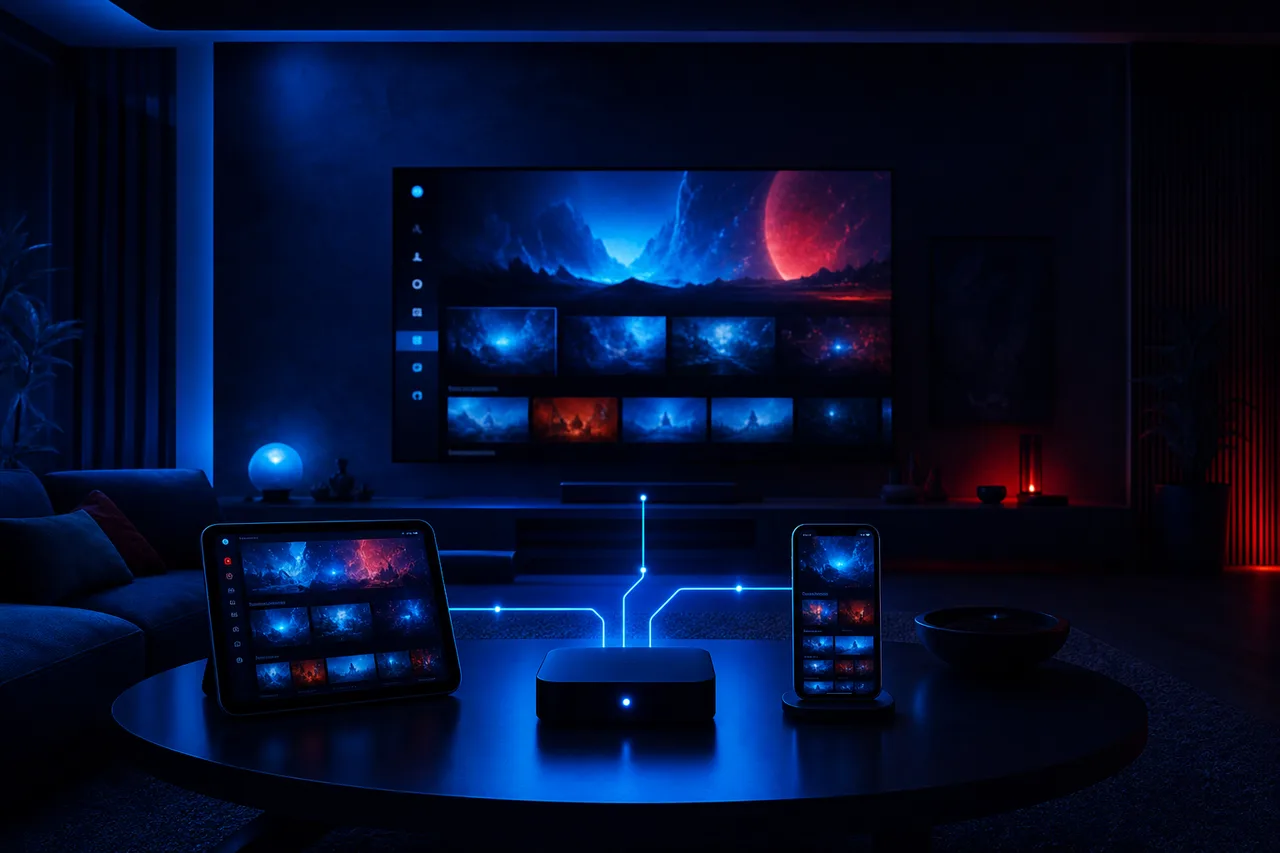
Before any detail, it helps to see the whole chain at once. Put simply, IPTV moves the TV signal off the coax and the dish and onto the same internet line that serves your laptop. Four links make it work.
The idea in three sentences
Your internet line carries the picture into your home. Your router passes it to a device, a smart TV, a box, a stick, a tablet, that runs a player app. The player uses the access details we e-mail you to open the catalogue of channels, series and movies.
- No dish, no coax, no rented box required
- Any supported device with a player app
- Access delivered by e-mail within minutes
Each link can be the weak one. A slow line, a router stuck in a closet, an old device or a typing error in the access details can all spoil the picture. The good news is that each link is easy to test on its own, and the rest of this guide shows how. The What is IPTV article explains each link in more depth, with the terms you will see in player menus.
What your home needs before you order
IPTV runs over your internet connection, so your network is the foundation everything sits on. The speeds below are per screen playing at the same moment. If two screens play together, add the figures up.
Per-screen speed at the TV
The figure on your internet bill is a ceiling, not a promise at the couch. The number that matters is the one your TV actually receives. A router tucked in a basement utility room, a floor of concrete, a wall full of pipes or a crowded condo network can all eat into it. Run the speed test from the couch, on the device that will play the channels, at the hour the family usually sits down. Evenings in Eastern Time are when home networks are busiest, so test then.
| What you watch | Speed to plan at the screen | Typical fix if you fall short |
|---|---|---|
| One HD screen, a phone or small TV | 10 Mbps | Move closer to the router or use 5 GHz |
| One Full HD living room TV | 15 Mbps | Move the router into the open |
| One 4K TV | 25 Mbps | Ethernet cable or a coax adapter |
| A 4K TV plus a Full HD tablet, with extra screens arranged through support | 40 Mbps | Wire the TV, keep the tablet on 5 GHz |
If the reading at the TV is well above the figure for your picture quality, you are ready. If it hovers close, expect occasional pauses at peak times and plan a network fix before you order. Our IPTV buffering guide lists the fixes in order of impact, from router placement to Ethernet.
Devices and players at a glance
You probably own a compatible device already. Samsung and LG smart TVs, Android TV and Google TV boxes, the Fire TV Stick, Apple TV, iPhone and iPad, Android phones and tablets, and computers all work. Each needs a player app from its official app store.
| Device | Strength | Players to look for | Detailed guide |
|---|---|---|---|
| Samsung or LG smart TV | One remote, nothing extra | IBO Player, Smart IPTV | IPTV on smart TVs |
| Android TV or Google TV box | Widest player choice, Ethernet | TiviMate, IPTV Smarters Pro, XCIPTV | IPTV on Android TV box |
| Fire TV Stick | Compact, easy to move | IPTV Smarters Pro, XCIPTV | IPTV on Firestick |
| Apple TV, iPhone, iPad | Smooth menus for Apple homes | IPTV Smarters Pro, GSE Smart IPTV | IPTV on Apple TV |
The six players we support are IPTV Smarters Pro, TiviMate, Smart IPTV, IBO Player, XCIPTV and GSE Smart IPTV. Which ones appear depends on your device’s store at the time you install. We are independent from app publishers. Some apps ask for a publisher licence; check the current price on the app’s official website. That licence is separate from your pack.
If you are choosing between devices, the devices hub compares them side by side, and the apps hub does the same for players. For most homes, the right first step is simply to try the TV or box you already own.
One practical tip: set up the player on the device you will use most, not the one that is easiest to reach. The living room TV deserves the careful setup, with favourites and the guide offset checked; a phone can follow later in a couple of minutes. If the main TV struggles, a phone on the same Wi-Fi is also the quickest way to tell whether the problem lies with the TV or with the network, which saves a lot of guessing.
How ordering works, step by step
The process is short and has no surprises. Here is what happens from the moment you pick a pack to the moment the first channel plays.
- Choose a pack and a duration. Three packs are available, each for 1, 3, 6 or 12 months. Compare them side by side on the plans page.
- Pay once. You settle the order in a single Canadian-dollar payment, by card or PayPal. Nothing renews, and you sign no contract.
- Check your inbox. Your access is e-mailed within minutes: Xtream Codes details (server URL, username and password) or an M3U link. Look in the spam folder if nothing arrives.
- Install your player. Get your chosen app from your device’s official app store and enter the details exactly as written, capital letters included.
- Set the clock and your preferences. Make sure the programme guide shows Eastern Time, then choose menu language, audio track and subtitles.
- Organize favourites. Hide categories you never watch and build a short favourites list for each main viewer.
What the access part of the welcome e-mail contains. Keep it somewhere you can find again.
If anything stalls along the way, support answers seven days a week by e-mail and WhatsApp, in English and French. The IPTV setup overview covers the installation side for every device, and the Xtream Codes setup guide explains each field of the login.
Read enough to decide
Compare the three packs and four durations on one page, with current prices.
The three packs at a glance
All three packs deliver HD, Full HD and 4K picture. The difference lies in the size of the catalogue and, for the top pack, its focus on 4K channels.
Premium Pack
- A live line-up of 20,000+ channels
- An on-demand shelf of 24,000+ series and 100,000+ movies
- HD, Full HD and 4K picture
VIP Premium Pack
- A live line-up of 27,000+ channels
- An on-demand shelf of 61,000+ series and 155,000+ movies
- HD, Full HD and 4K picture
Ultimate 4K Pack
- A live line-up of 57,000+ 4K channels
- An on-demand shelf of 47,000+ series and 179,000+ movies
- Delivered from 20 servers in Europe
Across all packs, the catalogue includes French-language and international content. If you are looking for a specific language, ask support before ordering rather than guessing from a list. A rule of thumb for picking: a smaller household that mostly watches in the living room is usually well served by the first pack. A family that binges series will appreciate the deeper library of the second. A home with a large 4K TV and a strong connection is the natural match for the third.
None of these is a lifetime choice. Each order is a one-time payment for a fixed duration, so you can start with one pack and choose another next time. Durations and current prices for every pack are on the plans page.
Choosing a duration that fits your household
The four durations do the same thing for different lengths of time. Nothing renews automatically, so the choice is really about how sure you are and how much you like deciding.
| Duration | Who it suits | What to keep in mind |
|---|---|---|
| 1 month | Households testing the service on their own devices and network | Lowest commitment; you decide again soon |
| 3 months | Homes that want a full season to settle the setup | Enough time to tune Wi-Fi and favourites |
| 6 months | Families confident in their devices and network | Half a year without thinking about it |
| 12 months | Households that already know the setup works | One decision for the whole year |
If you are new to IPTV, a shorter duration lets you check how the service behaves on your devices and at your busiest hour before you commit further. If you already know your network is solid and your player is set, a longer duration means one decision instead of several. Our 1-month subscription guide and 12-month subscription guide look at both ends in detail.
Because there is no automatic renewal, note the end date in a calendar. When it arrives, you choose whether to order again, and with which pack.
Screens, households and the one-connection rule
This is the point that surprises the most households, so it gets its own section. Each pack includes 1 simultaneous connection. You can enter the same credentials on the living room TV, the basement box and a tablet, but only one of them plays at a time.
One pack, one screen at a time
Your credentials can sit on several devices in your home, and you can switch between them freely. If one device is playing and another starts, the first stops or the second shows a message that the connection is in use. For more simultaneous screens, contact support before ordering: they will explain the conditions and the price.
One connection is enough when
- One or two people watch, mostly together
- The TV is the main screen and tablets are occasional
- Viewers take turns rather than overlap
Ask about more screens when
- Two rooms regularly watch at the same hour
- Teenagers stream while parents watch the main TV
- A grandparent’s room needs its own screen every evening
Take a hypothetical Brampton household: two parents, a teenager and a grandmother on the main floor. Weeknights, the family watches together in the living room, and the teenager uses a tablet only when the TV is off. One connection covers that comfortably. On weekends, though, the grandmother wants her programmes in her room at the same hour the parents start a film. That overlap is the moment to ask support about an extra screen, before ordering rather than after.
The habit that avoids most conflicts is simple: exit the player properly when you stop watching, rather than just switching the TV off. And one rule never bends: your credentials are for your own household. Never pass them to another household.
IPTV guide Ontario: the legal question in plain terms
It is one of the first questions people ask, and it deserves a clear, neutral answer rather than reassurance or alarm.

Technology versus service
The technology is legal; whether a service is legal depends on the broadcasting rights it holds, so check before subscribing. IPTV is simply a way of delivering television over the internet, used by many kinds of providers. What matters is what a particular service is allowed to distribute.
- Ask the provider about the rights it holds
- Keep the answers in writing
- Be wary of vague or evasive replies
Our article Is IPTV legal in Canada goes through the points to verify, in the same neutral tone. It does not give legal advice; it helps you ask good questions and recognize a clear answer.
Be cautious with codes handed out for nothing, shared playlists or devices sold with content already loaded. Those are signs that a service may not hold the rights it implies. Keep your own credentials within your home and never pass them to another household.
IPTV and cable: what changes day to day
For households coming from cable, the question is less about technology and more about daily life. Here is the short version; the full IPTV vs cable comparison goes deeper without naming any company.
| Point | IPTV Ontario | A typical cable setup |
|---|---|---|
| Equipment | Your own TV, box, stick or phone | A box supplied with the service |
| Contract | None | Often a term agreement |
| Automatic renewal | None | Usually monthly billing |
| Relies on your home network | Yes, fully | No, it uses its own line |
| Watch on phones and tablets | Yes, with a player app | Depends on the provider |
Where cable still fits best is a home with a weak internet connection, or a household that never wants to think about Wi-Fi. If that is you, the honest answer may be to improve your network first, or to stay where you are. If your line and router are healthy, IPTV gives you more flexibility over devices and payment.
Languages in Ontario homes
Ontario homes speak many languages, and a single TV often serves viewers who read menus in English, follow programmes in French and keep in touch with a third language through international content. Three settings shape that experience: the menu language of the device and player, the audio track of a programme, and the subtitles, when available.
Ask about the language you need before you order, not after.
The catalogue includes French-language and international content. We do not publish a language-by-language list, because what matters is the specific content you care about. If a particular language is important to your family, write to support before ordering and ask; you will get a straight answer. The IPTV for multilingual homes article explains how to set menus, audio and subtitles for every viewer, and the IPTV Ottawa guide focuses on bilingual households.
Our support team replies in English or French on any day of the week, by e-mail or WhatsApp. Use the one in which you explain things most easily; the answer comes back in the same language.
A practical tip for mixed households: set each device’s menus in the language of the person who uses it most, rather than one language for the whole house. The grandparent’s bedroom TV can speak French while the teenager’s tablet speaks English, with the same access on both. Audio tracks and subtitles are then chosen programme by programme, when they are offered, so nobody has to change the settings for everyone else.
Mistakes to avoid before and after ordering
Most frustrations we hear about come from a handful of avoidable mistakes. Here they are, so you can skip them.
- Testing the internet speed next to the router instead of next to the TV.
- Testing at noon instead of in the evening, when the network is busiest.
- Choosing 4K for a TV that is not 4K, or a line that cannot carry it.
- Typing the server URL without the port number that follows the colon.
- Leaving a player open on one device while starting another, on a single connection.
- Forgetting to set the guide to Eastern Time, then thinking channels are wrong.
- Assuming a specific language is in the catalogue without asking support first.
- Losing the welcome e-mail, then needing it for a new device months later.
None of these is serious, and all of them are easy to fix. But avoiding them turns the first week from a project into a non-event. When something does go wrong, the IPTV help hub starts from the symptom and points you to the right fix.
One more mistake deserves a mention because it costs the most time: changing several things at once. If the picture stutters and you move the router, switch the player, change the band and restart the box in one go, you will never know which change helped. Change one thing, test at the busy hour, then move to the next. It feels slower, and it is much faster in the end.
Your first week, day by day
A calm first week sets up months of easy viewing. Here is a simple plan for the days after you order.
- Day 1
Set up the main TV
Install the player, enter your details, let the first sync finish and set the guide to Eastern Time.
- Day 2
Tidy the lists
Hide categories nobody watches and build a favourites list for each main viewer.
- Day 3
Test at peak hour
Watch at the busiest time of the evening and note any pauses, with the time they happened.
- Day 4
Fix the network if needed
Move the router, switch to 5 GHz or run a cable if day 3 showed pauses.
- Day 5
Add other devices
Install the player on a tablet or bedroom TV, using the same details, one screen at a time.
- Day 7
Show the household
Teach the three-button routine and where favourites live, then step back.
Daylight saving is the one Ontario detail to remember after the first week. When the clocks change in spring and fall, check that the guide still matches the programme on screen. If it runs an hour off, adjust the offset in the player. Our guide to the TV guide on Eastern Time covers that, and Northwestern Ontario on Central Time.
When you need help: how support works
Even a smooth setup produces the odd question: a guide that drifts after the clocks change, a new tablet that refuses the login, a channel that stutters only on Friday nights. Support exists for exactly those moments, and a well-written first message gets you a useful answer much faster.
You can reach the team by e-mail or WhatsApp at +33 6 44 65 43 13, in English or French. Pick the language that lets you describe the problem most precisely. Whichever channel you use, include four things in the first message: the device (for example, a Samsung TV or a Fire TV Stick), the player name, what you see on screen, and when it happens. A photo of an error message is worth a paragraph of description.
Deep dive: a first message that gets a quick answer
Compare two messages. The first says “It does not work, please help.” The second says “Living room Samsung TV, IBO Player, the channel list loads but live channels show a black screen since yesterday evening; series play normally. Photo attached.” The second one lets support skip three rounds of questions and go straight to the likely cause. Writing it takes a minute; it can save you an evening of back-and-forth.
Before writing, it is worth a quick pass through the IPTV not working checklist, which solves a large share of problems on its own. If it does not, you will at least be able to tell support what you already tried, which shortens the conversation. The support page explains what the team helps with and how to reach them.
What happens when your plan ends
Because there is no automatic renewal, the end of a plan is a quiet event. Nobody charges your card, and nothing changes on your devices until the access period runs out. Then the player stops loading channels, and you decide what comes next.
Put the end date of your plan in the family calendar the day you order, with a reminder a few days before. It is the simplest way to avoid a surprise on the evening of a big match or a series finale.
When the date approaches, look back at how the household actually watched. Did one screen at a time work, or did you keep running into the one-connection limit? Did the family use the series and movie library, or mostly live channels? Was 4K a regular treat or a rare one? Those answers point to the next order: the same pack and duration, a different pack, a longer duration because the setup proved itself, or a conversation with support about extra screens.
Ordering again follows the same steps as the first time: choose a pack and a duration on the plans page, pay once, and check your inbox. Support can tell you whether your existing player profile can keep its settings with the new access, so you do not have to rebuild favourites from scratch. Our payment guide describes what happens before and after you pay.
IPTV guide Ontario: questions to ask any provider
Whether you end up with us or with someone else, these questions separate clear offers from vague ones. Ask them in writing and keep the answers.
- How is access delivered, and how long does it take to arrive?
- How many screens can play at the same moment, and what happens if I need more?
- Does the subscription renew on its own, or does it simply end?
- Which languages are in the catalogue, and can you confirm the one I need?
- Which player apps and devices do you support?
- How do I reach support, in which languages and on which days?
- What broadcasting rights does the service hold for the content it offers?
Our own answers are on this site: access by e-mail within minutes, 1 simultaneous connection per pack with more on request, no automatic renewal, French-language and international content with specific languages confirmed by support, six supported players across all common devices, and support 7 days a week in English and French. Send the same list to our team through the contact page and they will answer it in writing. A provider that dodges any of these questions has told you something useful.
Words you will meet along the way
A short glossary of the terms that appear in this guide, in player menus and in your welcome e-mail.
- IPTV
- Short for internet protocol television: programmes reach your screen through your home internet line.
- Player app
- The app on your device that opens your access and shows channels, series and movies.
- Xtream Codes
- A login in three fields: server URL, username and password.
- M3U link
- A single link to your playlist, an alternative to Xtream Codes.
- EPG
- The electronic programme guide, the grid of what is on and when.
- Simultaneous connection
- A stream playing at a given moment. Each pack includes one.
- 5 GHz band
- The faster Wi-Fi band, less crowded in apartment towers but shorter in range.
- Guide offset
- A player setting that shifts guide times by whole hours to match your clock.
With these terms in hand, every other page on the site reads easily. When you are ready, the next pages to visit are below.
Questions answered, ready to choose
Pick a pack and a duration, pay once in Canadian dollars and receive your access by e-mail within minutes.
FAQ
Do I need to read the whole guide before ordering?
No. Each article answers one question. Most people read the basics and the one article closest to their situation, then compare packs on the plans page.
Will IPTV work on the TV I already own?
Very likely. Samsung and LG smart TVs, Android TV and Google TV boxes, the Fire TV Stick and Apple TV are supported, along with phones, tablets and computers.
Can everyone in the house watch at the same time?
Each pack includes 1 simultaneous connection. The same credentials work on several devices used one at a time. For more screens at once, contact support before ordering for the conditions and the price.
How much internet speed do I need?
Plan for 10 Mbps in HD, 15 Mbps in Full HD and 25 Mbps in 4K per screen, measured where you watch, in the evening.
Does the programme guide show Ontario times?
Yes, once your player is set to Eastern Time. Check the time zone setting in the app and on your device so the guide lines up with your evening.
How fast is my access delivered?
Within minutes, by e-mail. You receive Xtream Codes details or an M3U link. Check your spam folder if nothing shows up.
Is there a contract or automatic renewal?
No. You pay once, in Canadian dollars, by card or PayPal, for 1, 3, 6 or 12 months. When the period ends, you decide whether to order again.
Is IPTV legal?
The technology is legal; whether a service is legal depends on the broadcasting rights it holds, so check before subscribing. Our legal article lists the questions to ask.
Can I get content in a specific language?
The catalogue includes French-language and international content. For a specific language, ask support before ordering.
In which languages does support answer?
English and French, 7 days a week, by e-mail and WhatsApp.