If you want a player the whole household can learn in a single evening, this is where most Ontario homes begin. This guide takes IPTV Smarters Pro from installation to the settings worth changing on the first night, then on to second devices, parental control, picture quality and the fixes for the problems people actually run into. The examples come from the kinds of homes we hear from every week: a one-bedroom condo near the lake, a three-generation house in Brampton, a semi in Mississauga with a basement rec room and a bilingual family in Ottawa’s east end.
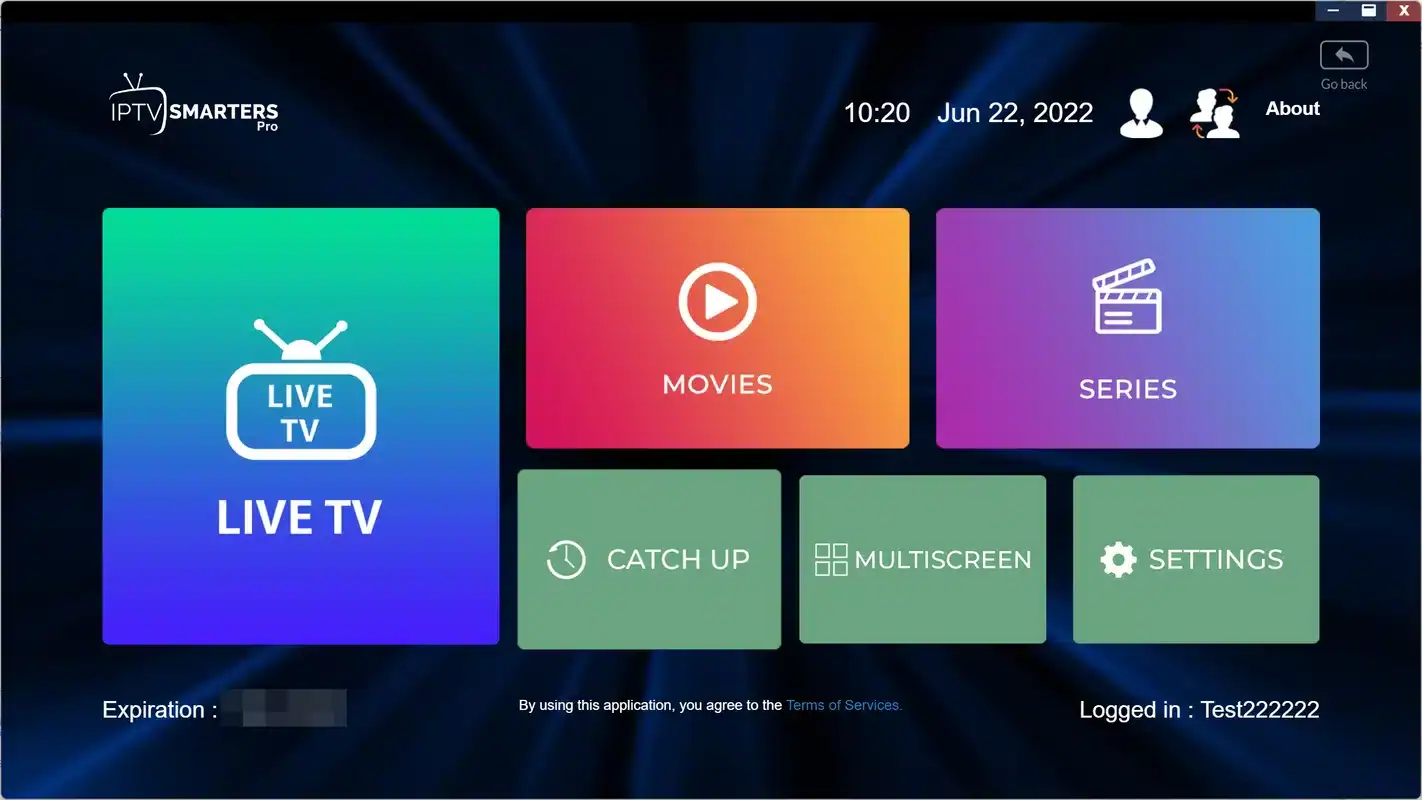
The idea behind the app is simple. Live TV, series and movies each get their own big tile on the home screen, and everything inside them is sorted into categories. You do not need to understand playlists, guide sources or server settings to get going. You enter three pieces of information from your welcome e-mail, wait a moment while the lists build, and start watching. The rest of this page is about making that first experience comfortable for everyone who shares the remote.
Why households start with IPTV Smarters Pro
Its main strength is clarity. Large posters make series and movies easy to browse from the couch, even from across a big family room. The live section shows a short programme guide beside each channel, so you see what is on now without opening a separate grid. Search works across sections, which helps when someone asks for a specific film by name and nobody remembers which category it lives in.
Three clear doors
Live TV, series and movies each have a tile. Guests understand the layout in seconds.
Runs almost everywhere
Boxes, sticks, Apple TV, iPhone, iPad and Android phones, when listed in their stores.
Several profiles
Save more than one login or playlist, labelled by room or by person.
Parental PIN
Lock the categories you want to keep away from young viewers.
The other big advantage is that the same menus appear on many platforms. Your parents can use the iPad version in their suite while you use the living-room box, and nobody has to relearn anything. In a household where people help each other over the phone, that sameness is worth more than any single advanced feature, because you can describe exactly which tile to press.
It has limits too, and they are worth knowing before you commit. The live guide is a short list beside each channel rather than a full grid, so if you like scrolling hours ahead by time slot, a guide-first player such as TiviMate will feel more natural. On older or slower devices, the poster-heavy screens can feel heavy until you trim the category list. Neither issue stops the app from being the most common starting point we see. For a household that mostly watches series and movies, and wants one set of menus on every screen, it is hard to beat as a first choice.
Where IPTV Smarters Pro runs
The app is published for many platforms, but what you can install depends on the official app store of your device on the day you look. Check your own store before you plan the whole house around it.
| Device | Where to find it | Practical note |
|---|---|---|
| Android TV and Google TV boxes | The box’s official app store | The smoothest experience, especially on a cable |
| Fire TV Stick | The stick’s official app store, if listed | Hide unused groups to keep scrolling quick |
| Apple TV | The App Store, if listed | Same login steps as on other devices |
| iPhone and iPad | The App Store | Handy for one viewer in the kitchen or on the go |
| Android phones and tablets | The device’s official app store | Good for testing a channel beside the router |
| Samsung and LG smart TVs | Often not listed in TV stores | Look at IBO Player instead |
If your living-room TV is a Samsung or LG set with no box, you have two routes. You can install a TV-activated player such as IBO Player directly on the set, or you can plug a stick or box into an HDMI port and run IPTV Smarters Pro on that. The second route gives you the same menus on the TV as on your phone, which some families prefer. Our devices hub compares the hardware, and the Fire TV Stick guide and Apple TV guide cover each one in detail.
Official store only. Install the app from your device’s official app store and nowhere else. Copies passed around by message or found on unofficial pages are a frequent source of crashes and lost settings, and they expose the device your family uses every day to risks you do not need.
Before you install IPTV Smarters Pro
Ten minutes of preparation turns setup into a calm routine rather than a scramble with the remote. Go through this list once, ideally before the evening rush.
- Your device runs its latest system update, installed from its own settings menu.
- Your welcome e-mail is open on your phone, showing the server URL, the username and the password.
- You have decided on Xtream Codes, which we recommend, rather than the M3U link.
- You have run a speed test on the device itself: about 10 Mbps for HD, 15 Mbps for Full HD and 25 Mbps for 4K.
- No other device is playing your access right now, since each pack includes 1 simultaneous connection.
- You have chosen a short profile name, such as Living room, Basement or Kitchen iPad.
The profile name is a small detail that pays off later. When you have the app on three devices and someone calls you from upstairs, a label like Bedroom stick tells you instantly which device they are holding. Generic names such as User 1 lead to confusion the first time something needs fixing.
Good to know
The app is made by an independent publisher. Your IPTV Ontario pack provides the access you enter into it, nothing more and nothing less. If the publisher asks for a licence on your platform, check the current price on the app’s official website. Paying for a licence never changes the catalogue you receive.
IPTV Smarters Pro setup with Xtream Codes
Xtream Codes is the quickest login: three short fields, and the app organises live TV, series and movies on its own. Our page on Xtream Codes setup explains each field in more depth if you want the background.
- Install the app. Open your device’s official app store, search for IPTV Smarters Pro and install it.
- Read the first-launch prompts. The player may ask for permissions or show its own terms. Read them and continue.
- Choose the Xtream Codes login. On the screen listing login methods, pick the Xtream Codes option.
- Name the profile. Type the short label you chose, such as Living room.
- Enter the username and password. Copy them exactly as they appear in the e-mail. Watch for capital letters and spaces at the end.
- Enter the server URL. Include the port if one appears after a colon at the end of the address.
- Add the user. Confirm, then wait while the app pulls in channels, series, movies and guide data.
- Play a channel. Open Live TV, pick a familiar category and check that picture and sound start within a few seconds.
The login screen asks for four things. Only the name is yours to choose.
If the app answers with an invalid login message, do not reinstall. Go back to the e-mail and compare each field one character at a time. In nine cases out of ten, a single character is the problem: a lowercase letter that should be a capital, a missing port, or a space that crept in when you copied the password on a phone. The other case is usually a second device already playing, which the app reads as a connection in use.
The M3U route and when it makes sense
The app also accepts a playlist link. You choose the playlist option instead of Xtream Codes, paste the full M3U link and give it a name. It reaches the same catalogue, but the experience differs.
M3U works well when
- You set up on an iPad or a phone where pasting is easy
- You already manage your playlist from a computer
- You want one link instead of three fields
Xtream Codes is better when
- You type with a TV remote
- You want live, series and movies sorted for you
- You want the guide to arrive with the login
For most people on a TV, Xtream Codes wins on comfort. On a phone or tablet, either works. If you start with one and change your mind, add a new profile with the other method; you can delete the old one afterwards. Our M3U playlist guide explains how to keep a long link intact when you copy it, which is where most M3U problems start.
A tour of the IPTV Smarters Pro home screen
Once you are logged in, the home screen shows a handful of large sections. The exact layout varies slightly between versions and platforms, but the building blocks stay the same.
| Section | What you find there | How to use it well |
|---|---|---|
| Live TV | Channels sorted by category, with a short guide | Open your most-watched category first and save favourites |
| Series | Shows with seasons and episodes | On many devices, the app remembers where you stopped |
| Movies | Films sorted by category, with posters | Use search when you know the title |
| Favourites | Channels and titles you saved | Build a short list per person |
| Guide or EPG | Listings for live channels | Check the time matches your clock |
| Settings | Playback engine, time format, parental control | Visit once on day one, then rarely |
Spend five minutes simply moving around before you start changing anything. Open each section, enter a category, back out again. Watch how the remote’s back button behaves, because it differs slightly between platforms. That short tour makes every later step easier, and it is a good moment to notice which categories nobody in the house will ever open.
The catalogue includes French-language and international content, so the category list can be long. That is normal. You will trim it in the settings section below, and the app becomes noticeably quicker once you do. If someone at home is hoping for a specific language, ask support before ordering rather than searching the lists for it afterwards.
Live TV and the short guide
The live section is where most evenings start. Pick a category on the left, and the channels inside appear in a list, with what is on now and what comes next beside the highlighted one. Press to play, and the picture fills the screen. Press back to return to the list without losing your place.
Line the guide up with your clock
If the listing says a programme started an hour ago when it is clearly just beginning, the guide time is off. Open the settings, look for the time or guide offset, and shift it until the two match. Ontario runs on Eastern Time; Northwestern Ontario follows Central Time. Check once more after the clocks change in spring and fall.
Our page on the TV guide on Eastern Time explains why the shift happens and how to handle daylight saving.
The short guide suits households who check what is on and then settle in. If you find yourself wanting to scroll three hours ahead to plan the evening, that is a sign a grid player might suit you better, and nothing stops you installing one beside this app with the same access. Some families keep IPTV Smarters Pro on the kids’ stick and a grid player on the main TV.
Series and movies from the couch
This is where the poster layout earns its reputation. Each title appears as a tile with its artwork, and opening one shows a description, seasons and episodes where they apply. On many devices, the app remembers where you stopped in a series, so the next episode is one press away. Movies work the same way, without the seasons.
Three habits keep browsing pleasant in a busy house. First, use search as soon as someone names a title, rather than scrolling through categories. Second, add series you are following to favourites, so they sit on one short list instead of scattered across categories. Third, agree on whose turn it is: with 1 simultaneous connection, a movie on the bedroom iPad and a series on the living-room TV cannot play at the same moment.
A huge catalogue is only useful if you can find tonight’s choice in under a minute. Search and favourites are how you get there.
Watch progress and favourites may stay on the device where you saved them, depending on the platform. That surprises people the first time they switch from the TV to an iPad and find their place lost. It is not a fault in the access; it is how the app stores those details. Rebuilding a short favourites list on each device takes a minute and avoids the frustration.
Favourites and profiles for every viewer
A household with very different viewers gets the most from the app when each person has a short, personal list. The profiles feature lets you save several logins or playlists, and favourites let each person mark what they watch. Here is how that plays out in practice.
Set up a profile labelled with their room, choose a large-text device if possible, and save five or six favourite channels.
Then: write the steps on a small cardTeach them search and favourites, and let them build their own list on the bedroom stick.
Then: agree on household screen timeKeep one profile, but build a favourites list with a little for everyone, ordered by how often each channel is used.
Then: hide categories nobody opensCreate a second profile labelled Test, so experiments never disturb the family’s main setup.
Then: delete it when you are doneSeveral profiles do not mean several streams. Whatever the number of profiles or devices, each pack includes 1 simultaneous connection. If your household needs more screens playing at once, write to us through the contact page; support explains the conditions and the price for your situation. Our page on IPTV for families helps you work out how many you really need.
App installed, access next
Choose a pack and a duration, and the Xtream Codes details arrive by e-mail within minutes.
Settings worth changing in IPTV Smarters Pro on day one
Most settings can stay as they are. A handful make a real difference, and the first evening is the right moment to visit them, before habits form around the defaults.
Guide time
Set the guide offset as described above so listings follow Eastern Time. It takes a minute and prevents a lot of confusion later, especially for the person in the house who checks start times before settling in.
Hidden categories
Hide the categories nobody watches. In a bilingual Ottawa home, you might keep French-language groups and a few international ones visible and hide the rest. Fewer categories means faster loading, quicker scrolling and less hunting for the remote’s back button.
Time format
Choose a 12-hour or 24-hour clock to match how your household reads time. It sounds trivial, but a guide on a 24-hour clock confuses some viewers who expect to read evening times with a.m. and p.m., and the reverse is true for others.
Playback engine
If a stream stutters or shows a black screen with sound, switch the internal playback engine in the settings and try again. Different engines handle some streams better than others. Leave the default in place unless you have a reason to change it.
- Minute 1
Guide offset
Match listings to your clock.
- Minute 3
Hide groups
Untick categories nobody opens.
- Minute 5
Favourites
Save a short list for the main viewer.
- Minute 7
Parental PIN
Lock what young viewers should not see.
Parental control in a family home
In a home with young children, the parental PIN is the most important setting of all. Set it before the kids discover the remote, not after.

Setting the PIN
Open the settings and look for parental control. Choose a PIN the kids will not guess, then select the categories to lock. Locked categories ask for the PIN before they open. Test it once by trying to open a locked group yourself.
- Choose a PIN that is not a birthday
- Write it somewhere safe, away from the TV
- Repeat the setup on every device the kids use
- Check again after an app update
A forgotten PIN can mean clearing the app’s data or reinstalling it, which also clears your login and favourites. That is why writing the PIN down matters. Keep the welcome e-mail somewhere easy to find as well, so a reinstall takes minutes rather than an evening. In a multigenerational Brampton house, it also helps to tell one other adult where the PIN is kept, so you are not the only person who can unlock a category.
Parental control in the player complements, rather than replaces, family rules about screen time and which rooms have screens. The player can lock categories, but it cannot decide when bedtime is.
Adding IPTV Smarters Pro to a second device
Setting up a second device is quicker than the first, because you already know the screens. The same credentials work on several devices, used one at a time.
Install the app from the device’s official store, choose Xtream Codes, label the profile by room and enter the same details from the welcome e-mail. Then repeat the small day-one routine: guide time, hidden groups, favourites and, if kids use that device, the parental PIN. Settings do not travel between devices, so each one needs its own short setup.
On a phone, be mindful of where you watch. At home on Wi-Fi, the experience matches the TV. On mobile data, streams use a lot of data quickly, so check your phone plan before watching anything long. Whatever the device, the access stays inside your own household; sharing it with someone across town would interrupt your own viewing, because both streams compete for the same single connection.
One more tip for families with several devices: keep the same profile labels on the same devices over time. If the bedroom stick is always called Bedroom stick, and the iPad is always called Kitchen iPad, then a quick message such as “Kitchen iPad says invalid login” tells you exactly where to look, even when you are not at home. Small naming habits like this are what make a shared setup easy to maintain for months rather than days.
Speed and picture quality on each device
When the picture stutters, the app is rarely the cause. The speed that actually reaches the device decides what you see. Count these figures per screen, measured on the device itself.
Speed per screen
Sticks, boxes and phones
A stick tucked behind a TV gets a weaker signal than a phone in your hand. If a channel plays smoothly on your phone beside the router and stutters on the stick, the difference is the signal, not the app. An HDMI extender that moves the stick out from behind the screen, the 5 GHz band, or a box on a cable usually fixes it.
Our buffering guide and the condo Wi-Fi guide cover each fix, room by room.
For 4K on a large screen, a box on Ethernet remains the steadiest choice. Keep the stick for the bedroom or the cottage TV, where Full HD is plenty and the signal path is short.
In a Toronto tower, evening congestion from neighbouring units is the usual culprit. In a Mississauga semi, it is the distance and floors between the router and the basement TV. In both cases, run the speed test at the time you usually watch, not on a quiet Sunday morning, because that is the speed that matters.
Fixing common IPTV Smarters Pro problems
Most problems fall into a small number of patterns. Match the symptom, try the first fix, and only move on if it fails.
| Symptom | Likely cause | First fix |
|---|---|---|
| Invalid login | Typing error in a field | Retype the server URL with its port, then username and password |
| Connection already in use | Another device playing | Close the app on the other device and wait a moment |
| Guide an hour off | Time offset | Adjust the guide offset in settings |
| Black screen with sound | Playback engine | Switch engine in settings and replay |
| Stutter in the evening | Wi-Fi congestion | Speed test on the device, then cable or 5 GHz |
| App slow to open | Large lists, full cache | Hide unused groups, clear cache, restart the device |
Retype before you reinstall. An invalid login message almost always means a typing error. Check the server URL first, including the port, then look for a capital letter or a trailing space in the username or password. Reinstalling erases your favourites and settings without fixing a typo.
If the same channel refuses to play on every device and every player, the problem sits on the access side, and support can check it. Our not-working checklist covers everything else line by line. When you write, mention IPTV Smarters Pro, the device, what the screen shows and what you already tried. Support answers 7 days a week by e-mail and WhatsApp at +33 6 44 65 43 13, in English and French.
Deep dive: clearing the cache without losing your login
On Android TV boxes, Google TV and the Fire TV Stick, the device’s own settings let you clear an app’s cache separately from its data. Clearing the cache removes temporary files and often speeds up a sluggish app, while keeping your profiles, favourites and parental PIN. Clearing data, on the other hand, resets the app completely, as if it had just been installed. Always try the cache first, and restart the device afterwards so the app starts from a clean slate. On Apple devices, the equivalent is usually to close the app fully and reopen it, or as a last resort to remove and reinstall it, after which you enter the access again.
IPTV Smarters Pro in four Ontario homes
The same app settles into each household a little differently. These sketches show how people tend to arrange it, and which part of this guide matters most in each case.
The lakeside condo
One person, one wall-mounted TV with a stick behind it, and a phone for the balcony. The app’s tiles keep evenings simple, and a single profile is enough. The real work is the network: a tower full of routers crowds the 2.4 GHz band, so moving the stick to 5 GHz or running a short cable from the router changes everything. The Toronto guide covers tower living in detail.
The three-generation house
Grandparents in a ground-floor suite, parents in the family room, teenagers upstairs. Each room gets its own labelled profile and favourites, the kids’ devices get a parental PIN, and the household agrees who watches when, or asks support about extra simultaneous screens. The Brampton guide is written for exactly this home.
The semi with a basement rec room
The main floor plays perfectly; the basement stutters on weekend nights. The app is not the issue, so the fixes are a mesh point at the top of the stairs or a cable along the joists. The Mississauga guide walks through both.
The bilingual household
One parent prefers French menus, the other English, and the kids switch freely. The app’s menu language goes to whoever is least comfortable with technology, French-language groups sit near the top, and international categories nobody uses are hidden. The Ottawa guide adds tips on audio tracks and subtitles.
Common thread
In every one of these homes, the setup that lasts is the one where each regular viewer can reach their programme in three presses or fewer. If someone still calls you for help after the first week, simplify their favourites rather than adding more features.
When another player suits you better
IPTV Smarters Pro is a strong starting point, not the only answer. Because your credentials work in any supported player, trying another costs you a few minutes. Consider switching, or adding a second player, in these situations.
- You browse by schedule. If you want a full grid with hours of listings, TiviMate on an Android TV box or Fire TV Stick is built for that.
- Your only screen is a smart TV. On a Samsung or LG set where this app is not listed, IBO Player activates from your phone.
- The device is old and slow. A lighter player such as XCIPTV may open faster on modest hardware.
- You love detailed settings. GSE Smart IPTV offers deeper playlist controls on Apple devices.
Switching will not help with evening stutter that affects every player, with a second device interrupting the stream, or with a mistyped login. Those are network, connection or typing questions. The IPTV apps hub compares all six players side by side if you want to weigh the options again.
Your first week with IPTV Smarters Pro
Setup is done in an evening, but the app only feels like part of the furniture after a week of real use. A light routine over those first days catches the small irritations before they become reasons to avoid the TV.
- Evening one: the basics. Log in, set the guide time, play a few channels in different categories and check the sound on each.
- Evening two: trim the lists. Hide every category nobody opened the night before, and notice how much faster the app scrolls.
- Evening three: favourites. Ask each regular viewer for their five most-watched channels and save them.
- Weekend: the peak test. Watch at the busiest time of the week, when everyone in the building or the house is online. If the picture holds, your network is ready.
- End of the week: second devices. Add the app to the bedroom stick or the iPad, with its own label and favourites.
- Any time: write down what bothered you. A guide that seemed off, a channel that took long to start. Those notes make a support message precise.
If something is still not right after that week, you will know whether it is a player question, a network question or an access question, and you will have the details to fix it quickly. That is also a good moment to decide whether a longer duration makes sense for your next order. Our pages on the 1-month subscription and the 12-month subscription explain when each one fits.
Words in the IPTV Smarters Pro settings menu
The settings use a few technical terms. Here they are in plain language.
- Xtream Codes
- The login made of a server URL, a username and a password.
- M3U
- A playlist delivered as one long link, pasted instead of the three fields.
- EPG
- The electronic programme guide shown beside live channels.
- Guide offset
- A shift, in hours, applied to listings so they match your local time.
- Playback engine
- The internal component that plays video. Switching it can help one stubborn stream.
- Profile
- A saved login or playlist, labelled by you, such as Living room.
- Parental PIN
- A code that must be entered before locked categories open.
- Cache
- Temporary files the app keeps to load faster. Clearing it can fix sluggishness.
Choosing a pack for IPTV Smarters Pro
Every pack works in the app. Choose by how much the household watches and how much 4K matters on your main screen.
Ultimate 4K Pack
- 57,000+ 4K channels
- 47,000+ series
- 179,000+ movies
- 20 servers in Europe
Each pack comes in 1, 3, 6 or 12 months. You pay once, in Canadian dollars, by card or PayPal, with no contract and no automatic renewal. See current prices on the plans page. A household that series-binges on posters will appreciate the larger series library of the VIP Premium Pack, while a family with one big 4K screen may look at the Ultimate 4K Pack.
Tiles ready, catalogue next
Order a pack and log in to IPTV Smarters Pro the moment your access lands.
FAQ
Is IPTV Smarters Pro included with my pack?
No. The app comes from its publisher and is installed from your device’s official app store. Your pack provides the access you enter into it.
Which login should I choose?
Xtream Codes. It means less typing, and the app sorts live TV, series and movies automatically.
Can I add more than one profile?
Yes, the app can store several profiles. Each pack still includes 1 simultaneous connection, so only one device plays at a time.
Why are guide times off?
The guide offset does not match Eastern Time. Adjust the time setting in the app until the current programme lines up with your clock.
Does it work on Apple TV?
It can, when listed in the App Store on your Apple TV. The login steps are the same as on other devices.
Does it work on a Samsung or LG TV?
It is often not listed in those TV stores. Use IBO Player on the TV, or plug in a stick or box and install IPTV Smarters Pro there.
Why do my favourites disappear on another device?
Favourites and watch progress are often stored on the device where you saved them. Rebuild a short list on each device.
How do I fix a black screen with sound?
Switch the playback engine in the settings and play the channel again. If it persists on every player, contact support.
Is there a licence to pay?
That depends on the publisher and the platform. We are independent from them, so check the current price on the app’s official website.
Can support help me set it up?
Yes. Support answers 7 days a week by e-mail and WhatsApp (+33 6 44 65 43 13), in English and French.