If you miss flipping through a channel grid at night, TiviMate will feel like coming home. This guide covers its setup on Android TV, Google TV and the Fire TV Stick, how to read and organise the grid, how the premium upgrade fits in, and how to make the guide line up with the clock on your kitchen wall, whether that clock runs on Eastern Time in Kingston or on Central Time in Kenora. It finishes with the fixes for the problems that come up most in Ontario homes and a glossary of the terms in its menus.
Most players show you posters. TiviMate shows you a schedule. Channels run down the left side, hours run across the top, and you scroll through the evening the way you once did with a cable remote. For anyone who grew up with a printed TV listing on the coffee table, it is instantly familiar. For everyone else, it is simply the quickest way to see what is on now, what comes next and what is worth staying up for.
Why TiviMate feels like a cable box
The grid is the heart of the app. Every channel occupies a row, every programme a block whose width matches its length, and a thin marker shows the current time. Press the centre button on a channel and a mini-guide pops up with what is playing and what follows. Scroll right and the rest of the evening unfolds. Categories, which TiviMate calls groups, sit in a side panel, so you can jump from news to kids to movies in a couple of presses.
Time across the top
See hours ahead at a glance and plan the evening rather than react to it.
Channels down the side
Numbered rows, in the order you choose, just like a cable lineup.
Video keeps playing
The current channel often stays visible while you browse, so nobody misses a moment.
Favourites at the top
Pin the channels you use most so the grid opens where your evening begins.
That design suits certain households very well. Think of a family home in Brampton where the TV stays on during dinner and someone always asks what is on next, or a condo near Yonge and Eglinton where you check the evening’s listings before settling in. It also suits people who watch live programmes more than on-demand titles, because the grid is built around what is happening now.
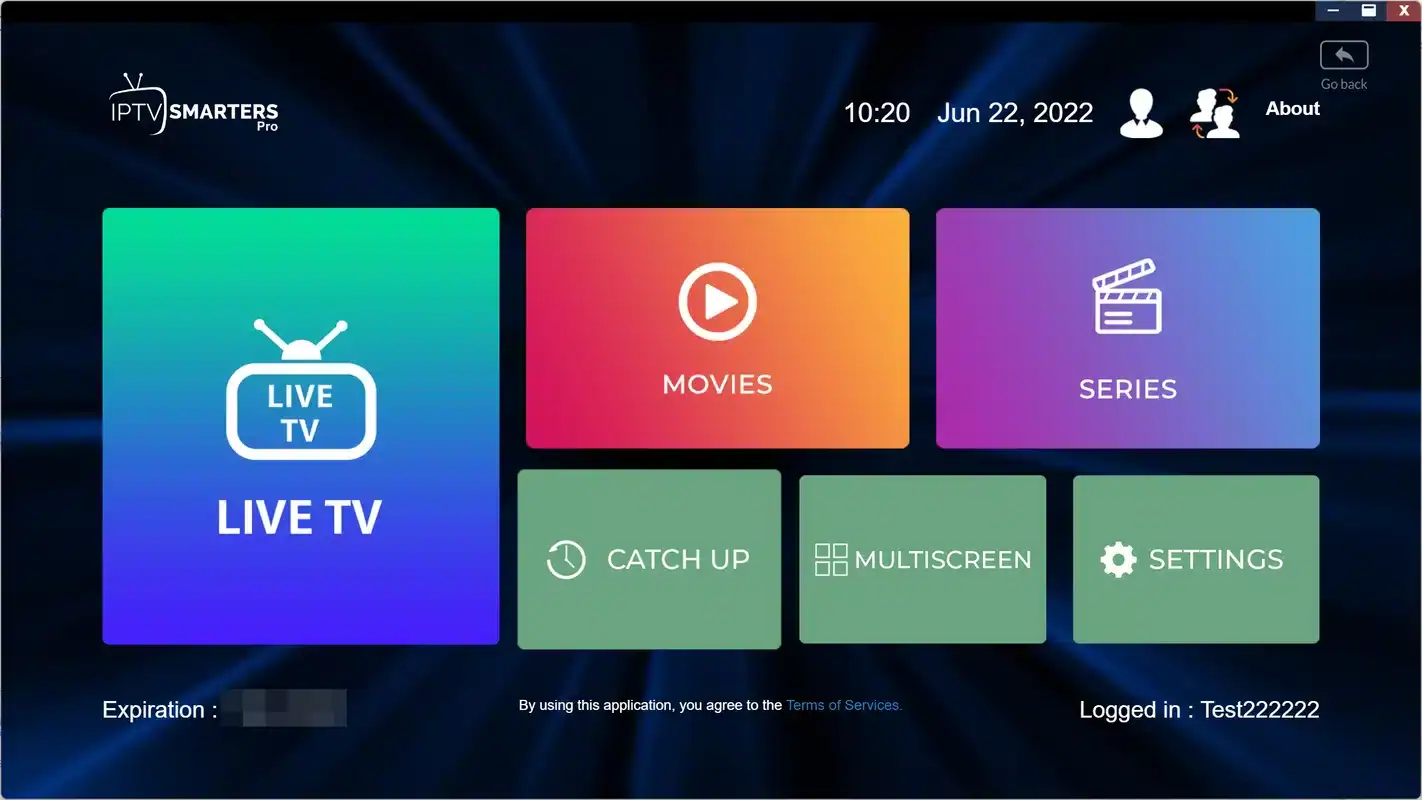
It is less suited to someone who mostly binges series or picks movies from posters. In that case, a tile-based player such as IPTV Smarters Pro may feel more natural. Nothing stops you running both with the same access, one on the main TV and one on a second device, as long as only one plays at a time.
One more strength is easy to underestimate: speed of channel changes. Because the grid is always one press away and channels carry numbers, moving between two programmes during an ad break feels much closer to the old cable experience than scrolling through posters. For households that watch live more than on demand, that small difference adds up over an evening.
Devices TiviMate runs on
TiviMate is built for the Android TV family. Whether you can install it depends on what your device’s official app store lists on the day you look, so check the store before you build your evenings around it.
| Device | TiviMate available | Notes |
|---|---|---|
| Android TV box | Yes, if listed in its store | The best fit, especially on Ethernet |
| Google TV device | Yes, if listed in its store | Same experience as Android TV |
| Fire TV Stick | Yes, if listed in its store | Hide unused groups for speed |
| Samsung smart TV | No | Use IBO Player instead |
| LG smart TV | No | Use IBO Player or Smart IPTV |
| Apple TV, iPhone, iPad | No | Use IPTV Smarters Pro or GSE Smart IPTV |
If your living-room TV is a Samsung or LG set and you really want the grid, the usual route is to plug an Android TV box or a Fire TV Stick into a spare HDMI port and run TiviMate there. The TV becomes a display, and the box does the work. Our guides to the Android TV box and the Fire TV Stick explain how to choose and place each one, and the devices hub compares them side by side.
Install from the official store only. TiviMate, like every player we mention, should come from your device’s official app store. Copies sent by message or found on unofficial pages cause crashes, lose your settings and put the device your household uses every day at risk.
Is TiviMate right for your household
Before you invest an evening in setup, it helps to know whether the grid matches how your home actually watches. Here is the honest balance.
A strong fit if
- You plan the evening by what is on, not by title
- Someone in the house misses the cable guide
- Your main screen runs on Android TV, Google TV or a Fire TV Stick
- You like arranging channels in your own order
Think twice if
- Your only screen is a Samsung or LG TV with no box
- The household mostly watches series and movies from posters
- You want the same app on iPhones and an Apple TV
- Nobody wants to spend ten minutes organising groups
A quick test helps. Think about the last three evenings. If each one started with someone asking what was on, the grid will win them over. If each one started with someone choosing an episode, tiles will feel easier. Most households fall somewhere in the middle, which is why many keep TiviMate on the main TV and a tile player on the bedroom device.
Whatever you decide, your IPTV Ontario credentials are not tied to the player. You can install TiviMate tonight, try it for a week and switch if it does not suit you, without changing anything about your pack. Our IPTV apps hub compares every supported player if you want to weigh the alternatives first.
Preparing the box or stick for TiviMate
A guide-first player loads a lot of listings, so the device and the network matter more than with a simple player. A little preparation makes the first sync faster and the grid smoother.

Before you install
- The box or stick runs its latest system update
- TiviMate is listed in its official app store
- Your welcome e-mail is open on your phone
- A speed test on the device shows about 10 Mbps for HD, 15 Mbps for Full HD or 25 Mbps for 4K
- No other device is playing your access, since each pack includes 1 simultaneous connection
- The box sits in the open, not inside a closed cabinet
That last point is easy to overlook. A box shut inside a media cabinet, or a stick hidden behind a large TV, loses Wi-Fi signal and can run warm, which slows it down when the grid is busy. If you cannot use a cable, an HDMI extender that moves the stick a little away from the back of the screen often helps more than you would expect.
It is also worth clearing space on the device. A Fire TV Stick with many unused apps installed has less room for TiviMate’s guide data. Remove what nobody uses before you start, and the first sync will thank you. Our buffering guide goes further on placement if the picture already stutters with other apps.
TiviMate setup with Xtream Codes
The app walks you through a short wizard on first launch. Xtream Codes is the easiest route because the guide usually comes with it. Our page on Xtream Codes setup explains what each field means.
- Install the app. Open your device’s official app store, search for TiviMate and install it.
- Start the wizard. On first launch, choose Add playlist. When asked for the type, select Xtream Codes.
- Enter the server address. Type the server URL from your e-mail, including the port if one appears after a colon.
- Enter your username and password. Copy them exactly, watching for capital letters and trailing spaces.
- Name the playlist. Something short like IPTV Ontario works. Confirm, then let the app process the channel list.
- Choose your groups. The app may ask which groups to include. Untick the ones nobody will watch to keep the grid tidy.
- Let the guide load. With Xtream Codes, listings usually arrive on their own. Give it a few minutes before judging empty rows.
- Check the time. Compare the programme under the current-time marker with what is actually playing, and adjust the offset if needed.
Four fields. Only the playlist name is yours to choose.
If the wizard reports that it cannot connect, stop before you try again. Most failures come from the server address: a missing port, an extra character or a space at the end. Compare it slowly with the e-mail. Typing on a remote is tiring, so some people find it easier to connect a keyboard to the box for the setup, if the box supports one, or simply to take a short break and come back with fresh eyes. A second pair of eyes reading the e-mail aloud while you type also catches most slips.
Adding an M3U playlist to TiviMate instead
TiviMate also accepts a playlist link. You choose the playlist URL option in the wizard and enter the full M3U link from your e-mail. It works, but the experience is different from Xtream Codes, mainly because of how the guide arrives.
| Point to compare | Xtream Codes | M3U link |
|---|---|---|
| Typing on the remote | Three short fields | One very long address |
| Programme guide | Usually loads automatically | May need a guide source added separately |
| Groups | Sorted by the server | Follow the playlist’s own structure |
| Best use | Almost every TiviMate setup | When you specifically manage a playlist link |
On a remote, entering a long M3U link character by character is slow, and one mistake breaks it. Xtream Codes is the better choice for nearly everyone. If you do use M3U, our M3U playlist guide explains how to keep the link intact, and support can confirm whether a separate guide source is needed for your access.
On a TV remote, three short fields beat one long link every time.
Moving from cable habits to TiviMate
Many people choose TiviMate precisely because they are leaving a cable box behind. The grid will feel familiar, but a few things work differently, and knowing them in advance avoids the feeling that something is missing. Our article on IPTV vs cable in Ontario covers the wider comparison; this section sticks to the remote in your hand.
| What you did with cable | What you do in TiviMate |
|---|---|
| Press Guide on the remote | The grid is the home screen, or one press away |
| Fixed channel numbers set by someone else | Numbers and order you can change yourself |
| Scroll through every channel you receive | Hide groups so only what you watch appears |
| Technician sets the time once | You set the offset and recheck after clock changes |
| One box per TV, rented | Your own box or stick, with the same playlist on each, one plays at a time |
| Monthly bill that renews | One-time payment for 1, 3, 6 or 12 months, no automatic renewal |
The biggest adjustment is ownership. With cable, the lineup and the box were someone else’s job. With TiviMate, you decide the order, the groups and the favourites, which takes a little effort on the first weekend and then pays off every evening. People who enjoy that control tend to love the app; people who want everything decided for them may prefer a simpler tile player.
The second adjustment is the connection rule. A cable home often had a box in every room, each able to play at once. With a single pack, the playlist can sit on several devices but only one plays at a time. If your household is used to two or three TVs running together, talk to support before ordering about more simultaneous screens, so the switch from cable does not start with an argument on the first night.
Reading the TiviMate grid
The grid looks busy the first time. Five parts are worth knowing, and once you know them the screen reads like a newspaper listing.
The channel column
On the left, each row shows a channel number, a logo where available and a name. You can change the order, so the channels your household uses most sit at the top. Numbers matter because many people prefer to type a channel number on the remote rather than scroll.
The time ruler
Across the top, hours and half-hours mark the evening. A vertical line shows the current time. If that line sits over a programme that has clearly not started, your offset is wrong; the next section explains how to fix it.
Programme blocks
Each block is one programme, its width matching its length. Select a block to see a description. Selecting a programme that has not started yet may offer a reminder, depending on your version.
The groups panel
Press left from the channel column to open groups. Jump between categories without scrolling through hundreds of rows. Hidden groups do not appear here at all.
The preview window
On many setups, the channel you were watching keeps playing in a small window while you browse, so you can check the listings without losing the action.
Good to know
Some channels may simply have no listings available. An empty row does not mean the channel is broken. Press play: if the picture starts, the channel works, and only the guide data is missing for it.
Getting the TiviMate guide right on Eastern Time
A guide-first player lives or dies by its timing. If the grid shows the evening news starting an hour late, the whole experience falls apart, and people stop trusting the listings.
The fix in three moves
Open the settings, go to the guide options and find the time shift or offset. Change it one hour at a time and check the grid after each change. Stop when the programme under the current-time marker matches what is on screen.
Also confirm the box’s own time zone in its system settings. If the device thinks it is in a different zone, the offset you set in TiviMate will drift again after a restart. Our page on the TV guide on Eastern Time explains the logic in detail.
Northwestern Ontario and Central Time
Much of Northwestern Ontario, around Kenora and the Manitoba border, follows Central Time rather than Eastern. If that is you, set the box’s time zone to Central and align the grid with your own clock, not with the rest of the province. Cottage owners who carry a stick between a Toronto condo and a lake up north should recheck the offset each time they plug in.
- Setup day
Set the offset
Align the current-time marker with what is playing.
- Daily
Automatic guide refresh
Let TiviMate update listings once a day, if your version offers it.
- Spring
Clocks go forward
Check the grid the evening after the change.
- Fall
Clocks go back
Check again, since some devices handle the switch better than others.
TiviMate basic and premium: how the upgrade works
TiviMate can be used in a basic version, and its publisher also sells a premium upgrade that unlocks extra features. The exact list of premium features is set by the publisher and can change, so the table below sticks to the practical questions you need answered.
| Question | Basic version | Premium upgrade |
|---|---|---|
| Who provides it | Installed from your device’s official app store | Sold by the publisher, not by IPTV Ontario |
| What it costs | Nothing to install | Check the current price on the app’s official website |
| Needed to watch | No, channels play in basic | No, it adds comfort features |
| Part of your pack | No | No |
| Changes the catalogue | No | No |
A sensible approach is to start with the basic version for a week or two. Use the grid every evening, organise your groups and see what you miss. If you find yourself wishing for more control over the guide, favourites or playlists, read the premium feature list on the publisher’s official website and decide then. Some households never feel the need; others upgrade within days.
Independent from the publisher
We do not make TiviMate and we cannot sell, activate or transfer its premium upgrade. If anyone offers you a premium activation bundled with a playlist, walk away: the upgrade comes only from the publisher, and the access comes only from the provider you subscribed to.
If you do upgrade, keep the publisher’s confirmation somewhere safe, next to your IPTV Ontario welcome e-mail. The two are separate purchases from separate companies, and having both at hand makes any later question quick to answer: licence matters go to the publisher, access matters come to us. When you replace the box or stick, check the publisher’s official website for how the upgrade moves to the new device, since that is their rule rather than ours.
Groups and favourites for a shared TiviMate grid
The catalogue includes French-language and international content, so the full grid is long. Organising it is the step that turns TiviMate from impressive into comfortable. Here is how different households tend to arrange it.
Build one favourites group with a little for everyone, ordered by how often each channel is used. Put it first.
Then: hide groups nobody opensRename or reorder groups so French-language and the international categories you watch sit at the top.
Then: set menu language for the least technical viewerHide or lock the groups that are not for them, using the parental options your version provides.
Then: keep the PIN somewhere safeGive news channels low numbers, so typing a short number on the remote jumps straight there.
Then: teach them the number pad shortcutSpend ten minutes on this the first weekend. Fewer groups means a shorter grid, a faster guide update and less scrolling for everyone. If someone at home hopes to watch in a specific language, ask support before ordering; our article on IPTV for multilingual homes covers audio tracks and subtitles once you are set up.
Remote control habits that save time
TiviMate is designed around a TV remote, and a few habits make it much quicker to use. They are worth showing to everyone in the house, especially people who never read settings menus.
- Number pad. Type a channel number to jump straight to it, if your remote has digits.
- Centre button on a channel. Opens the mini-guide without leaving what you are watching.
- Left from the grid. Opens the groups panel for quick category jumps.
- Long press. On many items, a long press opens extra options, such as adding to favourites.
- Back button. Returns to the grid without stopping the channel, on most setups.
- Previous channel. Many versions let you flip back to the last channel quickly, handy during ad breaks.
Write the three most useful shortcuts on a sticky note for the first week. By the second week, nobody will need it, and the remote will feel as natural as the cable one it replaced. If your box came with a voice remote, try it too: on many Android TV and Google TV devices, voice search works at the system level, though how it interacts with TiviMate depends on the device and the app version. In a multigenerational home, this small effort is what decides whether the grandparents use the TV on their own or wait for someone to help.
Grid ready, catalogue next
Choose a pack and a duration, and your Xtream Codes details arrive by e-mail within minutes.
Setting up TiviMate for someone who hates settings
A grid player is often chosen for the person in the house who misses cable most, and that person is not always the one who enjoys configuring apps. If you are setting TiviMate up for a parent or grandparent, aim for a screen they can use with three buttons and no menus.
- Make TiviMate open on start-up. If your box or version allows it, set the app to launch when the device turns on, so pressing the power button lands straight on the grid.
- Keep one favourites group. Put their channels in a single group at the top, in the order they watch them.
- Hide everything else. A short grid is far less intimidating than a long one.
- Use low channel numbers. Number their favourites from one upwards, so the number pad does the work.
- Set menu language. Choose the language they read most comfortably, independent of what they watch.
- Write a card. Power on, number pad for channels, back button to return to the grid, and your phone number for anything else.
Then step back and let them try while you watch without touching the remote. Every time they hesitate, note the step and simplify it. Ten minutes of this usually leaves you with a setup they use alone, which is the whole point of choosing a cable-style grid for them in the first place.
Picture quality on a TiviMate box or stick
TiviMate does not change the quality of the stream itself. The speed that actually reaches the box decides what you see. Count these figures per screen, measured on the box or stick at the hour you usually watch.
Speed per screen
If you have arranged extra simultaneous screens with support, add the figures together. Two Full HD streams need around 30 Mbps, one 4K and one HD around 35 Mbps, before phones and laptops join in. A box on Ethernet is the steadiest base for 4K; a stick on the 5 GHz band works well for HD and Full HD in the same room as the router.
When the grid itself feels slow
A slow grid is different from a stuttering picture. If scrolling lags, hide more groups, let the guide finish updating, and restart the device. If the picture stutters while scrolling is fast, the cause is the network.
In a condo tower, evening congestion is the usual cause; in a house, it is distance and floors. The condo Wi-Fi guide and the Mississauga guide cover each case.
One TiviMate playlist on two TVs
You can install TiviMate on the family-room box and the basement stick and add the same playlist to both. The grid, groups and favourites are set up separately on each device, so take ten minutes to repeat your organisation on the second one. Some versions offer a way to back up and restore settings; if yours does, it can save that time.
The rule that matters is simple: each pack includes 1 simultaneous connection. The two TVs can both hold the playlist, but only one can play at a given moment. If the basement starts a channel while the family room is watching, one of them stops. That is not a TiviMate fault, and changing players will not change it.
For a household that needs two grids live at once, such as a Brampton home where the grandparents follow their programmes downstairs while the family watches upstairs, write to us through the contact page. Support explains the conditions and the price for more simultaneous screens. Our page on IPTV for families helps you count how many you really use at peak time. And keep the access inside your own home: sharing it with a relative across town would interrupt your own viewing on a single-connection pack.
TiviMate in four Ontario homes
The same grid settles into each household a little differently. These sketches show common arrangements and the sections of this guide that matter most in each.
Midtown condo
A stick behind a wall-mounted TV, a grid checked before dinner. The 5 GHz band or a short cable keeps evening congestion away. See the Toronto guide.
Three-generation house
Low channel numbers for the grandparents’ news, a favourites group first, extra simultaneous screens arranged through support. See the Brampton guide.
Semi with a rec room
A box on Ethernet upstairs, a stick downstairs near a mesh point, the same playlist on both.
Bilingual household
French-language groups at the top, menus in the language of the least technical viewer. See the Ottawa guide.
A fifth case comes up every summer: the cottage. A Fire TV Stick travels well, and TiviMate keeps its groups and favourites on the stick itself. Two things change at the lake: the internet connection, which may be slower than at home, and possibly the time zone if the cottage sits in Northwestern Ontario. Run a speed test on arrival, pick HD over 4K if the line is modest, and check the guide offset on the first evening. And remember that the stick at the cottage and the box at home share the same single connection, so only one of them plays at a time.
Fixing common TiviMate problems
Most TiviMate problems fall into a few familiar patterns. Match the symptom, try the first fix and move on only if it fails.
| Symptom | Likely cause | First fix |
|---|---|---|
| Cannot load playlist | Server address mistyped | Check the port and remove stray spaces, then retry |
| Empty rows in the guide | Guide still updating, or no listings for that channel | Wait, then refresh the guide from settings |
| Grid an hour off | Offset or device time zone | Adjust the time shift and check the box’s time zone |
| Stream stops after a while | Another device playing | Close the player elsewhere; 1 simultaneous connection |
| Stutter in the evening | Wi-Fi congestion | Speed test on the box, then cable or 5 GHz |
| Grid scrolls slowly | Too many groups on a stick | Hide unused groups and restart the device |
Do not delete the playlist first. When TiviMate says it cannot load the playlist, the culprit is almost always the server address. Edit the playlist and check the port number and every character before you delete and re-add it. Deleting it throws away your group order and favourites.
If a channel refuses to play in TiviMate and in every other player too, the question is on the access side, and support can check it. Our not-working checklist covers the rest line by line. When you write, mention TiviMate, the device, what the screen shows and what you already tried. Support answers 7 days a week by e-mail and WhatsApp at +33 6 44 65 43 13, in English and French.
Deep dive: why a guide update can take a while
A guide-first player fetches listings for every channel in every group you keep, often for several days ahead. With a large catalogue, that is a lot of data for a small stick to process. The first update after setup is the longest. Hiding groups you never watch shrinks the job dramatically, which is why tidying groups is the single most effective speed fix in TiviMate. A daily automatic refresh at a quiet hour keeps listings current without slowing your evening.
Terms you will meet in TiviMate
TiviMate’s menus use a handful of words that are not obvious at first. Here they are in plain language.
- Playlist
- Your access as entered in the app, either Xtream Codes or an M3U link.
- Group
- A category of channels. Groups can be hidden, renamed or reordered.
- EPG
- The electronic programme guide that fills the grid with listings.
- Time shift or offset
- A setting that moves listings forward or back to match your local time.
- Mini-guide
- A small overlay showing what is on now and next, opened from a channel.
- Premium
- The publisher’s paid upgrade. Check the current price on the app’s official website.
- Server address
- The first Xtream Codes field, sometimes ending with a port after a colon.
Choosing a pack to fill the TiviMate grid
Any pack works in TiviMate. A grid player shows off a large live lineup, so consider how many channels and how much 4K your household really uses.
VIP Premium Pack
- 27,000+ channels
- 61,000+ series
- 155,000+ movies
- HD, Full HD and 4K
Ultimate 4K Pack
- 57,000+ 4K channels
- 47,000+ series
- 179,000+ movies
- 20 servers in Europe
Each pack comes in 1, 3, 6 or 12 months. You pay once, in Canadian dollars, by card or PayPal, with no contract and no automatic renewal. See current prices on the plans page, and read our payment guide for what happens at checkout.
Bring the grid to life
Order a pack and add your playlist to TiviMate the moment the e-mail arrives.
FAQ
Does TiviMate work without the premium upgrade?
Yes. Your channels play in the basic version. The premium upgrade adds comfort features sold by the publisher; check the current price on the app’s official website.
Can IPTV Ontario sell me the TiviMate premium upgrade?
No. We are independent from app publishers, and the upgrade is handled only by the publisher.
Does TiviMate run on Samsung or LG TVs?
No. It is built for Android TV, Google TV and the Fire TV Stick. On a Samsung or LG TV, use IBO Player or Smart IPTV, or plug in a box.
Should I use Xtream Codes or M3U in TiviMate?
Xtream Codes. It means less typing on the remote, and the guide usually loads automatically.
Why is the grid an hour off?
The guide offset or the device time zone does not match your clock. Adjust the time shift in the guide settings and check the box’s own time zone.
Why are some rows in the guide empty?
The guide may still be updating, or that channel may have no listings available. If the channel plays, it works.
Can I use TiviMate on two TVs?
Yes, with the same playlist on both, used one at a time. Each pack includes 1 simultaneous connection.
How do I make the grid faster on a Fire TV Stick?
Hide groups you never watch, let the guide finish updating and restart the stick. Fewer groups means less data to load.
What about Central Time in Northwestern Ontario?
Set the device to Central Time and align the grid with your local clock rather than with Eastern Time.
Can support help me set it up?
Yes. Support answers 7 days a week by e-mail and WhatsApp, in English and French.