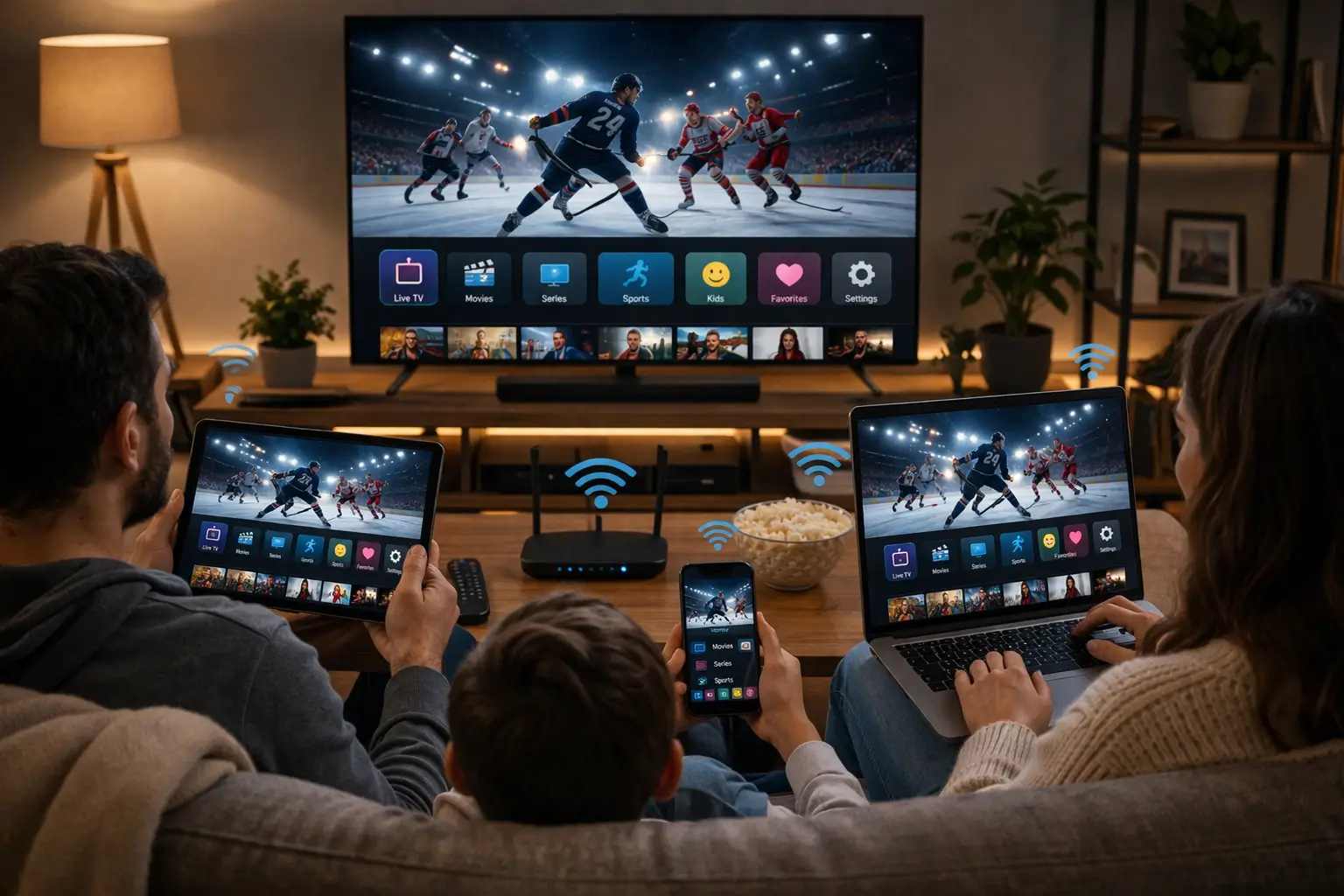
In many homes across the capital, conversation slides between English and French without anyone noticing. One partner reads the menus in French, the other prefers English, the kids switch depending on who they are talking to, and a visiting grandparent may only want one of the two. IPTV Ottawa viewers in households like these need a setup that respects both languages without turning every evening into a hunt through settings. The service itself is straightforward: channels, series and movies play in a player app on your TV, stick, phone or computer. What makes it comfortable is getting the language settings, the favourites, the programme guide and the winter routine right.
This guide covers each of those in depth: the difference between menu language and content language, where each device hides its language option, how audio tracks and subtitles work, how to organise French-language and international content so everyone finds theirs, how to keep the guide on Eastern Time through the clock changes, what to expect from older Ottawa houses and newer townhouses, and how a household handles one connection when the snow keeps everyone home.
IPTV Ottawa in a bilingual home: two settings, not one
The most common mix-up in bilingual homes is treating language as a single switch. In practice there are several separate settings, each living in a different place and each affecting a different part of what you see and hear.
Menu language
The words on the player’s buttons, settings and category headings.
Content language
The language of the channel, series or movie you choose to play.
Audio track
On titles that offer more than one, the soundtrack you pick during playback.
Subtitles
Text on screen, when the title carries it, switched in the playback menu.
Guide time
The programme guide’s time zone, which should follow Eastern Time.
Support language
Write to us in English or French; we answer in the same language.
Changing one of these does not change the others. You can run the menus in English and watch French-language content, or keep the menus in French while you browse international titles. Menu language is about reading; content language is about listening. Once everyone at home understands that, choosing settings becomes much easier, and nobody accidentally switches the whole TV to a language their partner does not read.
Household tip: agree on one menu language for the shared living-room TV, then let each person set their own on their phone or bedroom stick. Nobody has to compromise on the screen they use alone.
How bilingual households actually watch
No two bilingual homes are alike. The scenarios below are hypothetical, but each reflects a common pattern, and each calls for a slightly different setup.
The shared TV needs a menu language both can live with, and each personal device can follow its owner.
Then: shared TV in one language, phones in their owner’sParents may want French-language content for practice, with menus that the adults can still read.
Then: English menus, a French favourites list for the kidsThey want to sit down and find their programmes without asking for help.
Then: a short French favourites list on the TV they useFrench-language and international content is in the catalogue; a specific third language needs checking.
Then: ask support before orderingWrite down which pattern fits your home before you set anything up. It decides which device gets which menu language, how many favourites lists you build and whether you need to write to support before ordering. Most households are a mix, so pick the two scenarios closest to yours and combine the advice.
It also helps to decide who is the “settings person” for each screen. In a bilingual home, the risk is that two adults change the same TV back and forth. One owner per device, with the shared TV agreed together, keeps things calm.
The settings person does not need to be technical. They simply become the one who changes the menu language, edits the favourites and checks the guide after the clocks change on that screen. Everyone else asks them rather than experimenting. In practice, this one habit prevents most of the evening confusion bilingual households tell us about, such as a TV that suddenly greets the family in a language half of them struggle to read.
Setting the menu language on each device
Where the menu language comes from depends on the player and the device. Some players follow the language of the TV or phone itself. Others have their own language option inside their settings menu. If you cannot find it in the player, look in the device’s system settings.
| Device | Where the language usually lives | Bilingual tip |
|---|---|---|
| Samsung or LG smart TV | TV system settings, under general or language | Changing it affects every app on the TV, not just the player |
| Android TV or Google TV box | Device preferences, then language | Some players override it in their own settings |
| Fire TV Stick | Preferences, then language | Changes the whole stick’s menus |
| Apple TV | General settings, then language and region | The player on iPhone follows the phone’s language |
| Phone, tablet or PC | System language, or the player’s own option | Each person sets their own device their way |
Players such as IPTV Smarters Pro, TiviMate, Smart IPTV, IBO Player, XCIPTV and GSE Smart IPTV come from your device’s official app store. Not every player offers every language in its own menus, and the list changes with updates. We are independent from their publishers; if a player sells a licence, check the current price on the app’s official website. Our IPTV apps hub compares them.
A word of warning about TVs: changing the system language on a smart TV changes it for every app on that TV, including the TV’s own settings screens. On a shared living-room set, agree before you change it.
Phones and tablets are the easy part. Each person’s device already runs in the language they chose when they set it up, and most players simply follow it. If you share a family tablet, pick the language of whoever uses it most, or the language you want the kids to practise, and leave the adults’ personal phones alone. A device that changes language every other day confuses everyone, including the person who changed it.
One shared TV, two languages: house rules that work
The living-room TV is where bilingual households negotiate. Some keep it in one language and live with it; others prefer a player that offers its own language setting so the TV’s system language never changes. Here is how the two approaches compare.
One fixed menu language
- Simple: nobody changes anything
- Guests and grandparents always see the same screens
- Works with any player
- Favourites carry the second language
Switching languages often
- Easy to leave the TV in the “wrong” language for someone else
- System changes on a smart TV affect every app
- Category names may not translate the same way
- Remote-control confusion for visitors
Most households settle on the first approach after a week or two. It saves the arguments for something more interesting than settings. They pick the menu language the majority reads most comfortably on the shared TV, then use favourites to bring the other language’s content to the front. Each person keeps full control of their own phone or bedroom stick.
If a family member genuinely cannot read the shared TV’s menu language, set up a separate favourites list or a separate player profile for them, with category names they recognise. Many players let you rename or reorder favourites so the list reads clearly whichever language the menus are in.
Audio tracks and subtitles during playback
Some series and movies carry more than one audio track, or subtitles. When they do, the choice sits in the player’s playback menu, not in the general settings. It changes the title you are watching, not the whole app.
A typical playback menu; names and layout differ between players. Press OK or the menu button on the remote while a title plays.
Availability depends on each title. Many live channels carry a single audio track; some series and movies offer more. If the menu shows only one option, that title has only one. Do not expect every film to switch language on demand, and do not judge the catalogue by one title.
Family tip: subtitles in the language a child is learning, with the audio in the language they already know, is a gentle way to practise. When a title offers both, try it on a weekend film.
Subtitles also help when a household mixes languages on the sofa. If a title offers subtitles in a language one viewer reads better, switching them on lets everyone follow along without changing the audio for the others.
Subtitle size and style are usually set in the player’s general settings rather than during playback. If a grandparent finds them hard to read from the sofa, look for a subtitle size or font option there. Not every player offers it, but those that do make a real difference on a large living-room TV viewed from across the room.
Finding French-language content in the catalogue
The catalogue includes French-language and international content, spread across live channels, series and movies. Players group content into categories, so the fastest way to find French-language programmes is to browse the category list once, carefully, and mark the ones you use.

One careful browse, then favourites
On a large catalogue, scrolling every evening wastes time and causes arguments. Spend one evening going through the live, series and movie categories with whoever watches most in French. Mark the categories and channels you will actually use.
- Live categories browsed and marked
- Series and movie categories checked
- Groups nobody uses hidden
- One favourites list per language
Category names come from the catalogue, not from your menu language, so switching the player to French or English does not rename them. Look for the groups that match what you want rather than expecting the labels to follow your settings. If something is not where you expect it, the player’s search function usually finds it faster than scrolling.
Search works best with short, simple words. Type the first few letters of a series or channel rather than a full title, and try the spelling in both languages if the first attempt finds nothing. Titles are listed as the catalogue names them, which is not always the name you know from elsewhere. Once you find something, add it to favourites so you never have to search for it again.
For more ideas on homes where several languages share one screen, read our guide to multilingual homes.
Favourites per language and per person
Favourites are the single most useful feature for a bilingual household. They turn a huge catalogue into a short list that each viewer recognises. The process is the same in most players, though the buttons differ.
Some players allow several favourites groups; others offer one list. With several, build one for French-language content, one for international content and one for the kids. With a single list, order it so each person’s channels sit together, and tell everyone where their section starts.
On personal devices, each person can build their own list from scratch. Favourites are stored on each device, so the list on your phone does not change the list on the living-room TV. That is a feature in a bilingual home: everyone’s shortcuts stay theirs.
Revisit the lists every few weeks. Tastes change, a new series becomes the household’s evening ritual, a channel nobody watches drifts to the top. A quick tidy, removing what nobody uses and adding what everyone looks for, keeps the shared list short enough to scan in a few seconds with the remote.
Our TiviMate guide shows how its favourites groups work, and the IPTV Smarters Pro guide covers its favourites and hidden categories.
Other languages: ask before you order
Many Ottawa households speak a third language at home, and visiting relatives may hope for programmes in it. We are careful here, because this is where expectations can go wrong.
French-language and international content is in the catalogue. Anything more specific is a question for support, asked before you pay.
How to ask support about a language
Write by e-mail or WhatsApp (+33 6 44 65 43 13), in English or French. Name the language, say whether you mostly want live channels, series or movies, and mention who will watch. You will get a clear answer about what is available, so you can decide before ordering.
We do not promise any language beyond French-language and international content. Asking first is not a formality; it is the only way to know. A short message now avoids a disappointed relative later.
The same applies if your needs change after you order. If a new family member arrives or a relative comes to stay and hopes for a particular language, write to support then. The answer is the same whether you are a new or a current customer: clear and specific about what is available.
The IPTV Ottawa programme guide on Eastern Time
Ottawa runs on Eastern Time, and your programme guide needs to as well. The EPG in your player shows what is on now and next. If listings look shifted, the player is usually using the wrong time zone or offset, and the fix takes a minute once you know where to look.
- Setup evening
Check the device clock
Make sure the TV, box or stick shows the right local time and time zone in its system settings.
- Same evening
Align the player’s guide
Open the player’s EPG or time settings, choose Eastern Time or adjust the offset, then compare a live channel with its listing.
- Spring
Recheck after the clocks go forward
Some devices adjust on their own and others do not. A guide off by exactly one hour is a time setting.
- Fall
Recheck after the clocks go back
Same check, same fix. Do it the evening the clocks change, before the week’s viewing starts.
Do not chase the wrong problem: a guide that is off by an exact hour is a time setting, not a fault in the stream. Fix the offset before contacting support, and you will save yourself a round of messages.
Households that live across the river or travel there often may wonder whether anything changes. The time zone is the same, so the guide setting stays the same. Our page on the TV guide on Eastern Time shows where the offset hides in each player.
If the guide is empty rather than shifted, that is a different issue: the player has not loaded the programme data yet. Give it a little time after the first login, then use the refresh or update option in the player’s EPG settings. A guide that fills for some channels and not others is normal; not every channel carries listings.
Winter evenings: when everyone is home at once
When it is dark before dinner and the snowbanks are taller than the kids, everyone stays in. That is when two things get tested: the one-connection rule and your evening bandwidth.
Speed per screen, measured on the TV in the evening
Each pack includes 1 simultaneous connection. The same access details work on every device in the house, one at a time. On a long winter evening, the French-language series one parent wants and the international film the other wants may clash with a teenager’s phone upstairs. Either agree on a rota, often easier than it sounds when it is cold and everyone is in the same room anyway, or contact support and ask about extra simultaneous screens; they explain the conditions and the price.
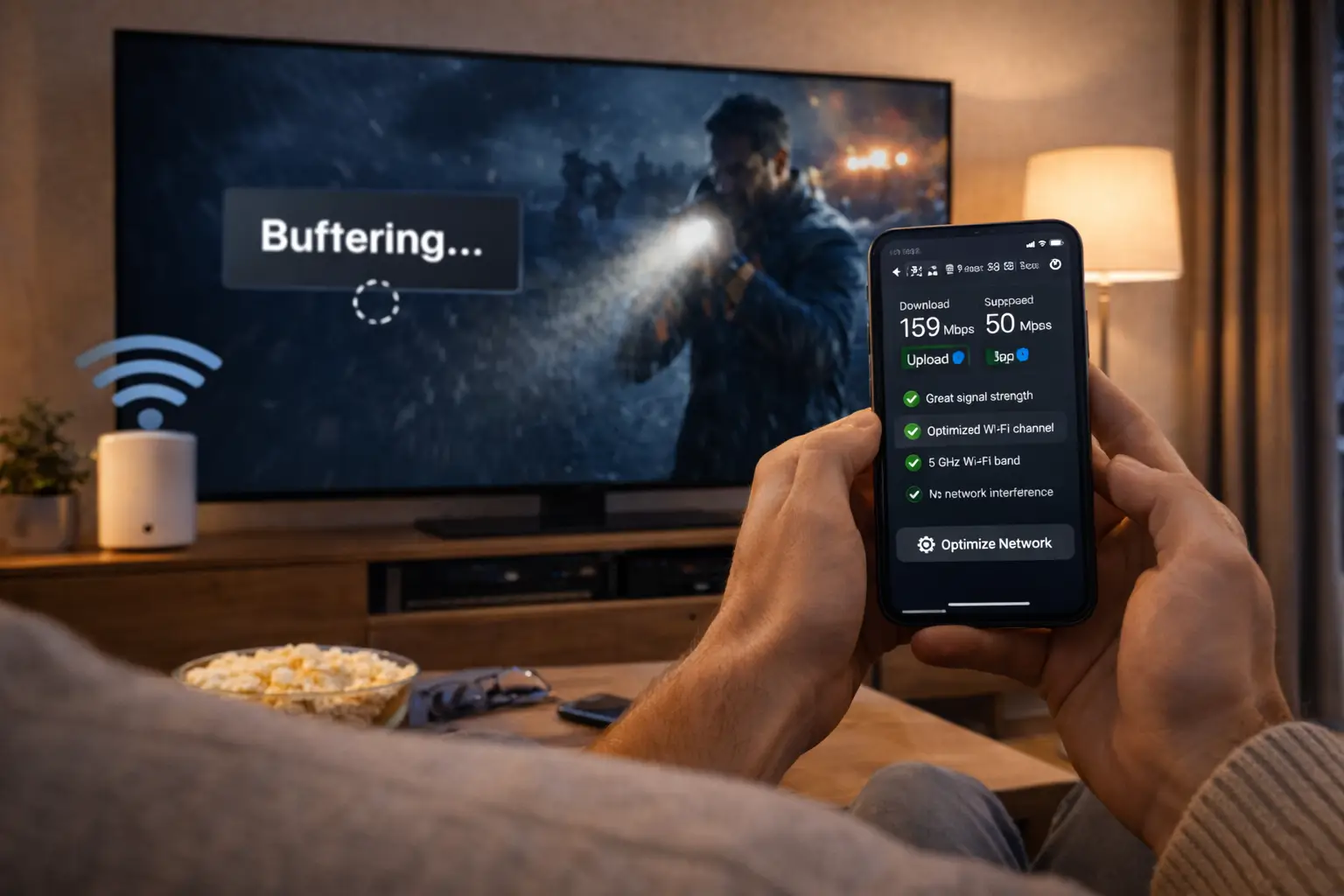
Bandwidth matters too. Run your speed test in the evening, when the whole street is online, and on the TV itself rather than on a phone next to the router. For a cosy, reliable night, connect the main TV with an Ethernet cable if the router is nearby. Snow days, when school is closed and everyone works from home, are the ultimate test: video calls, homework and streaming all at once.
If you know your line struggles on those days, lower the TV to HD while the calls run and switch back to Full HD or 4K for the evening. A 4K stream and an HD stream look very different on a large TV, but on a snowy afternoon with the kids watching cartoons, HD is plenty.
Two languages, one simple order
Pick a pack and a duration, pay once in Canadian dollars, and set up both languages tonight.
Snow days and storm nights: a household plan
A heavy snowfall changes a household’s day completely. School closes, offices tell staff to work from home, and by mid-afternoon every screen in the house is busy. It is the one day of the year when a bilingual family of four might all want something different at the same moment, on a line that is also carrying video calls and homework.
Calls need a steady line more than the TV does. A stream in 4K on the same Wi-Fi competes with them.
Then: TV in HD or Full HD until the calls endOne connection can serve the kids’ screen during the day, leaving the evening for the adults.
Then: a daytime slot for the kids, an evening slot for the adultsRouters, boxes and sticks restart in their own order and may not reconnect cleanly.
Then: restart the router first, then the TV deviceNothing on the streaming side can help until the line returns.
Then: switch to a paperback or a board gameThe plan does not need to be formal. Before the season starts, agree on two things: who gets the TV during the day when everyone is home, and which quality the TV drops to when someone has an important call. On a snow day, nobody wants to negotiate from scratch.
After a storm, if the TV device seems stuck or the player cannot load, restart the router, wait until its lights settle, then restart the box or stick. Most “it stopped working after the power cut” messages are solved by that order alone.
Older brick homes, rowhouses and suburban townhouses
Ottawa housing ranges from older brick semis and narrow rowhouses near the centre to newer townhouses and detached homes in the suburbs. Each has its own Wi-Fi personality, and it is worth knowing which one you live in.

What each type of home asks of your Wi-Fi
Older homes often have thick plaster walls, and some plaster was laid over metal lath, which blocks Wi-Fi far more than drywall. Rowhouses are deep and narrow, so a router at the front struggles to reach the back. Suburban townhouses usually have the garage at the front and the living room at the back, with the router installed near the door.
- Older home: test each room, expect surprises
- Rowhouse: router toward the middle of the depth
- Townhouse: router out of the front hall, toward the living area
- Any home: cable to the main TV where possible
In an older house, do not trust the floor plan. A room right next to the router can be weaker than one further away if a plaster wall with metal lath sits between them. Test with the TV or stick in each room, and if a key room is weak, a mesh unit placed in a doorway rather than behind a wall often helps. For houses with several floors and a basement, the Mississauga guide covers mesh placement in detail.
In a narrow rowhouse, moving the router from the front window to the middle of the main floor is often enough to reach both the kitchen at the back and the bedrooms above.
Suburban townhouses with an attached garage at the front have a similar issue in reverse. The router lands in the front hall beside the garage door, and the living room with the TV sits at the back of the house, sometimes with the kitchen in between. A longer cable to move the router toward the kitchen, or a single mesh unit near the stairs, usually brings the living room and the upstairs bedrooms into range.
Visiting relatives and the shared TV
Bilingual families often host relatives for long stretches: a francophone grandparent for the winter, an aunt from abroad for a month, cousins over the holidays. Visitors bring their own habits, and sometimes their own language expectations.
While relatives live with you, they are part of your household, and your access can serve them like anyone else at home, one stream at a time. Add them to your evening rota rather than hoping it works out. If their viewing hours clash with yours every night, contact support before they arrive and ask about an extra screen for the length of the stay.
Prepare the TV before they arrive
Set up a favourites list for the visitor, in the order they are likely to use it, and check that the shared TV’s menu language is one they can read, or leave a small card with the three buttons that matter. If they hope for content in a specific language other than French, ask support well ahead of the visit.
When the visit ends, the access stays with your household. Relatives returning home to another address are a separate household again, and they would need their own pack to keep watching there. Credentials are meant for the people living under your roof.
Kids, school and language practice
Many Ottawa families raise kids in both languages, or in a language that is not spoken at home. The TV can quietly help, as long as the setup makes it easy.
| Goal | Setting to use | Where it lives |
|---|---|---|
| More exposure to French | A French-language favourites list for the kids | Player favourites |
| Reading practice | Subtitles, when the title offers them | Playback menu |
| Menus a young child can follow | Menu language on the kids’ tablet | Device or player settings |
| Keeping unsuitable content away | Parental lock on categories | Player settings, with a PIN |
Keep the kids’ device simple. A tablet with its own favourites list in the language you want them to hear, and the categories you do not want them browsing locked behind a PIN, works better than a lecture. Our IPTV for families guide covers parental controls and household rules in more depth.
Teenagers are a different matter. They will set their own phones up however they like, and that is their choice as long as the household’s connection rule is respected. A cut-off time for bedroom viewing on school nights keeps the living-room TV available for the adults when the house finally quietens down.
Setting up a bilingual IPTV Ottawa player
With the planning done, the setup fits into one evening. Keep the welcome e-mail open on your phone.
- Install the player. Get it from your device’s official app store and enter the Xtream Codes details or M3U link you receive by e-mail within minutes of ordering.
- Choose the menu language. Set it in the player or in the device’s system settings, one device at a time, starting with the shared TV.
- Fix the guide time. Select Eastern Time or adjust the offset, then compare a live channel with its listing.
- Browse and mark categories. Go through live, series and movies once and mark what each language group uses.
- Build favourites by language. One list for French-language content, one for international content, one for the kids if needed.
- Test audio and subtitles. Open a series that offers more than one track and check where the playback menu sits.
- Test on a weeknight. Watch during your usual evening hours to confirm smooth playback.
If the login is refused, check each field against the e-mail, especially the server URL; the Xtream Codes setup guide lists the usual slips.
Writing to support in French or English
Support answers 7 days a week by e-mail and WhatsApp (+33 6 44 65 43 13), in English and French. Write in whichever language you prefer; we reply in the same one. A clear first message gets a faster answer.
- The device and the player you use
- What you see on screen, in a sentence or a photo
- When it started and whether it happens on other devices
- For language questions, the language and the type of content you want
- Never your password in a group chat or a public post
Deep dive: mixing languages in one message
In a bilingual home, the person writing to support may not be the one who noticed the problem. It is perfectly all right to describe the issue in one language and quote what the screen says in the other. If the player shows an error message in French because the TV is set to French, copy it exactly as it appears; it helps support identify the setting involved.
For a complete list of ways to reach us, see the contact page.
Questions before ordering are just as welcome as questions after. If you are unsure whether a player works on your TV, how the guide behaves, or whether your household needs more than one screen at once, ask. A two-line message in either language usually settles it, and it is far easier than discovering the answer on the first evening.
Common bilingual setup mistakes
Most frustration in bilingual homes comes from a handful of avoidable slips. Read the list once with whoever handles the settings.
- Changing a smart TV’s system language without telling the household, which changes every app on the TV
- Expecting category names to translate when the menu language changes
- Judging the whole catalogue by one title that has only one audio track
- Building one huge favourites list instead of one per language or per person
- Ordering before asking support about a specific third language
- Forgetting to check the guide after the clocks change
- Leaving the player open on the bedroom TV, blocking the living room on a winter evening
Each of these has a simple fix described earlier on this page, and none of them needs a technician. If something still looks wrong after checking the list, the IPTV not working checklist goes through the remaining causes in order, from the simplest to the rarest.
Choosing an IPTV Ottawa pack
All three packs include HD, Full HD and 4K, 1 simultaneous connection, French-language and international content, and the same supported players.
Premium Pack
- 20,000+ channels
- 24,000+ series
- 100,000+ movies
- HD, Full HD and 4K
Ultimate 4K Pack
- 57,000+ 4K channels
- 47,000+ series
- 179,000+ movies
- 20 servers in Europe
The Premium Pack is a balanced starting point for most bilingual households. If long winters mean a lot of series in your home, compare the larger series library in the VIP Premium Pack. Durations are 1, 3, 6 or 12 months, paid once in Canadian dollars by card or PayPal, with no automatic renewal. See current prices on the plans page; a household that knows it will watch through the whole winter often prefers the 12-month subscription.
If you are not sure how your home will use the service, a shorter duration is a sensible first step. There is no contract and nothing renews automatically, so when the period ends you simply choose again, with a much clearer picture of which pack suits both languages in your house. Whatever you pick, the access details arrive by e-mail within minutes and the same favourites, guide and language settings carry on when you renew.
Menu words in English and French
If the shared TV runs in one language and you think in the other, these pairs help you find your way around a player’s menus.
- Programme guide / Guide des programmes
- The EPG, listing what is on now and next.
- Favourites / Favoris
- Your personal shortlist of channels or categories.
- Audio track / Piste audio
- The soundtrack choice on titles that offer more than one.
- Subtitles / Sous-titres
- On-screen text, when the title carries it.
- Time offset / Décalage horaire
- The shift applied to the guide so it matches Eastern Time.
- Playlist / Liste de lecture
- The M3U link or Xtream Codes source loaded into the player.
- Parental control / Contrôle parental
- A PIN lock on selected categories.
Moving to a condo? See the Toronto guide for Wi-Fi in towers. Sharing the house with grandparents? The Brampton guide covers many viewers. The full list is on the Ontario cities page.
Ready for both languages
Access by e-mail within minutes, support in English and French whenever you need it.
FAQ
Can one of us use French menus and the other English menus?
Yes. Menu language is set per device, separately from content language. Set the shared TV to the language you agree on, and let each person choose their own on their phone or bedroom stick.
Does IPTV Ottawa include French-language content?
The catalogue includes French-language and international content. For any other specific language, ask support before ordering.
Can I switch a movie’s audio to the other language?
Only when that title offers more than one audio track. Open the playback menu while it plays; if only one track appears, that title has only one.
Why don’t the category names change when I switch the menu language?
Category names come from the catalogue, not from your player’s language setting. Use favourites to bring the categories you use to the front.
Why is my programme guide off by an hour?
The player’s time zone or offset is wrong. Set it to Eastern Time, then check it again after the clocks change in spring and fall.
Can support help me in French?
Yes. Support answers 7 days a week by e-mail and WhatsApp (+33 6 44 65 43 13), in English and French.
Can two of us watch at the same time on winter evenings?
Each pack includes 1 simultaneous connection. For more screens at once, contact support, who will explain the conditions and the price.
Which devices can I use?
Samsung and LG smart TVs, Android TV and Google TV boxes, Fire TV Stick, Apple TV, iPhone, iPad, Android phones and tablets, and PC.
Is there a contract?
No. You pay once for 1, 3, 6 or 12 months, by card or PayPal in Canadian dollars, and nothing renews automatically.