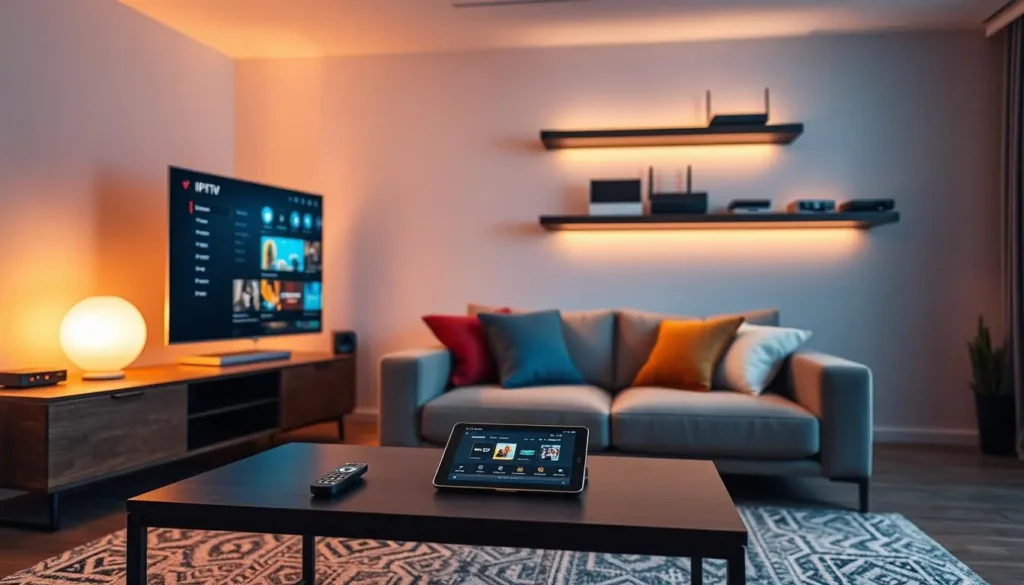
Getting IPTV for families right has very little to do with the size of the catalogue and a great deal to do with the people on the couch. A couple with a toddler in a Toronto condo, a family of five in a Mississauga semi and a three-generation household in Brampton all receive exactly the same packs. What differs is how many of them press play at the same moment, what the youngest should be able to open, and how each person finds their own shows without scrolling past everyone else’s.
This guide is about those three questions: screens, profiles and parental controls. It also covers the things that make family viewing smoother day to day, from setting up a child’s tablet to agreeing on screen time, and it ends with the pack and duration choices that make sense once you know your answers. Read it with your own household in mind. The examples are hypothetical scenarios, not real families, but the situations will probably sound familiar.
IPTV for families: what really matters in a family home
A family home asks different things of a TV service than a single viewer does. One adult on their own picks a channel and watches. A family has to share: the remote, the big screen, the connection and the evening itself. Those shared resources are where most friction comes from, so they are where your planning should start.
Screens at once
Not how many devices you own, but how many play together at the busiest moment of the week.
Profiles and favourites
A short, personal list for each viewer, so nobody wades through a giant catalogue to find their show.
Parental controls
Locked categories in the player and limits on the device, set once and checked now and then.
The home network
Enough speed in each room where children and adults actually watch, at the hour they watch.
House routines
Simple agreements about who watches when, which no setting can replace.
Languages
French-language and international content is included; for a specific language, ask support first.
Notice that the catalogue barely appears on that list. All three packs are large, and every one of them holds more than any family could watch. The packs matter, and we come to them later, but a family that sorts out screens, profiles and controls first will be happy on any of them. A family that skips those steps will be frustrated even on the biggest pack, because the frustration comes from sharing, not from a lack of things to watch.
Family stages and what each one needs
Families change shape over the years, and so does the way they watch. A setup that suits toddlers needs rethinking when the same children become teenagers. Knowing which stage your household is in helps you choose the right settings now and spot when it is time to change them.
| Stage | How they watch | What to set up | Where the friction is |
|---|---|---|---|
| Toddlers and preschoolers | Short sessions with a parent nearby | A locked tablet or a short favourites list on the main TV | Little fingers wandering into other categories |
| School-age children | After school and weekend mornings | Their own favourites, a PIN on the rest | Clashes with a parent’s early-evening viewing |
| Tweens | Want independence and their own screen | Device limits on bedtime, player PIN kept by parents | Negotiating screen time every single night |
| Teenagers | Late, on phones and bedroom TVs, mostly series | Personal favourites, clear house rules | One connection during the late evening |
| Adult children at home | Their own schedule, sometimes shifts | Their own device, counted in the screen plan | Overlap with parents’ prime time |
| Grandparents in the home | Regular hours, simple habits | One app, one short list, large text | Confusing menus and accidental changes |
Many homes have two or three stages at once: a preschooler and a teenager, or school-age children and a grandparent. That is normal, and it is why one setting for everyone rarely works. The sections below show how to give each person what they need on shared equipment, using the tools that already exist in the players and on your devices.
A good habit is to revisit the setup each time a child moves to the next stage. The tablet that was perfect for a five-year-old will feel like a cage to a ten-year-old, and the rules that worked for a twelve-year-old will need loosening at fifteen. A quick review at the start of each school year is enough for most families.
Screens first: living with one connection
Each pack includes 1 simultaneous connection. You can enter the same access details on every device in the home, from the family room TV to a tablet on the kitchen counter, and each one will work. Only one stream plays at a time. If a second device starts while the first is playing, one of the two stops; that is the connection rule at work, not a fault.
One connection usually works when
- The family watches together on the main TV most evenings
- Children have a set screen-time slot after school
- Adults watch after the children are in bed
- Young children watch with a parent rather than alone
- Everyone closes the player when they finish
Ask about more screens when
- Two parents watch different programmes at the same hour every night
- A teenager streams upstairs while the family watches downstairs
- A grandparent’s programmes clash with the children’s slot
- An adult child on shifts watches during the family’s evening
- Turn-taking already causes daily arguments
The easiest way to know which side you are on is to watch one ordinary weeknight and count. Do not count the devices you own; count the screens actually playing at the busiest moment. Do it on a school night, not a holiday, and include the phone a teenager watches in bed. If the number at the peak is one, you are set. If it is regularly two or more, the next section explains how to ask for extra screens.
Family tip: teach every member of the household one habit: close the player when you stop watching, instead of switching off the TV with the app still running. Some devices keep a stream alive in the background, and the next person finds the connection busy.
Asking for more simultaneous screens
If your family genuinely needs two or more screens playing at once, more simultaneous screens are available on request. There is no published family bundle and no list price for extra screens, so do not guess and do not order first hoping to adjust later. Contact support before you pay. Support explains the conditions and the price for your situation.
What to put in your message
- How many screens play at the same moment on a busy evening, not how many devices you own
- Which devices they are, for example a smart TV, a Fire TV Stick and a tablet
- The quality you expect on each: HD, Full HD or 4K
- The pack and duration you are considering
- Any language that matters to someone in the home
A clear message gets a clear answer. “We are a family of five, two screens play together most evenings between supper and bedtime, one is a smart TV in 4K and the other a tablet in HD” tells support everything needed. “We have lots of TVs, what do you suggest?” leads to a round of questions first. Support answers by e-mail and WhatsApp (+33 6 44 65 43 13), 7 days a week, in English and French.
One thing support will not arrange is access for another household. The details are for the people who live in your home. A grandparent in a different house, an older sibling in a university town or a cousin across the city needs their own subscription. Beyond the rule itself, it simply does not work in practice: on a single connection, two homes would interrupt each other every evening.
One family, one household: never post your access details in a family group chat or share them with relatives who live elsewhere. If you think the details have left your home, write to support so the access can be secured.
Profiles and favourites for every viewer
Large catalogues are wonderful until four people share one remote. Every evening starts with someone scrolling through categories that belong to somebody else. Profiles and favourites solve most of that friction, and they take less time to set up than one evening of arguing.
Some players let you add the same access under several names, so each viewer gets their own setup on a shared device.
Some players let you add more than one user or playlist entry on a single device. In a family home, that means the shared family room TV can hold a profile for the parents, one for the children and one for a grandparent, all using the same access details from your welcome e-mail. Each profile keeps its own favourites, and each viewer opens only their own.
Where a player does not offer separate users, favourites do the same job. Mark the channels and categories each person uses, and build separate favourite groups where the app allows it. A preschooler’s group might hold a handful of children’s categories; a teenager’s might hold series; a parent’s might hold news and films. The names of these options vary from one app to another, so look in the settings for words like favourites, groups or users. Our guide to IPTV Smarters Pro shows where they sit in one of the most common players, and the IPTV app guide compares all six supported players.
Remember that profiles organise viewing; they do not add connections. Three profiles on one TV still share the 1 simultaneous connection of the pack.
The best moment to build favourites is the first evening, with everyone on the couch. Pass the remote around and let each person choose their own categories while the others watch. Ten minutes together saves weeks of “where did my show go” later, and children enjoy picking their own list. For a grandparent, sit beside them and add their programmes in the order they watch them, so the first item on the list is the first thing they want each morning.
Parental controls: building layers that hold
Parental controls are a feature of the player app and of your devices, not of the subscription itself. Your access opens the whole pack you choose, so the job of limiting what a child can reach falls to the tools on the screen they use. No single tool covers everything, which is why the most reliable approach is to stack several thin layers.
| Layer | What it stops | Where to find it | Best for |
|---|---|---|---|
| Player PIN or locked categories | A curious click into a category you have locked | The player’s settings, under parental control, lock or PIN | Every device children use |
| Hidden groups | Categories appearing in the menu at all | The player’s group or category settings | Keeping a child’s screen tidy |
| Device controls | Opening the app at the wrong time, or at all | The TV, tablet or phone system settings | Bedtime limits for younger children |
| Separate device | A child seeing the adults’ setup | A dedicated tablet or bedroom stick | School-age children and tweens |
| House routine | Arguments about when and how long | A conversation around the table | Every age, every home |
Use more than one layer. A PIN in the player stops an accidental click; a device-level limit stops a child from opening the app at all after bedtime; a separate tablet means the adults’ favourites and settings never appear on the child’s screen. Each layer has gaps, and the next one covers them.
When you set a PIN, change it from any default the app suggests, choose something the children cannot guess from a birthday, and keep it to the adults. Players such as IPTV Smarters Pro and TiviMate come from your device’s official app store. IPTV Ontario is independent from their publishers; if a player sells a licence, check the current price on the app’s official website. The exact menus change from version to version, so if you cannot find the parental option, look through each settings page once before deciding it is missing.
Deep dive: why the device layer matters as much as the player
A player PIN protects categories inside the app, but it cannot stop a child from opening the app in the first place, and it cannot limit how long they watch. Most TVs, streaming devices, tablets and phones have their own parental or family settings in the system menu, often with app limits, time windows and a separate PIN. Set those on any device a young child uses alone. Together with the player PIN, they give you control over what, when and how long, which is what most parents are actually after.
Setting up a child’s tablet or bedroom stick
For school-age children, a device of their own is often the simplest solution. It keeps their favourites separate, it lets you lock it down without affecting the adults, and it ends the daily tug of war over the family room remote. It still uses the family’s single connection, so the turn-taking rules apply, but the setup itself becomes far cleaner.

The five-minute test
Once the device is set up, hand it to yourself as if you were the child. Try to open a locked category, try to reach the settings, try to switch profiles, and try to open the player after the time window you set. Whatever you manage to do, a curious child will manage too.
- Player opens straight on the child’s favourites
- Locked categories ask for the PIN
- Settings menu protected where the app allows it
- Device limits active outside agreed hours
- PIN known only to the adults
For tablets, set the stream quality to HD. On a small screen, the difference from Full HD is hard to see, and it leaves more of the line for the main TV. For a bedroom stick, place it where the Wi-Fi is strong, or connect it with a cable if the room is far from the router. If you are choosing a stick or box for a child’s room, our guide to IPTV on Firestick covers placement and settings in detail.
Screen-time agreements that actually stick
Settings can enforce limits, but they cannot create agreement. The families who argue least about the TV are usually the ones who settled the rules out loud, once, with everyone present. A short family conversation does more than any PIN.
A rule everyone agreed to at supper is easier to keep than a rule a parent typed into a settings menu.
Keep the rules few and concrete. “Screens off at nine on school nights” is easy to follow and easy to check. “Not too much TV” invites a debate every evening. Write the agreed rules somewhere visible, such as the fridge or the family group chat, and include the one about closing the player when you stop. If you have one connection, include the order of turns at the busy hour so nobody feels cheated when their stream stops.
- Who has the main TV on school nights, and until when
- When children’s screens switch off, by age
- Weekend exceptions, such as a family film night
- The close-the-player rule for everyone, adults included
- What happens when the rule is broken
- When the rules will be reviewed, for instance each new school year
Involve the children in writing the rules, especially the older ones. A teenager who helped set the late-evening slot is far more likely to respect it than one who was simply told. Younger children respond well to predictable routines: the same show slot after homework each day, with the tablet going on its charger at the same time each evening. Device time limits then become a gentle reminder rather than a punishment.
Teenagers, phones and late evenings
Teenagers are the opposite challenge from young children. They need fewer locks and more trust, but they also tend to watch late, on phones and bedroom TVs, at exactly the hour parents settle down in front of the main screen. With one connection, that overlap is the most common source of family friction.
Agree on a split: one takes the early-late slot, the other the late-late slot, alternating nights if needed.
Then: if it still clashes daily, ask support about an extra screenThat phone uses the same connection as the TV downstairs. It counts as a screen at the busy hour.
Then: include it in your evening countDevice limits on school nights help without constant reminders from parents.
Then: set a time window on the device itselfGive them their own profile or favourites and loosen the player locks as they grow.
Then: review the settings each school yearThe phone in bed deserves a special mention because parents often forget it. A teenager watching a series on a phone uses the same 1 simultaneous connection as the family room TV. When the parents press play downstairs, the phone stops, and vice versa. If this happens every night, it is a sign that your household genuinely needs more than one stream, and it is worth a message to support rather than another round of negotiation.
For older teenagers, trust usually works better than locks. Give them their own profile, let them build their own favourites, and agree on the times rather than the content. Keep the stronger controls for younger siblings’ devices, where they belong.
Know your family’s screen count
If two or more screens play together most evenings, ask support for the conditions and the price before you choose a pack.
Bandwidth for a busy family evening
If support arranges extra screens for your home, make sure the internet line can carry them. Even on one connection, a family home puts more load on the line than a single viewer does, because everything else in the house peaks at the same hour as the TV.
Speed to plan per screen
Add the figures for every screen playing at the busiest moment. The examples below are hypothetical combinations, to show how the sums work.
| Screens playing together | Quality on each | Total to plan |
|---|---|---|
| Main TV only | 4K | 25 Mbps |
| Main TV and a child’s tablet | Full HD and HD | 25 Mbps |
| Main TV and a teen’s bedroom TV | 4K and Full HD | 40 Mbps |
| Three screens | 4K, Full HD and HD | 50 Mbps |
| Three screens, smaller ones in HD | Full HD, HD and HD | 35 Mbps |
Then leave headroom on top. The figures above cover the TV streams only, and a family evening also carries homework, video calls, game consoles and phone updates. Measure at viewing time, on the device that will play, in the room where it sits. If the result barely covers your streaming total, there is no margin left, and the picture will suffer at the worst moment.
Homework, calls and gaming on the same line
In a family home, the TV is never alone on the network. Between supper and bedtime, the same line carries a parent’s work call, a child’s school platform, a teenager’s online game and every phone in the house. Each of these takes its share, and the stream on the main TV feels it.
Three changes make the biggest difference. First, connect the main TV with an Ethernet cable if you can. A wired TV no longer competes for Wi-Fi airtime with every phone and tablet in the house, and it usually becomes the most stable screen you own. Second, set smaller screens such as tablets and bedroom TVs to HD. Third, if a game console fetches large updates in the evening, schedule them overnight in the console’s settings.
If the main floor plays smoothly but bedrooms or the basement struggle, the problem is coverage rather than speed. A mesh system or a wired access point closer to those rooms usually helps more than a faster internet plan. In a condo, the issue is often crowding from neighbouring networks; the guide to IPTV Wi-Fi in condos explains how 5 GHz and a cable solve it. When the picture pauses at the busiest hour, the IPTV buffering guide takes you through the checks in order.
Choosing a pack for IPTV for families
Families usually want variety, because tastes span several ages at once. Children want their categories, teenagers want series, parents want news and films, and a grandparent may want a particular kind of programme. All three packs offer HD, Full HD and 4K, and all include French-language and international content.
VIP Premium Pack
- 27,000+ channels
- 61,000+ series
- 155,000+ movies
- Variety across several ages
Ultimate 4K Pack
- 57,000+ 4K channels
- 47,000+ series
- 179,000+ movies
- For a large 4K family room TV
The VIP Premium Pack is a strong fit for many families: its large series library keeps teenagers and adults busy, and its channel list covers live viewing for everyone else. If your family room is built around a large 4K TV and the family watches together on it most evenings, compare it with the Ultimate 4K Pack. For a smaller household, such as a couple with one young child, the Premium Pack’s library may be more than enough.
Whichever pack you choose, it still includes 1 simultaneous connection. The pack decides what you can watch; the screen arrangement with support decides how many of you can watch at once. Settle both before you order.
Choosing a duration for a family
Every pack comes in 1, 3, 6 and 12 months, paid once in Canadian dollars by card or PayPal, with no contract and no automatic renewal. For a family, the right duration depends mostly on how sure you are that the setup works in every room where someone watches.

Start short, then commit
Families have more rooms, more devices and more habits to check than a single viewer. A short duration first lets you test the bedroom stick, the basement TV and the children’s tablet at real viewing times. Once everything holds up, a longer duration brings the cost per month down.
- Each room tested at the busy hour
- Parental controls checked on every child’s device
- Screen count confirmed over a few weeknights
- Pack confirmed by what the family actually watched
Our guide to the 1-month IPTV subscription shows how to use a short duration as a proper household check. When you are confident, the 12-month IPTV subscription gives the lowest cost per month, and its guide explains how to read the saving correctly. See current prices on the plans page.
Families with a change coming, such as a move, a new baby or a relative arriving to live with you, may prefer three or six months, so the next order falls at a natural moment to rethink screens and pack.
Four hypothetical family homes
The households below are invented to show how the same rules play out in different Ontario homes. None of them is a real family, and your own answers may differ, but the reasoning carries over.
Viewing happens in turns: children’s programmes in the morning with a parent, adult viewing after bedtime. One connection covers it.
Then: Premium Pack, a locked tablet, the main TV on a cableTwo children watch in the basement after school while a parent watches upstairs some evenings. The overlap is regular.
Then: ask support about a second screen before choosing VIP PremiumA grandparent watches at fixed hours, teenagers at night, parents after supper. Two streams overlap most evenings.
Then: contact support with the screen count, then pick the packParents and children switch between French and English depending on the programme. One shared TV, one tablet.
Then: favourites per language, and ask support about any specific languageLook at what decided each case. It was never the size of the catalogue. It was the overlap of viewing times, the age of the children and the rooms where people watch. The condo couple needed nothing beyond good controls. The semi and the three-generation house needed a conversation with support about screens. The bilingual family needed favourites organised by language. Our city guides go deeper into each kind of home: IPTV in Brampton for large multigenerational houses and IPTV in Ottawa for bilingual households.
Languages, grandparents and visiting relatives
Many Ontario families watch in more than one language. Parents may prefer one, children another, and a grandparent may hope for programmes in a language from home. The catalogue includes French-language and international content. If a family member needs a specific language, ask support before ordering rather than assuming; that way you know what to expect before you pay.
Inside the player, language is handled in three places: the device menu language, the player’s own menu language, and the audio or subtitle track of what is playing. Each viewer’s device can be set to their preferred menu language, which helps a grandparent with a bedroom TV feel at home. Our article on IPTV for multilingual homes goes through the three layers one by one.
Visiting relatives are a separate matter. A grandparent who stays for a few weeks over the holidays is part of the household for that time and can watch on your devices, sharing the connection like everyone else. If their visit overlaps with your busy evenings, plan the turns in advance. What does not work is giving them your details to use at their own home after they leave. Their home needs its own access.
Setting up IPTV for families over one weekend
Most families can do the whole setup in a single weekend. Spreading it over two days avoids the rush and leaves time to test at a real evening peak.
- Friday evening
Count and decide
Note how many screens play at once, ask support about extra screens if needed, and choose the pack.
- Saturday morning
Install the players
One player per device, from each device’s official app store, with the details from your welcome e-mail.
- Saturday afternoon
Profiles and favourites
Sit down together and let each person mark their own channels and categories.
- Saturday evening
Test at the peak
Watch on the main TV and the children’s screens at the busiest hour and note any pauses.
- Sunday
Lock and agree
Set the PINs and device limits, then agree on the house rules over supper.
- Count your busiest moment. Note how many screens play at once on a typical school night, including phones.
- Ask about extra screens first. If you need more than one stream at a time, contact support for the conditions and the price before ordering.
- Install the players. Get a supported player from each device’s official app store and enter the Xtream Codes details or M3U link you receive by e-mail within minutes.
- Build favourites per person. Mark each viewer’s categories and, where the player allows it, create separate users or groups.
- Turn on parental controls. Set a PIN in the player and the device’s own limits on every screen a child uses alone.
- Agree on the rules. Settle turns, bedtimes and the close-the-player habit as a family.
If the details from your e-mail are new to you, the IPTV setup guide explains the whole process, and the Xtream Codes setup page shows where each field goes when you type with a remote.
Words for a family setup
A short glossary of the terms you will meet in player menus and in this guide.
- Simultaneous connection
- A stream playing at a given moment. Each pack includes one; more are available on request through support.
- Profile or user
- A separate entry in a player, with its own favourites, using the same access details.
- Favourites
- A personal short list of channels or categories, saved in the player on that device.
- Parental PIN
- A code in the player that protects categories you choose to lock.
- Device limits
- Controls in the TV, tablet or phone settings that restrict apps or viewing hours.
- Hidden group
- A category removed from a player’s menu so it does not appear on that screen.
- Household
- The people who live in your home. The access is for them only.
Set your family up this weekend
Pick a pack, pay once in Canadian dollars and receive your access by e-mail within minutes. Ask support first if you need several screens at once.
FAQ
Is IPTV for families possible with one connection?
Yes, if family members watch in turns. Each pack includes 1 simultaneous connection used on several devices one at a time. For screens at the same time, contact support for the conditions and the price.
Do you have a family pack?
No. There is no separate family pack. Any of the three packs works, and support can arrange extra simultaneous screens on request, with conditions and price.
How many screens can we add?
Describe your household to support through the contact page. They explain what is possible for your situation, with the conditions and the price.
How do I block content for my children?
Use the parental lock or PIN in your player’s settings, hide categories you do not want shown, and add your device’s own limits for an extra layer.
Can each child have their own favourites?
Yes. Favourites are saved in the player on each device, and some players let you add separate users, so a child’s tablet can show only their categories.
What speed do we need for three screens?
Add about 10 Mbps per HD screen, 15 Mbps per Full HD screen and 25 Mbps per 4K screen, then keep headroom for homework, calls and games.
Which pack suits a family best?
Many families choose VIP Premium for its variety and large series library. Smaller households often find Premium enough, and homes centred on a large 4K TV look at Ultimate 4K.
Can grandparents in another house use our account?
No. Access details are for one household. Another home needs its own subscription.
Can we get programmes in a grandparent’s language?
The catalogue includes French-language and international content. For a specific language, ask support before ordering.
Does the family plan renew automatically?
No. Every duration is a one-time payment with no contract and no automatic renewal. You decide whether to order again when it ends.