A Fire TV Stick is the quickest way to give a second TV, a bedroom set or a basement screen its own channel guide. This page covers IPTV Firestick viewing from the first time you plug it in to the small habits that keep it quick months later: which player to choose, how to type a login with a tiny remote, where to put the stick so the Wi-Fi reaches it, and what to do when it starts to feel sluggish on a Sunday night.
We wrote it for Ontario homes as they really are. The router usually sits by the front door or in a basement utility room, the TV is mounted on the far wall, and three people expect the remote to work the way it did yesterday. None of that is a problem once you know where a stick shines and where it needs a little help. Read straight through for a full setup, or jump to the section you need from the headings below.
Why IPTV Firestick setups suit Ontario homes
Most households here own more TVs than they own set-top boxes. The living room may already have a smart TV or an Android box, but the primary bedroom, the rec room downstairs and the guest room are usually left with nothing more than an HDMI port and an empty wall. A stick fills that gap without adding furniture, cables along the floor or another box with blinking lights.
Out of sight
It hangs off the HDMI port behind the screen, so a wall-mounted TV stays tidy.
Easy to move
Unplug it from the bedroom TV and plug it into the basement set in moments.
Familiar remote
A short remote with few buttons, easy for kids and visiting relatives.
Wi-Fi first
No built-in cable port, so signal quality behind the TV matters more than on a box.
HD to 4K
Standard sticks handle HD and Full HD; 4K needs a 4K-capable model and TV.
Official store
Players come from the stick’s own app store and update the normal way.
Think of three hypothetical homes. In a one-bedroom condo near the lake in Toronto, the stick may be the only streaming device, tucked behind a screen bolted to the living room wall. In a detached house in Brampton, it often ends up on the basement TV where the teenagers gather after school. In a Mississauga semi, it tends to live on the bedroom TV upstairs, two floors from the router. Each of those homes has a different challenge, and later sections deal with each one.
The common thread is simplicity. Once the player is set up and pinned to the front of the home screen, anyone in the house can press the home button, open the app and find a channel. That is the whole routine, and it stays the same whichever TV the stick is plugged into.
What the stick does well, and where it needs help
A stick is not a smaller version of a box. It is a different tool with its own strengths. Knowing both sides before you start saves a lot of frustration later, especially if you are deciding between a stick and a box for the main TV.
Where a stick shines
- Second TVs, bedrooms, guest rooms and rec rooms
- Wall-mounted screens where nothing should show
- Households that move a device between rooms
- Viewers who want a simple remote and big menus
- HD and Full HD viewing on a reasonable Wi-Fi signal
Where it needs help
- No built-in Ethernet port, so Wi-Fi does all the work
- Sits right behind the TV, often a weak spot for reception
- Modest storage that fills up with unused apps
- Can run warm when pressed flat against the TV
- Very large guides load slower than on a full-size box
None of the weak points is a deal-breaker. A short HDMI extender moves the stick away from the metal back of the TV. A tidy app list keeps storage under control. A mesh point or a better router position solves most Wi-Fi trouble. And if the stick is going on the main TV in a busy house, where several people browse a large guide every night, it may simply make more sense to put an Android TV box with a wired connection there and move the stick to a quieter room.
A good rule: use the stick where convenience matters most, and a box or a wired device where reliability under heavy use matters most. Many Ontario families end up with both, one on each floor.
Picking the right stick for each TV
You do not need the newest or most powerful model for every room. What matters is matching the stick to the TV it will live on and to the signal that reaches that spot. The table below sums up the choices without naming specific models, since lineups change often.
| TV in the room | Stick that fits | Speed to plan at the TV | Notes |
|---|---|---|---|
| Small HD bedroom set | Standard stick | 10 Mbps | HD picture is sharp on a small screen |
| Full HD rec room TV | Standard stick | 15 Mbps | Use the HDMI extender if the TV is mounted |
| 4K living room TV | 4K-capable stick | 25 Mbps | Plug into an HDMI port that supports 4K |
| Older TV with slow menus | Standard stick | 10 to 15 Mbps | The stick replaces the TV’s own apps entirely |
| Guest room used now and then | Any stick you already own | 10 Mbps | Keep the player logged in for visiting family |
Two practical details are worth checking on the TV itself. First, on 4K sets not every HDMI port supports 4K at full quality. The port that does is often labelled on the back of the TV or in its manual, and it may be the one marked HDMI 2.0 or HDMI 2.1. Second, many TVs have a setting that controls other devices over HDMI, so pressing the stick’s power button also wakes the TV. It is handy, and it can be switched on or off in both the TV and the stick settings.
We never quote device prices on this site, because they change constantly and differ from store to store. What we can say is that a 4K-capable stick only makes sense when the TV and the signal behind it can both deliver 4K. On a 1080p bedroom set, a standard model shows exactly the same picture.
Before you start: a short preparation
A little preparation turns a frustrating evening into a quick job. Do these checks before you install anything, ideally in daylight when you can see the back of the TV.
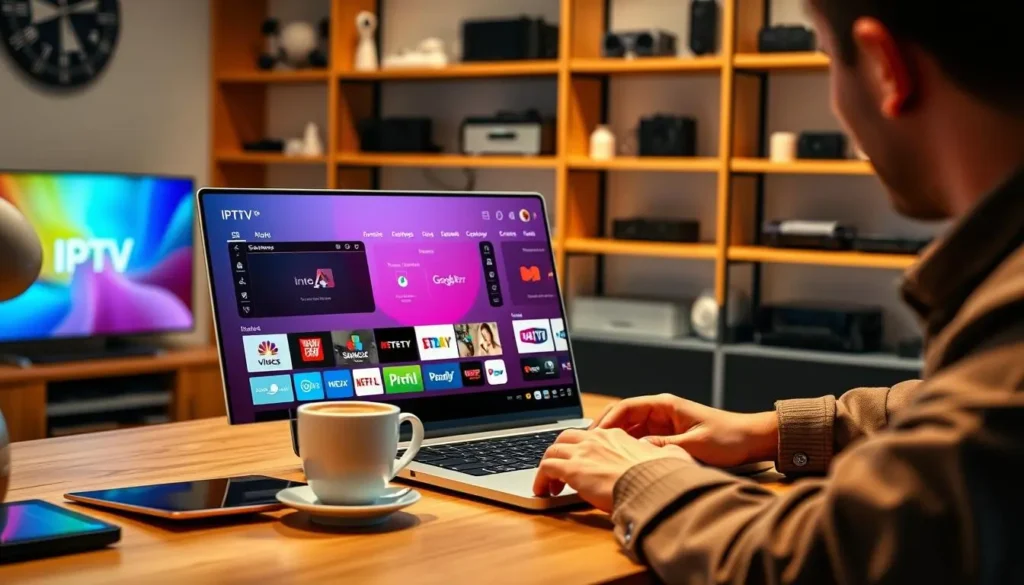
The checklist before you plug in
- The stick sits in an HDMI port on the TV, with its own power adapter plugged into the wall, not a TV USB port.
- The stick has installed its latest system update from the settings menu.
- Your welcome e-mail is open on your phone, showing the server URL, username and password, or the M3U link.
- You ran a speed test on a phone held right beside the TV, in the evening.
- For 4K, both the stick and the TV support 4K.
- Apps nobody uses have been removed to make room for the player’s guide data.
The power adapter point catches many people. A TV USB port often does not deliver enough power, and it switches off when the TV goes to standby. The stick then restarts every time someone turns the TV on, which feels like a slow, unreliable device when it is really just starving for power. Use the adapter that came with it.
The speed test matters just as much. If your phone shows a healthy reading next to the router but a much lower one at the back of the TV, deal with the Wi-Fi before you blame the stick or the player. Our guide to IPTV Wi-Fi in condos and apartments explains why crowded buildings behave differently from houses.
IPTV Firestick setup, step by step
Here is the full routine, from the home screen to your first channel. It works with any supported player listed in the stick’s official app store; menu names vary a little from app to app, but the order stays the same.
- Open the search on the home screen. Use the magnifying glass and type the name of a supported player, such as IPTV Smarters Pro or XCIPTV.
- Install the player from the official app store. Select the app and choose to get it. Wait until the button changes to Open.
- Choose the Xtream Codes login. When the player asks how you want to connect, pick the option for Xtream Codes, or the one that mentions a server, username and password.
- Name the profile. Give it a name the family will recognize, such as Basement or Main floor. The name is only a label on your stick.
- Type the three details carefully. Enter the username, password and server URL exactly as written in the e-mail, capitals included. Check that there is no space at the end of any field.
- Let the first sync finish. The player pulls in the live channel list, series, movies and the programme guide. On a large catalogue this takes a few minutes, so leave the remote alone.
- Set the guide to Eastern Time. Open the player settings and confirm the time zone or guide offset, so listings line up with your clock.
- Pin the player to the front. Move the app to the first spot of your app row, so nobody has to hunt for it.
The typical login screen on a stick. Field order varies from player to player.
Typing with the stick’s on-screen keyboard is slow, and that is where most mistakes creep in. Go one character at a time, and before you press the final button, scroll back through each field. If the server URL ends with a colon and a number, that number is part of the address and must be included. Our Xtream Codes setup guide explains what each field means and the small errors that trigger an invalid login message.
Xtream Codes or M3U on a stick
Your welcome e-mail gives you two ways in: the three Xtream Codes fields, or a single M3U link. Both open the same catalogue. On a stick, the choice mostly comes down to typing and to how the player organizes what it receives.
| Point | Xtream Codes | M3U link |
|---|---|---|
| What you type | Three short fields | One long link |
| Easy with the stick remote | Yes | No, slow to type |
| Live, series and movies sorted into sections | Yes, in most players | Depends on the player |
| Programme guide loads automatically | Usually | Sometimes needs a separate guide link |
| Works in all supported players | Yes | Yes |
For most households the answer is Xtream Codes. Three short fields are far easier to type with a remote than a long link full of slashes and symbols, and most players file the content more neatly when they receive it this way. The M3U link is useful when a particular player handles it better, or when you want to paste the link from another device. If you do go that way, our M3U playlist setup guide shows how to add the link without breaking it.
Keep the welcome e-mail in a folder you can find again. When you add the player to a second device later, you will need the same details, and searching your inbox at the end of a long day is not much fun.
Choosing a player for your Fire TV Stick
Several of the players we support can run on a stick when they are listed in its official app store. They all open the same catalogue; what changes is the feel of the menus, how fast they start and how the guide looks. Pick the one that matches the people who will use it most.
Large tiles for live TV, series and movies make IPTV Smarters Pro easy for kids and grandparents.
Then: read our IPTV Smarters Pro walkthroughXCIPTV is light and opens quickly, which helps on a basic stick in a spare room.
Then: hide unused categories to keep it quickTiviMate shows a cable-style grid with channels down the side and times across the top.
Then: check the TiviMate guide for its premium upgradeGSE Smart IPTV offers flexible playlist handling for those who enjoy settings.
Then: start with Xtream Codes, then exploreOur walkthrough of IPTV Smarters Pro covers its menus screen by screen, and the TiviMate guide explains its grid and favourites. The apps hub compares every supported player side by side.
We are independent from app publishers. If a player asks for a licence or offers a premium upgrade, check the current price on the app’s official website. That licence is separate from your IPTV Ontario pack. You can also install two players and keep whichever the household prefers, since your access details work in any of them.
Placement: getting Wi-Fi to the back of the TV
This is the section that makes the biggest difference on a stick. Because there is no cable port, the stick lives or dies by the Wi-Fi signal that reaches it. And the place where it plugs in, behind a large metal-backed screen and often against a wall, is one of the worst spots in the room for reception.
Three fixes, in order of effort
Start with the easiest change and test after each one, using a phone held where the stick hangs.
- Use the short HDMI extender so the stick hangs below the TV rather than pressed against the back.
- Move the router out of the closet or cabinet and into the open, as high as you reasonably can.
- Add a mesh point in the TV room, or a wired adapter designed for the stick where one is available.
Next, choose the band. Most routers offer 2.4 GHz and 5 GHz. The 5 GHz band carries more data and suffers less from the crowd of neighbouring networks in an apartment tower, but it fades faster through walls and floors. The 2.4 GHz band reaches further but is slower and more crowded. In a condo where the router is in the same open-plan room as the TV, pick 5 GHz. In a house where the stick is two floors away from the router, 2.4 GHz may hold a steadier connection, or better, a mesh point near the TV can give you 5 GHz again.
Speed to plan per screen, measured at the stick
Measure in the evening, when your street and your building are busiest. If the reading behind the TV sits comfortably above the figure for your picture quality, you are set. If it hovers close to it, expect occasional pauses at peak times and lower the quality in the player, or improve the signal. Our IPTV buffering guide walks through every fix in order of impact. For a tower specifically, the IPTV Toronto condo guide goes deeper into crowded Wi-Fi.
Stick ready, signal tested
Compare the three packs and the four durations, then pay once with no automatic renewal.
Settings that keep the picture smooth
A stick has less memory and processing power than a full-size box. A few minutes in the settings, both on the stick and inside the player, keep everything responsive. You only need to do this once.
Inside the player
Most players let you hide whole categories of live channels, series or movies. If your household watches a handful of groups, hide the rest. The guide loads faster, scrolling feels lighter and nobody lands on a list of channels they never asked for. In a bilingual Ottawa home, for instance, you might keep the French-language and a few international groups and hide everything else. If a particular language matters to you, ask support before ordering rather than assuming it is in the catalogue.
Many players also offer more than one internal video engine. If a channel stutters, shows a black screen with sound, or has a picture that is out of step with the voices, switch the engine in the player settings and try the same channel again. One option often handles a given stream better than the other.
On the stick itself
In the display settings, set the video resolution to match your TV, or leave it on automatic if the TV reports its capabilities correctly. If your stick offers an option to match the original frame rate, turning it on can make motion look more natural. In the preferences menu, check whether a data monitoring option is switched on; if it is, it may limit video quality without telling you.
Deep dive: why the same channel looks different on two TVs
The picture you see is the result of three things working together: the quality of the stream, the resolution the stick sends to the TV and the way the TV processes it. A Full HD stream on a 4K TV is scaled up by the TV, which can look slightly soft. The same stream on a Full HD bedroom TV looks crisp, because no scaling happens. If a channel looks sharper in the bedroom than in the living room, that is usually why. Try the TV’s picture modes, and turn off heavy motion smoothing, which can make fast scenes look artificial.
Memory and storage housekeeping
Sticks slow down for the same reasons phones do: too many apps, a full cache and weeks without a restart. A short routine keeps the stick feeling new. Pin this to the fridge if the stick lives in a teenager’s room.
- Once
Clear out unused apps
Go to the installed applications list and remove anything nobody opens. Each app takes storage and some run in the background.
- Every week
Restart from the menu
Use the restart option in the stick’s settings rather than pulling the plug. It clears memory and closes background tasks cleanly.
- When menus slow
Clear the player cache
In the installed applications list, open the player and clear its cache. Your login stays; only temporary files go.
- After system updates
Check the player opens
Open the player once after each stick update, so the first launch is not in the middle of a busy evening.
- If all else fails
Reinstall the player
Uninstall, reinstall from the official app store and log in again with the details from your e-mail.
Heat matters too. A stick pressed flat against the back of a TV that has been on all evening can run warm, and a warm stick throttles itself, which shows up as slow menus and stutter. The HDMI extender helps here as well, because it gives the stick a little air. Avoid wrapping it in tape or pushing it into a tight gap in a wall mount.
If you have restarted, cleared the cache and checked the signal, and the stick still struggles on a big guide, it may simply be an older model doing its best. Moving it to a smaller TV in a quieter room and putting a more capable device on the main screen is often the most sensible fix.
Making the stick easy for the whole household
A setup that only one person understands is a setup that generates questions every evening. A few minutes of organization lets everyone, from a seven-year-old to a visiting grandparent, find what they want without calling you.
- Pin the player to the first position of the home row, so it opens with two button presses.
- Build a short favourites list of the channels each person watches most, instead of scrolling the full list.
- Hide categories nobody watches, so menus stay short.
- Set the player’s menu language to the one the main viewer reads most comfortably.
- Turn on the player’s parental lock for adult categories if children use the stick, and keep the PIN to yourself.
- Leave a short note by the TV: home button, player icon, favourites. That is all most people need.
The best stick setup is the one nobody has to ask you about.
In a hypothetical Brampton home with grandparents on the main floor and teenagers in the basement, the basement stick might keep a long list of series and movie categories, while the main-floor TV keeps a short list of favourite channels in large tiles. Same credentials, two different players or profiles, each tuned to its viewers. Just remember that both cannot play at the same moment on a single pack, which the next sections explain.
The IPTV for families guide covers profiles, parental controls and screen planning for bigger households in more detail.
Moving the stick between rooms and to the cottage
Portability is one of the stick’s best features. Because the login lives inside the player on the stick, you can unplug it and carry the whole setup to another TV. Here is how that plays out in practice.
Plug it into the new TV’s HDMI port and the wall adapter. It reconnects to the same Wi-Fi on its own.
Then: test the speed in the new spotConnect it to the cottage Wi-Fi from the network settings. Your login stays in the player.
Then: check that the cottage line delivers enough speed per screenNorthwestern Ontario runs on Central Time, an hour behind Toronto.
Then: adjust the guide offset in the playerYour pack includes 1 simultaneous connection, so the cottage stick and the home TV cannot play together.
Then: agree who watches where, or ask support about more screensA cottage connection is often slower and less predictable than a city one. Run a speed test on a phone next to the TV before you count on 4K, and drop to HD if the reading is low. Our guide to the TV guide on Eastern Time explains how to adjust the guide when you are in a different time zone or when daylight saving changes the clocks.
One rule does not change when you travel: your credentials are for your own household. Taking your own stick to your own cottage is expected use; handing your details to friends or another household is not.
One connection: sharing the stick with your other screens
Each pack includes 1 simultaneous connection. That means you can enter the same details on the stick, the living room TV, a tablet and a phone, but only one of them can play at any given moment. When a second device starts playing, the first one stops or shows a message that the connection is in use.
The habit that avoids most conflicts is simple: exit the player properly when you stop watching, using the back button until you leave the app, rather than just switching the TV off. A player left open on a stick behind a TV that is now off can keep the connection busy, and the next person to open the player on another screen sees an error. If that happens, go back to the stick, close the player, wait a moment and try again on the other device.
If your household genuinely needs two or more screens at the same time, write to support before ordering through the contact page. The team will explain the conditions and the price. Our plans page lists the packs and durations.
Fixing common IPTV Firestick hiccups
Most problems on a stick come down to three causes: a typing error, a weak Wi-Fi signal, or a stick that needs a restart. Work through them in that order and you will solve almost everything before you need to write to anyone.
A login error almost always means one character is wrong. Check the server URL first, including the port number if one appears after a colon. Then look for a capital letter, a zero typed as the letter O, or a space at the end of the username or password. Retyping slowly fixes more problems than any other trick.
| What you see | Likely cause | First thing to try |
|---|---|---|
| Invalid login or authorization error | Typing error in a field | Retype each field slowly, checking capitals and the port |
| Buffering every evening | Weak or crowded Wi-Fi behind the TV | Use the HDMI extender, test speed, switch band |
| Menus slow and laggy | Full memory or storage | Restart the stick, clear the player cache |
| Black screen with sound | Video engine mismatch | Switch the player’s video engine in settings |
| Guide an hour off | Wrong time zone or offset | Set Eastern Time or adjust the offset |
| Connection already in use | Another device is playing | Close the player elsewhere, wait, try again |
| Stick restarts when TV turns on | Powered by the TV’s USB port | Use the wall adapter |
If a single channel fails while others play, the channel itself may be having a moment; try another and come back later. If nothing plays at all, play a channel on a phone connected to the same Wi-Fi. If the phone plays smoothly, the issue is on the stick or its signal; if the phone struggles too, look at your internet connection. The full IPTV not working checklist takes you through every step, and the help hub lists the most common symptoms.
Still stuck? Write to support by e-mail or WhatsApp, seven days a week, in English or French. Mention that you are on a Fire TV Stick, the name of the player and exactly what the screen shows. A photo of the error message speeds things up.
Pairing a pack with your IPTV Firestick
The stick does not change what you can watch: every pack plays on it, in HD, Full HD and 4K where the stick and TV allow. The choice of pack is really about how much your household watches and whether you have a 4K screen and the speed to feed it.
VIP Premium Pack
- 27,000+ channels
- 61,000+ series
- 155,000+ movies
- HD, Full HD and 4K
Ultimate 4K Pack
- 57,000+ 4K channels
- 47,000+ series
- 179,000+ movies
- 20 servers in Europe
For a standard stick on a bedroom TV, the Premium Pack covers most needs. If the stick lives in the basement where series marathons happen, the deeper library of the VIP Premium Pack makes sense. The Ultimate 4K Pack is for a 4K-capable stick on a 4K TV with a strong signal behind it. Each pack is available for 1, 3, 6 or 12 months, paid once in Canadian dollars by card or PayPal, with no automatic renewal and no contract. See current prices on the plans page.
Not sure how long to commit? The 1-month subscription is a low-commitment way to see how the stick performs in your home, and the 12-month subscription suits households that already know the setup works.
Words you will meet in stick and player menus
Menus on the stick and in the players use a handful of terms that are not always obvious. Here they are in plain language.
- HDMI extender
- A short flexible cable between the TV and the stick that moves it away from the back of the screen for better reception and cooling.
- Xtream Codes
- A login made of three fields: server URL, username and password.
- M3U link
- A single long link that points the player to your playlist.
- EPG
- The electronic programme guide, the grid of what is on and when.
- Guide offset
- A setting that shifts guide times by whole hours to match your clock.
- Cache
- Temporary files the player keeps to load faster; clearing it does not log you out.
- Video engine
- The part of the player that decodes the picture; some players let you choose between two.
- Simultaneous connection
- A stream playing at a given moment; each pack includes one.
If a term in your player is not on this list, the player’s own help pages usually explain it, or you can ask our support team. Our What is IPTV guide covers the basic ideas behind all of these terms.
Other devices and next steps
A stick is one option among several. If you are still deciding, or if you want a second device for another room, these pages compare the alternatives and help you finish setting up.
Once the stick is running, most households never think about it again beyond the weekly restart. If something changes, a new router, a new TV, a move to another unit, come back to the placement and settings sections above; they cover nearly everything that can shift.
Your stick is ready for a guide full of channels
Pick a pack, pay once in Canadian dollars and receive your access by e-mail within minutes.
FAQ
Can I use IPTV on any Fire TV Stick?
Most models can run a supported player from the official app store on the stick. Newer models open menus faster, and only 4K-capable sticks can show 4K content on a 4K TV.
Is Xtream Codes or M3U better on a stick?
Xtream Codes is usually easier, because you type three short fields instead of a long link. Most players also sort live channels, series and movies more neatly with it.
How much speed does the stick need?
Plan for 10 Mbps in HD, 15 Mbps in Full HD and 25 Mbps in 4K, measured at the back of the TV rather than near the router.
Why does my stick buffer when my phone does not?
The stick sits behind the TV, often a weak spot for Wi-Fi. Use the HDMI extender, move the router into the open or add a mesh point near the TV.
Can I take my stick to another room or the cottage?
Yes. Your login stays in the player on the stick. Connect it to the local Wi-Fi, and remember that your pack includes 1 simultaneous connection.
Can the stick and the living room TV play at the same time?
Not on one pack, which includes 1 simultaneous connection. For more screens at once, contact support before ordering for the conditions and the price.
Does the player cost extra?
Some publishers sell a licence or premium upgrade. We are independent from them, so check the current price on the app’s official website.
Why does the guide take so long to load the first time?
The player is building its channel list and programme data. Later launches are quicker, and hiding unused categories speeds things up further.
My stick keeps restarting when I turn on the TV. Why is that?
It is probably powered by the TV’s USB port, which switches off in standby. Plug the stick’s own adapter into a wall outlet instead.
Can support help me set up the stick in French?
Yes. Support answers 7 days a week by e-mail and WhatsApp, in English and French.