Most people spend more time inside their IPTV app than they ever spend thinking about the service behind it. The player is what you see when you sit down after work, what your kids learn to scroll with the remote and what your parents either love or quietly avoid. A good one makes a large catalogue feel calm and easy. A poor match turns a simple channel change into a hunt through menus. This hub walks you through every player we support, how to match one to your device and your household, and how to set it up without fuss, whether you watch on a wall-mounted TV in a Liberty Village condo or on three different screens in a busy Brampton home.
Nothing here locks you in. Your IPTV Ontario credentials are not tied to one player, so you can install one this week, try another next week and keep whichever the whole house actually enjoys. Start with the overview below, then open the detailed guide for the player you lean toward.
What an IPTV app does in your living room
Picture a television set with no antenna, no cable and no satellite dish. It can show a picture, list categories, remember your favourites and display a programme guide, but it has nothing to show. That is a freshly installed player. It opens to an empty screen that asks for a login or a playlist, and it stays empty until you give it one.
Your IPTV Ontario access fills that gap. When you order a pack, we send an e-mail with either Xtream Codes details (a server URL, a username and a password) or an M3U link. You enter them once, the player contacts the server, and within a few minutes the menus fill with live channels, series and movies. From then on, the player handles the browsing and the playback, and the access handles the content.
Keeping those two layers apart in your head saves real time when something goes wrong. A menu that looks cluttered, a guide that runs an hour late or text that is too small to read from the couch are player questions, and the answer is almost always in its settings. A channel that refuses to play in every player you try is a question for our support team. The player is made by an independent publisher; the access comes from us. We are not affiliated with any publisher, which is exactly why we can recommend whichever player suits you rather than one we have a stake in.
Xtream Codes or M3U: the two ways into a player
Every player we support accepts at least one of the two formats we send. They reach the same catalogue, but they behave differently once they are inside the app, and the difference matters most when you are typing with a TV remote.
| Point to compare | Xtream Codes | M3U link |
|---|---|---|
| What you enter | Server URL, username, password | One long web address |
| Typing on a remote | Three short fields | Slow, one character at a time |
| Sorting into live, series, movies | Done by the player | Depends on the player |
| Programme guide | Usually loads with the login | Sometimes needs a separate guide setting |
| Best place to use it | TV boxes, sticks, Apple TV | Players managed from a website or a computer |
When a player offers both, choose Xtream Codes. You type less, the menus come out tidier and the guide tends to arrive without extra steps. Keep the M3U link for players that ask you to manage playlists on a website, which is common on smart TVs, or for a computer where pasting is easy. Our pages on Xtream Codes setup and M3U playlist setup break down every field if you want the full picture.
The fields look much the same in every player. Copy each one exactly as it appears in the e-mail.
The six players we support, side by side
Availability depends on what the official app store on your device lists on the day you install, so treat the table as a starting map rather than a promise. Each player comes from its own publisher and is installed from the store, never from a link sent to you by someone.
| Player | Typical devices | Login | Style | Suits |
|---|---|---|---|---|
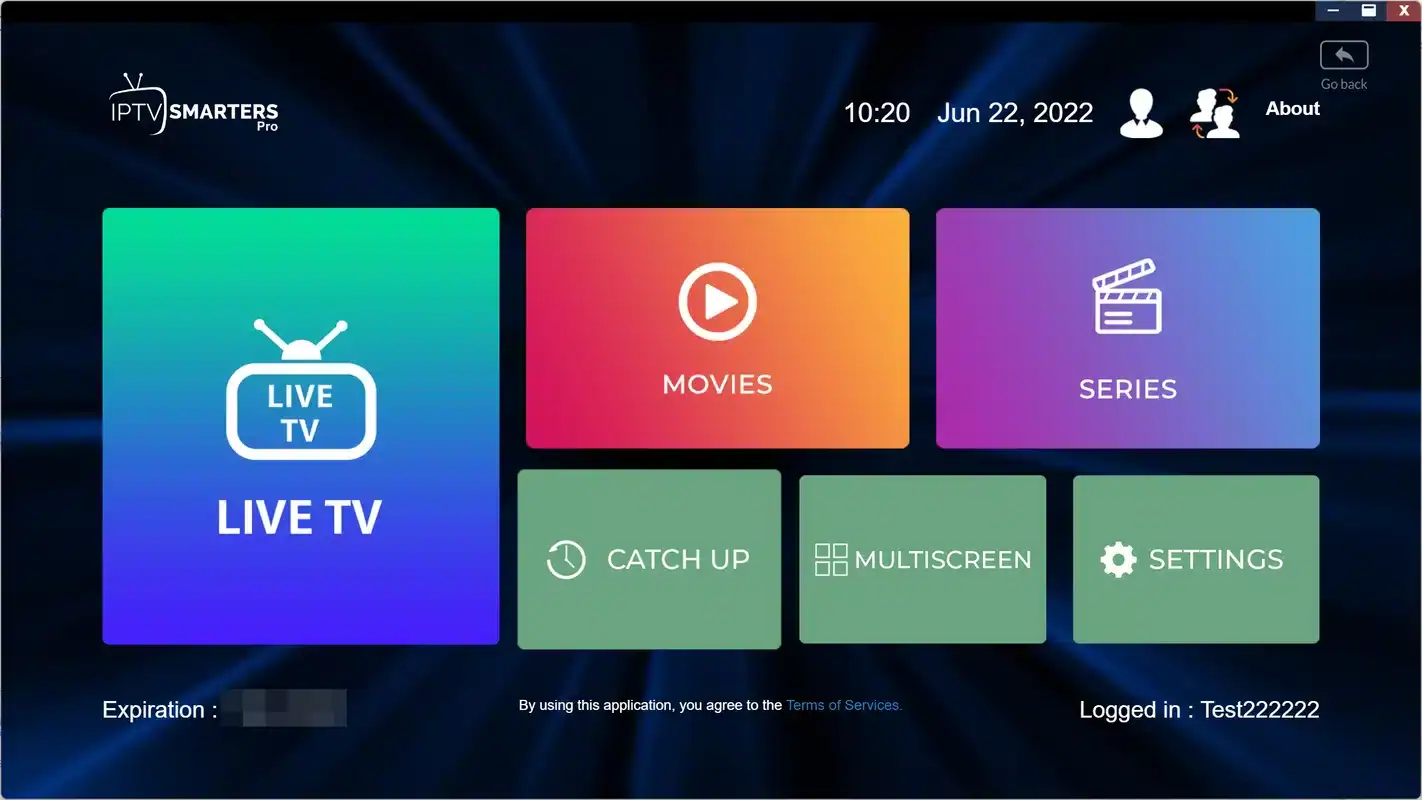
| IPTV Smarters Pro | Android TV, Google TV, Fire TV Stick, Apple TV, iPhone, iPad, Android phones | Xtream Codes, M3U | Large tiles and posters | Families and first-time viewers |
| TiviMate | Android TV, Google TV, Fire TV Stick | Xtream Codes, M3U | Cable-style grid guide | Viewers who browse by time slot |
| IBO Player | Samsung and LG smart TVs, other platforms | MAC address and device key | Simple TV menus | Homes with no separate box |
| Smart IPTV | Samsung and LG smart TVs | Playlist linked to the TV | Minimal | A quick setup on an older TV |
| XCIPTV | Android TV, Fire TV Stick, Android phones | Xtream Codes, M3U | Light and quick to open | Simpler boxes and second TVs |
| GSE Smart IPTV | Apple TV, iPhone, iPad, Android | Xtream Codes, M3U | Detailed playlist controls | People who like to adjust everything |
Three of these players have their own detailed guide in this section, because they are the ones Ontario households ask about most. The other three are perfectly good choices. If one of them is already on your TV, or a family member already knows it, start there. Familiarity beats features when several people share a remote.
Install from the store, always. The official app store keeps the player updated and stable. Copies passed around outside the store are a common source of crashes, frozen menus and settings that vanish overnight, and they put the device your family uses every day at risk.
Three styles of player, three ways to browse
Once you look past the logos, the players fall into three families. Knowing which family suits your household narrows the choice faster than reading feature lists.
Tile-first
Big buttons for live TV, series and movies, and posters inside. IPTV Smarters Pro is the clearest example. Easy for guests, grandparents and kids.
Guide-first
A grid with channels down the side and time across the top, the way a cable box looks. TiviMate is the reference here. Ideal if you plan your evening by what is on.
TV-activated
The TV shows a code, and you attach your playlist from your phone or computer. IBO Player and Smart IPTV work this way on Samsung and LG sets.
Lightweight
Fewer animations, faster start-up on modest hardware. XCIPTV fits this slot on a basic stick or an older box in the guest room.
Tinkerer’s choice
Deep playlist and playback options for people who enjoy settings menus. GSE Smart IPTV leans this way on Apple devices.
Shared remote
Whatever the style, the best player is the one every person in the home can use without calling you for help.
A useful test: think about the last time you turned on the TV with nothing planned. Did you want to see what was playing right now across many channels, or did you want to pick a series and start an episode? The first habit points to a grid. The second points to tiles. Most homes have both kinds of viewer, which is why the shared-remote question in the last tile often decides the matter.
Choosing an IPTV app in five questions
You do not need to compare every setting. Answer five questions honestly, in this order, and the field usually shrinks to one or two candidates.
- Which device will you watch on most? Open its official app store and see which of the six players it lists today. That list is your real shortlist.
- How do you like to browse? Grid for scheduled viewing, tiles for series and movies, as described above.
- Who else holds the remote? Large text and few menus matter more than advanced options when grandparents or young kids are involved.
- Will you use more than one device? If yes, a player that runs on all of them keeps menus familiar from room to room.
- Is there a licence or upgrade? Some publishers charge for one. Check the current price on the app’s official website before you build your setup around it.
Look at IBO Player or Smart IPTV in the TV’s own store, and plan to finish activation from your phone.
Then: read the IBO Player guideYou have the widest choice. Try TiviMate for a grid, IPTV Smarters Pro for tiles.
Then: keep the one the household prefersIPTV Smarters Pro or GSE Smart IPTV from the App Store keep menus the same on every screen.
Then: set up the TV first, phones secondA lighter player such as XCIPTV usually opens faster and scrolls with less lag.
Then: hide categories you never watchMatching the player to your device
The device is the hard limit. A player that is not listed in your store is not an option, however good it looks elsewhere. Here is how the choice tends to play out on the hardware we see most in Ontario homes. Our devices hub goes deeper on the hardware itself.
Samsung and LG smart TVs
TV stores carry a smaller selection than box stores. IBO Player and Smart IPTV are the usual picks. Both link to your set through an identifier shown on screen, and you attach your playlist on the publisher’s official website rather than typing it with the remote. That one extra step on a phone saves a lot of button pressing. Our guide to IPTV on smart TVs covers the TV side.
- Update the TV software before installing
- Photograph the code the player shows
- Prefer a cable if the router is close
Android TV and Google TV boxes
This is where you have the most freedom. TiviMate is the favourite of anyone who grew up flipping through a cable guide, IPTV Smarters Pro suits households that prefer posters and big buttons, and XCIPTV is a sensible pick on a simpler box. A box connected by Ethernet is also the steadiest way to watch 4K. See the Android TV box guide for placement and settings.
Fire TV Stick
A stick has less memory than a full box, so a lighter player often feels quicker. IPTV Smarters Pro, TiviMate and XCIPTV are common choices when listed in the stick’s official store. Hiding unused categories makes the guide load faster on a stick than any other tweak. The Fire TV Stick guide has the details.
Apple TV, iPhone and iPad
On Apple hardware, look for IPTV Smarters Pro or GSE Smart IPTV in the App Store. Choosing the same player on the TV and on everyone’s iPhone means nobody has to relearn the menus when they move from the couch to the kitchen counter. In a bilingual Ottawa home where people grab whichever screen is nearest, that consistency is worth more than any single feature. The Apple TV guide walks through setup.
Android phones, tablets and PC
Phones and tablets are ideal for one viewer and handy for testing. If a channel plays smoothly on your phone beside the router but stutters on the bedroom TV, the player is not the problem; the TV’s Wi-Fi signal is. That simple comparison has saved many evenings.
Ontario households and the player that fits them
We hear from the same few kinds of homes again and again. These sketches are not rules about who lives where, just common situations and the player choices that tend to work in each. Our city guides go further on the home itself.
A wall-mounted TV with a stick behind it. A tile player keeps evenings simple, and a short Ethernet run or the 5 GHz band beats crowded tower Wi-Fi.
Then: see the Toronto guideGrandparents, parents and teenagers each have their own habits. Pick one player for every TV so anyone can help anyone, and build a favourites list per person.
Then: see the Brampton guideThe main floor plays smoothly, the basement stutters. The fix is the network, not the player, so choose the app you like and then work on coverage.
Then: see the Mississauga guideMenu language and content language are separate settings. A player with clear group names makes French and international categories easy to keep at the top.
Then: see the Ottawa guideEach of those situations has its own page: IPTV in Toronto condos, IPTV for large Brampton households, IPTV across the floors of a Mississauga house and IPTV for bilingual Ottawa homes. If your home mixes two profiles, read both. A bilingual family in a semi will pick up useful ideas from the Ottawa and Mississauga pages together.
Setting up any IPTV app: the routine that never changes
Every player has its own screens and wording, but the core routine is identical. Keep your welcome e-mail open on your phone while you go, and do the setup at a quiet moment rather than five minutes before a programme starts.
- Before you order
Check the device
Confirm the player you want is listed in the device’s official store and run a speed test on the device itself.
- At checkout
Choose a pack and duration
Pick 1, 3, 6 or 12 months on the plans page and pay once in Canadian dollars by card or PayPal.
- Minutes later
Open the e-mail
Your Xtream Codes details or M3U link arrive by e-mail within minutes.
- First launch
Enter the access
Type each field exactly, or attach the playlist on the publisher’s website for MAC-based players.
- First sync
Let the lists build
The player loads categories and the guide. A large catalogue needs a few minutes the first time.
- Same evening
Tidy and personalise
Set the guide to Eastern Time, hide unused groups and save favourites for each person.
Most failed logins are one character. A missing port at the end of the server URL, a capital letter typed in lower case, or a space after the password is enough to get an invalid login message. Retype each field slowly before you reinstall anything or write to support. It solves the problem far more often than any other step.
Payment is one-time, with no contract and no automatic renewal, so nothing is charged again unless you place a new order yourself. For the full checkout walk-through, our page on paying for IPTV explains what happens before and after you pay. For the whole setup process across devices, the setup hub is the place to start.
Licences, publishers and what your pack covers
This is the part that confuses people most, so here it is plainly. Your IPTV Ontario pack covers your access: the channels, series and movies in the catalogue, the e-mail with your login, and support 7 days a week. The player is a separate piece of software from a separate company. We do not make players, we do not sell their licences and we cannot change how they work.
Included in your pack
- Access to the catalogue of the pack you chose
- Xtream Codes details or an M3U link by e-mail
- 1 simultaneous connection
- Support by e-mail and WhatsApp in English and French
Handled by the publisher
- The player itself and its updates
- Any licence or premium upgrade
- Features, menus and layout changes
- Activation on the publisher’s website
Some players install at no charge and offer an optional upgrade. Others ask for a licence after a period of use. When a licence applies, check the current price on the app’s official website, because publishers set and change their own terms. If you are unsure whether a player will ask for one on your device, our support team can tell you what we know, but the publisher’s site has the final word.
Good to know
Paying for a player licence never changes what your pack contains. The same access fills IPTV Smarters Pro, TiviMate or IBO Player with the same catalogue. A licence only changes how the player looks and behaves.
A word on legality, since it comes up often: the technology is legal; whether a service is legal depends on the broadcasting rights it holds, so check before subscribing. Our article Is IPTV legal in Canada? explains how to approach that question.
One access, several devices, one stream at a time
You can install players on as many of your own devices as you like and enter the same credentials on each. What matters is how many play at the same moment.
Each pack includes 1 simultaneous connection. The living-room TV, the bedroom stick and your phone can all hold the login, but only one of them can play at any given moment. If a second device starts a stream, the first one is interrupted. That is not a player fault, and switching players will not change it.
For a couple who watch together, one stream is usually enough. For a home where cartoons run upstairs while the news plays downstairs, it is not. In that case, write to us through the contact page and ask for more simultaneous screens. Support explains the conditions and the price for your situation. Our page on IPTV for families helps you count the screens you really need, which is often fewer than the number of devices in the house.
Settled on a player
Compare the three packs and four durations, then install your player while the welcome e-mail is on its way.
Adding your IPTV app to a second device
Most homes start on the main TV and add a second screen a week or two later: the bedroom stick, an iPad for the kitchen, a laptop in the home office. The second setup is quicker than the first, but a few habits keep it painless and avoid the mix-ups that come from several devices holding the same login.
- Use the same player if you can. If it is listed in the second device’s store, the menus will already be familiar to everyone.
- Name each profile by room. Labels such as Bedroom or Kitchen iPad make it obvious which device you are looking at when you help someone over the phone.
- Enter the same access. Copy the Xtream Codes details from the welcome e-mail again rather than from memory, port included.
- Rebuild favourites. On many platforms, favourites and watch progress stay on the device where you saved them, so take a minute to recreate each person’s short list.
- Agree on who watches when. With 1 simultaneous connection, the second device is for a different moment, not the same one.
That last step is the one families forget. A teenager starting a series on the bedroom stick will interrupt the viewer following the evening news downstairs, and both will assume something is broken. A simple house rule, or a request to support for more simultaneous screens, avoids that argument entirely.
Phones and laptops
On a phone or tablet, choose the same login method as on the TV and keep the screen brightness moderate for longer viewing. On a PC, an M3U link is often easiest because you can paste it. In every case, the device must be connected to a network you trust, and the login must stay inside your own household.
If the second device is a smart TV rather than a box, remember that its store may list different players. In that case, a TV-activated player such as IBO Player on the bedroom set and a tile player on the living-room box is a perfectly sensible mix. The access is the same; only the menus differ.
Picture quality starts with the connection, not the app
People often switch players hoping for a sharper or smoother picture. Occasionally a different playback engine helps with one stubborn stream, but the biggest factor by far is the speed that actually reaches the device. As a working rule, count these figures per screen.
Speed needed per screen
Run the speed test on the TV, stick or box itself, not on your phone standing next to the router. If you have arranged extra simultaneous screens with support, add the figures together: one 4K stream and one Full HD stream need around 40 Mbps between them, before the laptops and game consoles join in.
Where the player can help
Some players let you switch between internal playback engines or adjust buffer size. If one channel shows a black screen with sound, or stutters while others play smoothly, try another engine in the settings before anything else. On modest hardware, hiding unused categories also lightens the load, because the player has less to draw on every scroll.
Everything else, from router placement to the 5 GHz band, lives in our buffering guide and the condo Wi-Fi guide.
First-evening settings worth five minutes
Whichever player you chose, the same handful of settings turn a working setup into a comfortable one. Do them once on the main TV, then repeat on other devices.
- Guide time. Set the time zone or guide offset so the programme under the current-time marker matches what is playing. Ontario runs on Eastern Time, while Northwestern Ontario follows Central Time.
- Hidden groups. Untick categories nobody in the house watches. Lists load faster and scrolling becomes easier.
- Favourites. Save a short list of channels for each person, so nobody scrolls past the whole catalogue to find the news.
- Parental lock. If the player offers a PIN, set it and lock the groups you want to keep away from young viewers. Write the PIN somewhere safe.
- Menu language. Choose the language of the player’s own menus. This is separate from the language of what you watch.
- Auto-start. On a box or stick, some players can open on start-up, which helps viewers who only want to press one button.
The guide time deserves an extra word. If listings look shifted by an hour, the cause is almost always a time-zone or offset setting inside the player or the device, not the service. After the clocks change in spring and fall, check once more, since some devices handle the switch better than others. Our page on the TV guide on Eastern Time covers every case.
Language deserves one too. The catalogue includes French-language and international content. If someone at home is hoping for a specific language, ask support before ordering, and read our article on IPTV for multilingual homes to set audio tracks and subtitles per viewer.
When to switch to another IPTV app
Because your credentials work in any supported player, switching costs you a few minutes, not money spent on the service. That freedom is useful, but switching too often also means everyone relearns the menus. Here is how to tell whether a change is worth it.
Switching makes sense when
- Someone in the house avoids the TV because the menus confuse them
- You keep wishing you could scroll the evening schedule
- The player feels slow on modest hardware even after tidying categories
- You added a device the current player does not support
Switching will not help when
- Every player stutters at the same time each evening
- A second device is playing at the same moment
- The login fails because of a typing error
- A specific channel will not play in any player
The right-hand column describes network, connection or access questions. For those, our help hub and the not-working checklist are better first stops than a new app. If after those checks one channel still refuses to play everywhere, write to support with the channel name and the device you used.
Change the player when the menus are the problem. Change the Wi-Fi when the picture is the problem.
Is it the app or the service: sorting out problems fast
A short diagnosis before you act saves a lot of guessing. The table below links common symptoms to the side they usually sit on and the first thing to try.
| What you see | Usually on | First thing to try |
|---|---|---|
| Invalid login message | The access you typed | Retype server URL with port, then username and password |
| Empty player after install | The player | Enter the access from the e-mail; it has no content of its own |
| Guide an hour off | The player or device settings | Adjust time zone or guide offset |
| Stutter every evening on all players | Home network | Speed test on the TV, then cable or 5 GHz |
| Stream stops when someone else watches | Connection limit | Close the player on the other device |
| Black screen with sound on one channel | Playback engine | Switch engine in the player settings |
| No playlist on a MAC-based player | Activation | Compare the MAC and key character by character |
If you write to support, a good first message names the player, the device, the symptom and what you already tried. Support answers 7 days a week by e-mail and WhatsApp at +33 6 44 65 43 13, in English and French. The support page explains how to describe a problem so the first reply already contains the fix.
Words you will meet in player menus
Player menus borrow a lot of technical vocabulary. These are the terms that come up most during setup, in plain language.
- Xtream Codes
- A login made of a server URL, a username and a password. Most players sort content automatically with it.
- M3U
- A playlist in the form of one long link. Handy on a computer or a publisher’s website, slow to type on a remote.
- EPG
- Electronic programme guide: the listings that show what is on now and next.
- Guide offset
- A setting that shifts listings forward or back so they match your local time.
- MAC address
- An identifier for your device, shown by players such as IBO Player to link your playlist to that screen.
- Device key
- A second code shown next to the MAC address, used to confirm the activation on the publisher’s site.
- Playback engine
- The part of the player that decodes video. Switching it can help with one difficult stream.
- Group or category
- A folder of channels or titles. Hiding unused groups speeds up browsing.
Deep dive: why players show different channel orders
Each player reads the same list from the server but decides on its own how to sort and display it. One may follow the order sent by the server, another may sort alphabetically, and a third may let you drag channels into your own order. That is why the same access can look quite different from one app to another. Nothing is missing; it is simply arranged differently. If a channel seems to have vanished after a switch, use search or check a hidden group before assuming it is gone.
Pick your pack, then your IPTV app
Any of the three packs works in any supported player. The choice depends on how much your household watches and how much 4K matters to you. Here is what each one includes.
VIP Premium Pack
- 27,000+ channels
- 61,000+ series
- 155,000+ movies
- HD, Full HD and 4K
Ultimate 4K Pack
- 57,000+ 4K channels
- 47,000+ series
- 179,000+ movies
- 20 servers in Europe
Each pack comes in 1, 3, 6 or 12 months. You pay once, in Canadian dollars, by card or PayPal, with no contract and no automatic renewal. We do not print amounts in our guides because they change; see current prices on the plans page. A short duration such as the 1-month subscription is a sensible way to settle on a player before committing, while the 12-month subscription suits a household that already knows what it likes.
Ready to fill your player
Order a pack, and your access arrives by e-mail within minutes, ready for the IPTV app you picked.
FAQ
Which IPTV app is easiest for beginners?
IPTV Smarters Pro is usually the easiest start, thanks to its large tiles and clear sections for live TV, series and movies. On a Samsung or LG TV with no box, IBO Player is a simple option because you finish the setup from your phone.
Can I use more than one player with the same access?
Yes. Your credentials work in any supported player and on several of your own devices, used one at a time, since each pack includes 1 simultaneous connection.
Where should I get the player?
Always from your device’s official app store. That keeps it updated and stable, and keeps your device inside its normal protections.
Is the player included in my pack?
No. The player comes from an independent publisher. Your pack provides the access you enter into it. If a licence applies, check the current price on the app’s official website.
Why does the player show an empty screen after I install it?
A player has no content of its own. Enter the Xtream Codes details or M3U link from your welcome e-mail, and it fills up after the first sync.
Should I choose Xtream Codes or M3U?
Choose Xtream Codes whenever the player offers it. You type less and the content is sorted automatically. Use the M3U link on players managed from a website or a computer.
How do I get the guide on Eastern Time?
Open the player settings and set the time zone or guide offset until the current programme matches your clock. In Northwestern Ontario, match it to Central Time instead.
Will a different player fix buffering?
Rarely. If every player stutters at the same time, the cause is the home network. Run a speed test on the TV and try a cable or the 5 GHz band first.
Can two people watch on different TVs at once?
Not on a single pack, which includes 1 simultaneous connection. For more screens at once, contact support, who will explain the conditions and the price.
Can support help me install a player?
Yes. Support answers 7 days a week by e-mail and WhatsApp, in English and French, and can walk you through the login on your device.