Typing a long server address with a TV remote is nobody’s idea of a relaxing evening. IBO Player sidesteps that chore. Instead of entering your access on the television, you read two short codes off the screen and do the rest from your phone or laptop, with a real keyboard and copy and paste. This guide explains how that MAC and key system works, how to activate the app step by step, what to expect on first launch, how to manage several TVs in one house and how to fix the handful of problems that come up in Ontario homes.
The app is especially popular on Samsung and LG smart TVs, where the built-in store lists fewer players and the on-screen keyboard is slow. Picture a new 65-inch set in a bilingual Orléans living room with no box in sight, or a wall-mounted TV in a downtown condo where the screen is the only device. In both cases, a player you configure from the couch with your phone saves a lot of patience.
What IBO Player is and why smart TV owners choose it
IBO Player is a media player made by an independent publisher. Like every player, it arrives empty: it can display categories, play streams and show a programme guide, but it has no content until you link it to an access such as the one we provide. What sets it apart is how that link happens. Most players ask you to type your login into the TV. IBO Player turns the job around: the TV tells you who it is, and you tell the publisher’s website which playlist belongs to it.
That small twist suits three kinds of household particularly well. People who own only a smart TV and do not want another device on the media console. People who find remote-control typing frustrating, which is most of us after the third mistyped character. And people setting up a TV for someone else, such as a parent in a separate unit of the same house, who would rather handle the technical part from their own phone.
No extra hardware
It runs directly on many Samsung and LG sets. Nothing to plug in behind the screen.
Phone does the typing
The long playlist details go in from a phone or computer, where copy and paste works.
One code per TV
Each set has its own identifier, which keeps several TVs in one house easy to tell apart.
It also has trade-offs worth knowing before you start. Activation involves a step outside the TV, so you need a phone or computer nearby. If you set up several TVs, you have to keep track of which code belongs to which screen. And because the publisher runs the activation website and sets any licence terms, some questions can only be answered on their side, not ours. None of these is a deal-breaker, but they explain why some households with an Android box prefer a player such as TiviMate instead.
How the MAC address and device key work
Every network device has a MAC address: a unique identifier written as pairs of letters and digits separated by colons. When you open IBO Player for the first time, it shows the MAC address it uses for your TV, along with a device key. Think of the pair as a mailbox number and the key that opens it. The MAC says which mailbox; the key proves you are allowed to put something in it.
When you reopen the app after activation, it checks its mailbox, finds the playlist you attached and loads your categories. From that point, the TV behaves like any other player: you browse live channels, series and movies, and the access details stay stored against that MAC address.
Two practical consequences follow. First, the codes are only meaningful for that specific TV and that specific app. A MAC address shown on the bedroom set will not help the living-room set. Second, a factory reset, a major software update or a replacement TV can produce new codes, which means a new activation. Neither situation is complicated once you know to expect it, and the section on resets below covers both.
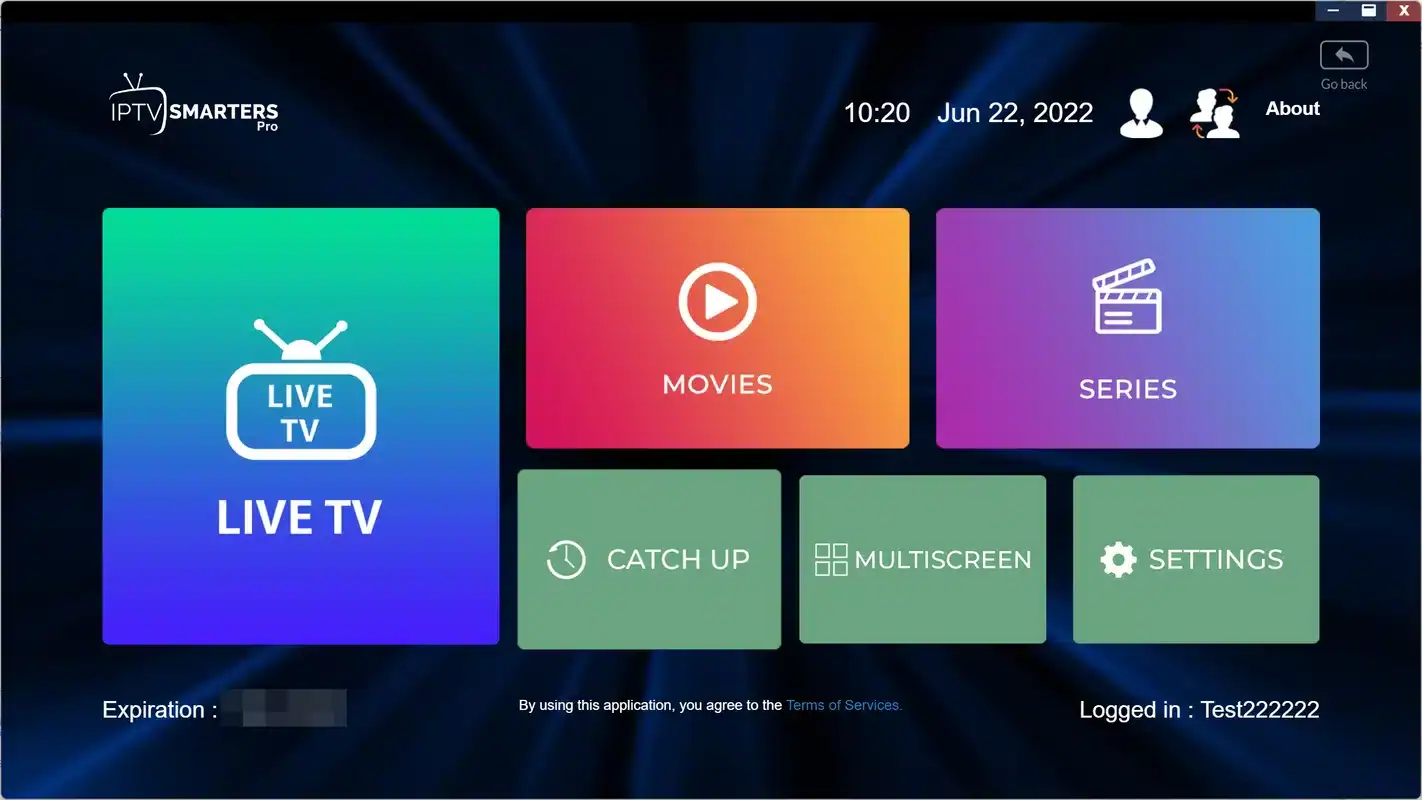
The first screen after installation. Take a clear photo of both codes before you move on.
Where IBO Player runs
Availability depends on what each official app store lists on the day you install, so check your own device rather than relying on a general list. Here is how the picture usually looks in the homes we hear from.
| Device | Where to look | How it fits |
|---|---|---|
| Samsung smart TV | The Apps section of the home screen | The most common use of IBO Player |
| LG smart TV | The app store tile on the home screen | Same MAC and key routine |
| Android TV and Google TV boxes | The box’s official app store, if listed | Works, though many prefer a grid player here |
| Fire TV Stick | The stick’s official app store, if listed | Check the listing before planning around it |
| Apple TV, iPhone, iPad | The App Store, if listed | Confirm availability first |
On a Samsung or LG TV, IBO Player is often the simplest route, and our guide to IPTV on smart TVs covers the television side in more depth, from software updates to network settings. On an Android box, you have a wider choice, and the Android TV box guide explains the trade-offs. If your household mixes devices, nothing stops you running IBO Player on the bedroom TV and another player on the living-room box with the same access.
IBO Player compared with typing your login on the TV
The question most people ask before they start is whether the website step is worth it. For most smart TV owners, it is. Here is the honest balance.
Where IBO Player shines
- No long typing with the remote
- Copy and paste the M3U link from the welcome e-mail
- Easy to set up a TV for someone else from your phone
- Each TV clearly identified by its own code
Where it asks more of you
- A phone or computer is needed for activation
- Codes change after a reset or a TV replacement
- Several TVs mean several codes to keep track of
- Licence terms are set by the publisher, not by us
If you live alone with one TV and do not mind typing, a player that takes Xtream Codes directly on screen will do the same job. If you are setting up two or three TVs, or helping a relative across the house, activating from a phone instead of the remote tends to win. Our hub of IPTV apps compares every supported player if you want to weigh the options again.
Getting ready for IBO Player activation
Most failed activations come from missing preparation, not from the app. Five minutes of groundwork turns the rest into a smooth routine.
- Your TV runs its latest software update, installed from the TV’s own settings menu.
- Your welcome e-mail is open on your phone or computer, showing the M3U link or the Xtream Codes details.
- Your phone or computer can reach the publisher’s official website.
- You have your phone camera ready to photograph the MAC address and device key.
- The TV has a solid connection: about 10 Mbps for HD, 15 Mbps for Full HD or 25 Mbps for 4K, ideally over a cable.
- No other device is playing your access right now, since each pack includes 1 simultaneous connection.
A tip for the photo
Stand straight in front of the screen and fill the frame with the two codes. Glare from a window or a lamp can turn a zero into an O or a one into a lowercase L. Zoom in on the photo before you type anything. It is the single best way to avoid the most common activation error.
If the TV sits in a bright sunroom, draw the blinds for a moment. In a basement rec room, switch off the light behind you. A sharp photo is worth the extra ten seconds.
Keep that photo afterwards. It becomes the reference you compare against whenever the TV shows an empty screen, and it settles in seconds whether the codes have changed after an update or a reset.
IBO Player activation, step by step
The whole routine takes a few minutes. Keep the TV on the IBO Player screen while you work on your phone, so you can compare codes if you need to.
- Install the app. On the TV, open the official app store, search for IBO Player and install it.
- Open it and capture the codes. The welcome screen shows the MAC address and the device key. Photograph both.
- Visit the publisher’s official website. On your phone or computer, find the section for managing playlists by device.
- Enter the MAC and the key. Type both exactly as shown. Check zeros against the letter O and ones against the letter L.
- Attach your access. Paste the M3U link from our e-mail, or enter the Xtream Codes server URL, username and password. Name the playlist something obvious, such as IPTV Ontario.
- Save and confirm. Make sure the website shows the playlist as saved against that MAC address before you leave the page.
- Restart the app on the TV. Close IBO Player completely, then open it again. It should now load your categories.
- Set the guide time. In the app settings, check that listings follow Eastern Time, or adjust the offset until they match your clock.
Independent from the publisher. We do not make IBO Player and we do not sell its licence. The publisher may ask for a licence to keep using the app on your TV. If it does, check the current price on the app’s official website. That licence is separate from your IPTV Ontario pack, and we cannot sell, activate or transfer it for you.
Xtream Codes or M3U in IBO Player
The activation page usually lets you attach your access in one of two forms. Both reach the same catalogue. The difference is in how many fields you fill and how the app organises what it receives.
| Point to compare | M3U link | Xtream Codes |
|---|---|---|
| Fields on the website | One link to paste | Server URL, username, password |
| Risk of typos | Low when pasted | Low on a keyboard, watch the port |
| Sorting into sections | Depends on the playlist | Live, series and movies separated |
| Programme guide | May need a guide link | Usually arrives with the login |
Because you are on a keyboard anyway, the typing advantage of Xtream Codes matters less here than in other players. Many people simply paste the M3U link, which is the fastest option. If the guide stays empty afterwards, or the sections look jumbled, attach the Xtream Codes details instead. You can replace one with the other later without starting from scratch. Our pages on M3U playlist setup and Xtream Codes setup explain each field.
Never paste into the wrong box. The MAC address field takes the TV’s code, not your username. Mixing the two attaches your playlist to a device that does not exist, and the TV keeps showing an empty screen. Read each field label on the website before you paste.
The first launch after activation
The moment after activation is where people worry most, usually because the app takes a little longer than expected. Here is what normally happens, in order.
- Reopen
The app finds the playlist
IBO Player checks the publisher’s server and picks up the playlist attached to its MAC address.
- First sync
Categories build
Live channels, series and movies load into their sections. A large catalogue needs a few minutes the first time.
- Guide
Listings fill in
The programme guide arrives channel by channel. A few empty rows at first are normal.
- Test
Play one channel
Pick a familiar category and check that picture and sound start within a few seconds.
- Tidy
Personalise
Hide groups nobody watches and save favourites, so the next launch is faster.
How long the first sync takes depends on the pack, the TV’s memory and the connection. The Ultimate 4K Pack, with its very large catalogue, naturally asks more of an older set than a smaller selection would. Let the app finish before you start pressing buttons; interrupting the first sync is a common reason for half-filled categories that then need a reload.
If the welcome screen still shows no playlist after a full restart, do not reinstall yet. Go back to the website, check the MAC and key character by character, and confirm the playlist shows as saved. Reinstalling the app can generate new codes on some TVs, which would mean starting over.
Settings worth adjusting in IBO Player
The exact menu names depend on the version the publisher currently offers, but the same few adjustments make a real difference in most homes.
Guide time and Eastern Time
Open the settings and look for the time zone or guide offset. Shift it until the programme under the current-time marker matches what is actually playing. Ontario runs on Eastern Time; if you live in Northwestern Ontario on Central Time, match your local clock instead. Check again after the clocks change in spring and fall. Our page on the TV guide on Eastern Time explains the logic.
Categories and favourites
The catalogue includes French-language and international content. Hide the groups you never watch and the app opens faster, which is noticeable on an older TV with limited memory. Save a short favourites list for each person in the house. If one specific language matters to you, ask support before ordering.
Parental lock
If your version offers a PIN, set one and lock the groups you want to keep away from young viewers. Write the PIN somewhere safe. Forgotten PINs are a surprisingly common reason for a reinstall, which can mean new codes and a fresh activation.
Menu language
The language of the app’s own menus is separate from the language of what you watch. In a bilingual home, choose the menu language the least technical viewer reads most comfortably. Our article on IPTV for multilingual homes covers audio tracks and subtitles too.
Activation done, catalogue next
Pick a pack and a duration, and your access arrives by e-mail within minutes, ready to attach to your TV’s codes.
Licence questions to settle with the publisher first
Because the publisher runs the activation website and sets its own terms, a few questions belong on their side of the fence. It is worth settling them before you build your evenings around the app, so nothing surprises you a few weeks in. Their official website is the reference for every answer below; we are independent from them and can only share what we know in general.
- Does the app ask for a licence on my TV model, and after how long?
- Is a licence tied to one TV, or can it follow me to a replacement set?
- What happens to my activation if I factory-reset the TV?
- Where on the website can I see which playlists are attached to which device?
- How do I remove an old TV from my list once it leaves the house?
Who answers what
Licence, activation website and app features: the publisher. Access details, catalogue, the welcome e-mail and simultaneous screens: IPTV Ontario support. When you are unsure which side a problem sits on, write to us first. We will tell you plainly if the answer lies with the publisher, and point you to the right part of their official website.
Keeping that division in mind also protects you from one common trap. If anyone offers to sell you an IBO Player licence, a pre-activated TV or a playlist in the same message, walk away. The licence comes only from the publisher’s official website, and the playlist comes only from the provider you subscribed to. Mixing the two in one offer is a sign that neither is genuine.
Several TVs in one house: keeping MACs straight
In a Brampton home with a TV in the family room, another in the basement and a third in the grandparents’ suite, each set shows its own MAC address and device key. You can attach the same playlist to all of them. What you cannot do on a single pack is play on more than one at the same time, because each pack includes 1 simultaneous connection.
A simple labelling habit
Keep a note on your phone with one line per TV: the room, the last four characters of its MAC address and the date you activated it. When someone calls from the basement to say the TV shows an empty screen, you will know at once which code to check on the website.
- Family room: last characters of the MAC
- Basement: last characters of the MAC
- Grandparents’ suite: last characters of the MAC
If your household genuinely needs two or three screens playing at once, contact support through the contact page. Support explains the conditions and the price for more simultaneous screens. Our guides to IPTV for families and IPTV in large Brampton households help you count how many screens you really use at peak time, which is often fewer than the number of TVs on the walls.
Count the screens that are playing at dinner time, not the screens you own. That number decides what you need.
Setting up IBO Player for someone else in the house
One of the best uses of IBO Player is setting up a TV for a person who would rather not touch the settings at all: a parent in the basement suite, a grandparent who visits for the winter, a teenager who will only call you once the screen is already empty. Because the long details go in from your phone, you can do the technical part from wherever you are in the house and leave the other person with nothing more than a remote and a list of favourites.
The trick is to split the job into what must happen in front of the TV and what can happen anywhere. Only two moments require you to stand in the room: reading the codes at the start, and checking that a channel plays at the end. Everything in between can happen from the kitchen table.
- In the room
Install and photograph
Install the app from the TV’s store, open it and take a sharp photo of the MAC address and device key.
- From your phone
Activate on the website
Enter the codes on the publisher’s site, attach the access from the welcome e-mail and save.
- Back in the room
Restart and test
Close and reopen the app, play a familiar channel, and check the guide time.
- Before you leave
Simplify the screen
Hide unused groups, add five or six favourites and show the person how to reach them.
Write a short card for the person you set it up for, in the language they read most easily: which button opens the app, where the favourites are, and what to do if the screen goes empty (turn the TV off and on, then call you). That small card prevents most evening phone calls. And remember the household rule that comes with 1 simultaneous connection: if the grandparents are watching in the suite, the family-room TV waits its turn, unless support has arranged more screens for you.
When the TV is reset or replaced
The MAC and key belong to a specific TV and a specific installation of the app. When either changes, the link to your playlist can break. Here is how to handle the usual situations.
Reinstall IBO Player, note the codes it shows now, and compare them with your note. If they changed, repeat the activation.
Then: update your room listThe new set has its own codes. Activate it as a new device and remove the old one from your list on the website if the site allows it.
Then: test one channel before the old TV leavesOpen it and check the codes. Some TVs keep them, others show new ones.
Then: reactivate only if they changedNothing changes. The codes travel with the set, so only the Wi-Fi signal in the new spot matters.
Then: run a speed test thereA licence, if one applies, is also tied to the device by the publisher’s own rules. Whether it moves to a new TV is a question for the publisher, and their official website is the place to check. We are independent from them and cannot transfer anything on their side.
Picture quality on a smart TV’s Wi-Fi
Smart TVs often have weaker Wi-Fi antennas than a dedicated box, and they are usually mounted wherever the room looks best, not where the signal is strongest. That combination is the main reason a stream plays smoothly on a phone and stutters on the TV.
Speed to measure on the TV itself
Three fixes in order of impact
First, an Ethernet cable from the router to the TV, if they are within reach. Second, the 5 GHz band when the TV is in the same room as the router or the next one. Third, a mesh point near the TV when it sits two floors away. In a condo, crowding from neighbouring units is the main enemy; in a semi with a basement, distance and floors are.
Our condo Wi-Fi guide and buffering guide go into each fix.
Troubleshooting IBO Player: symptoms and fixes
Most IBO Player problems fall into a few patterns. Find your symptom, try the first fix, and only move to the next step if it fails.
| Symptom | Likely cause | First fix |
|---|---|---|
| No playlist after activation | MAC or key mistyped | Compare codes character by character, then restart the app |
| Playlist appears, nothing plays | Access mistyped on the website | Re-paste the M3U link or retype the server URL with its port |
| Guide empty or shifted | Guide not loaded or wrong offset | Wait for the sync, then adjust the time offset |
| Stream stops after a while | Another device is playing | Close the player elsewhere; 1 simultaneous connection per pack |
| Stutter in the evening | Wi-Fi congestion | Speed test on the TV, then cable or 5 GHz |
| Empty screen after a reset | New codes generated | Note the new codes and reactivate |
If none of these helps, our not-working checklist goes line by line through the rest. When you write to support, mention that you use IBO Player, the TV brand, what the screen shows and what you already tried. Support answers 7 days a week by e-mail and WhatsApp at +33 6 44 65 43 13, in English and French, and can check the access side while you check the codes on yours.
Deep dive: why a zero and an O cause so many failed activations
A MAC address uses the digits zero to nine and the letters A to F. The letter O never appears in a MAC address, so if you think you see one, it is a zero. The same logic applies to the letter L, which is not part of a MAC address either; it is a one. The device key may follow different rules depending on the publisher, so for that one, zoom in on your photo and compare shapes carefully. Knowing which characters can and cannot appear removes most of the guesswork.
Spacing and separators matter less than people fear. Many activation pages accept the MAC address with or without colons, and some fill them in for you as you type. What they cannot do is guess a wrong character. If the website accepts your entry but the TV still shows no playlist, the most likely explanation is a single swapped character that still looked valid. Compare the last four characters first, since that is where tired eyes slip most often, then work backwards to the start.
IBO Player in four Ontario homes
The same app plays a slightly different role depending on the household. These sketches show how people tend to use it.
Toronto condo
One wall-mounted set, no box. IBO Player keeps the media console empty, and a short cable from the router fixes evening congestion. See the Toronto guide.
Brampton family house
Three TVs, three codes, one room list on a phone. Extra simultaneous screens arranged through support when needed.
Mississauga semi
The basement TV runs the same app as upstairs, with a mesh point at the bottom of the stairs. See the Mississauga guide.
Ottawa bilingual home
Menus in the language the grandparents prefer, French-language groups at the top. See the Ottawa guide.
If you later add a box, a stick or a phone, IPTV Smarters Pro is an easy companion player, because it takes Xtream Codes directly on screen and runs on many devices. Using two different apps with the same access is perfectly normal.
Living with IBO Player day to day
Once activation is behind you, IBO Player becomes an ordinary part of the evening. A few habits keep it quick and predictable, especially on an older TV that has less memory than a modern box.
Hide more groups, close other apps running on the TV and restart the set once a week.
Then: check the TV’s own software updatesUse the search function, then check whether its group is hidden before assuming it has gone.
Then: add it to that person’s favouritesReload the playlist from the settings so listings refresh.
Then: confirm the time offset is still rightOpen the app and glance at the welcome screen to confirm the playlist is still attached.
Then: reactivate only if the codes changedTwo more points help over the long run. Keep the publisher’s app updated through the TV’s store, since updates often fix playback quirks on particular TV models. And keep your welcome e-mail somewhere you can find it again, such as a folder named after the service. Whenever you need to reattach the access, after a reset or on a new TV, it is the one document you will look for.
When your plan approaches its end date, nothing renews on its own. If you want to keep watching, place a new order for the duration that suits you. If the access details change with the new order, attach the new ones on the publisher’s site exactly as you did the first time; if they stay the same, the TV simply carries on. Our pages on the 1-month subscription and the 12-month subscription help you choose the next duration.
Terms on the IBO Player activation page
The publisher’s website uses a few technical words. Here they are in plain language.
- MAC address
- The identifier IBO Player shows for your TV, made of pairs of digits and letters.
- Device key
- A second code shown beside the MAC address, used to confirm you control the TV.
- Playlist
- The access you attach to the TV: an M3U link or Xtream Codes details.
- Playlist name
- A label you choose, shown on the TV. Something like IPTV Ontario works.
- Reload
- Making the app fetch the playlist again after a change on the website.
- Licence
- The publisher’s own terms for continued use of the app. Prices are on the app’s official website.
Pairing IBO Player with the right pack
Any pack works in IBO Player. Choose by how much your household watches and how much 4K matters on the TV you are activating.
Ultimate 4K Pack
- 57,000+ 4K channels
- 47,000+ series
- 179,000+ movies
- 20 servers in Europe
Each pack comes in 1, 3, 6 or 12 months, paid once in Canadian dollars by card or PayPal, with no contract and no automatic renewal. See current prices on the plans page. Our payment guide explains what happens at checkout.
Codes in hand
Order your pack now and attach the access to your TV the moment the e-mail lands.
FAQ
What are the MAC address and device key?
They are the two codes IBO Player shows on your TV to identify it. You enter them on the publisher’s official website to attach your playlist to that device.
Do I type my access on the TV?
Usually not. You add your M3U link or Xtream Codes details on the publisher’s website from a phone or computer, then restart the app on the TV.
Is the IBO Player licence part of my pack?
No. We are independent from the publisher. If a licence applies, check the current price on the app’s official website.
Can I use IBO Player on two TVs?
Yes. Each TV has its own MAC and key. Attach your playlist to both and watch on one at a time, since each pack includes 1 simultaneous connection.
Why does the app show no channels after activation?
The MAC address or key was probably mistyped, or the playlist was not saved. Compare the codes carefully, correct the entry on the website and restart the app.
Should I attach an M3U link or Xtream Codes?
Either works. Pasting the M3U link is quickest. If the guide stays empty or sections look jumbled, attach the Xtream Codes details instead.
Do the codes change after a factory reset?
They can. Open the app after the reset, compare the codes with your note and reactivate if they changed.
Why is the guide an hour off?
The guide offset does not match your local time. Adjust it in the settings until the current programme lines up with Eastern Time, or Central Time in Northwestern Ontario.
Can I install IBO Player from a link someone sends me?
No. Install it only from your TV’s official app store, which keeps it updated and keeps your TV inside its normal protections.
Can support help me with activation?
Yes. Support answers 7 days a week by e-mail and WhatsApp, in English and French, and can check the access side while you check the codes.