The picture stops, a ring spins in the middle of the screen, and just as you reach for the remote the show carries on. Five minutes later it happens again. IPTV buffering is the complaint we hear most often from Ontario households, and in the large majority of cases the cause sits somewhere between the wall outlet and the TV, where you can actually do something about it. This guide treats buffering as a puzzle with a short list of suspects. You will learn what the pause really means, how to read the pattern it follows, which tests separate a Wi-Fi problem from a device problem or a line problem, and which fixes pay off most for the least effort.
Two other help pages cover neighbouring problems. If the screen stays black or shows an error instead of pausing, go to the IPTV not working checklist. If you live in a tower and suspect the neighbours’ networks, the condo and apartment Wi-Fi guide goes deeper on that one situation. Every other topic is listed in the help section.
What IPTV buffering actually is
A stream is not one long file. It travels as a constant series of small pieces, and your player holds a few seconds of those pieces in reserve before it shows them. That reserve is the buffer. As long as new pieces arrive at least as fast as the player spends them, the reserve stays topped up and you never notice it. When delivery slows or stalls for a moment, the player keeps spending, the reserve shrinks, and when it hits zero the picture stops while the player refills it.
Each link in that chain can slow the flow. In practice, the last three links cause most of the trouble in a home: the router and the wireless signal, the device decoding the picture, and the player’s own settings. The source and the internet line matter too, but they are the hardest for you to change, so it makes sense to rule out the parts inside your walls first.
One idea to keep in mind for the rest of this page: steadiness matters more than raw speed. A line that tests very fast but drops out for a second every few minutes will buffer more than a modest line that never wavers. That is why a high number on a speed test does not settle the question, and why the tests below look at the same connection several times, at different hours, on the device that actually plays the stream.
Buffering, freezing or blocky picture: telling them apart
People use the word buffering for several different things. Naming the symptom precisely saves you from chasing the wrong fix, because each one points to a different part of the chain.
| What you see | What it usually means | Where to look first |
|---|---|---|
| Spinning ring, then the picture resumes where it stopped | True buffering: the reserve ran out and refilled | Wi-Fi signal, other traffic on the line, quality setting |
| Picture jumps ahead after a pause, missing a few seconds | The player skipped to keep a live channel current | Same as above, plus the player’s buffer size setting |
| Image turns into blocks or smears, sound continues | Pieces arrived damaged or late and the decoder improvised | Wi-Fi interference, an overloaded device |
| Sound carries on while the image is frozen | The device struggles to decode the video | Device age, heat, decoder setting in the player |
| Short stutter every few seconds, never a full stop | Frame rate mismatch between the device and the TV | Display settings on the box or stick |
| Nothing loads at all, or an error appears | Not buffering: a connection or login problem | The not working checklist |
The last two rows deserve a special mention. A regular, rhythmic stutter that never turns into a spinning ring is rarely a network problem. It usually comes from the device sending a picture at one frame rate to a TV expecting another. Many boxes have a setting called match frame rate or match content; switching it on often cures the stutter at once. The device guides, for example IPTV on an Android TV box, show where that setting lives. And when nothing loads at all, you are dealing with a different problem altogether, so the checklist page is the faster route.
Five patterns that point to the cause
Before you touch a single setting, watch for a few evenings and note when the pauses happen. Buffering almost always follows a pattern, and the pattern is the best clue you will get. Here are the five most common ones and what each suggests.
Something gets busier at that hour: your own household’s traffic, the Wi-Fi channels around you, or the internet line in your area.
Then: test on a cable at that hour to see which oneThe signal reaching that room is weak or crowded. The service and the device are probably not to blame.
Then: compare the same device in the router’s roomThe connection to that screen carries HD and Full HD but not the extra load of 4K.
Then: switch to Full HD tonight, fix the link to that TV laterThat device, its Wi-Fi adapter or its placement is the weak point. Other screens prove the line can cope.
Then: restart, update and move that deviceThe problem is upstream of your Wi-Fi: the router, the line or, rarely, the stream source.
Then: run the cable test, then contact support with your notesMost homes fit one of the first four patterns. That is good news, because all four can be solved inside the house. The fifth pattern is less common and is the one where outside help, from your internet provider or from our support team, starts to make sense. Even then, the notes you take now will save time later.
A sixth pattern sits somewhere in between: buffering that appears suddenly after weeks of smooth viewing. When that happens, think about what changed. A new router, a new device on the network, a player update, a moved TV, a family member who started working from home, or a game console that now updates itself every night can all tip a home over the edge. Undo or adjust the change, and test again.
Measuring speed the right way
A speed test is only useful if it measures the right thing. The number you want is the speed that actually reaches the device playing the stream, at the hour you usually watch. A test on your phone standing next to the router at lunchtime measures something else entirely.
Speed to plan per screen, measured on the device
Run the test from the TV’s own browser, from a speed app on the stick or box, or from a phone held right beside the device. Do it three times in one evening: once before the household settles in, once at the busiest moment, and once later on. You are looking for two things. First, is the lowest of the three readings comfortably above the figure for the quality you want? Second, do the readings jump around a lot? Large swings between tests are a sign of an unsteady connection, which buffers even when the average looks healthy.
Remember to add up the screens that play at the same time. Each pack includes 1 simultaneous connection, so a single stream is the usual case, but the line also carries everything else in the house. Picture a hypothetical evening: one 4K stream in the living room at 25 Mbps, a laptop on a video call, a teenager’s console updating a game and two phones scrolling. The stream needs its 25 Mbps on top of all that. If support has arranged a second simultaneous screen for your household, add its figure too: a 4K screen and an HD screen together make 35 Mbps for the streams alone.
Write it down: keep the readings, the hour and the device in a note on your phone. When you change something later, you can compare like with like instead of relying on a feeling that it seems better.
The one-evening Ethernet test
If you only do one thing from this page, do this. For one evening, connect the device that buffers directly to the router with a network cable, and watch the same kind of content at the same hour that usually gives you trouble. The result sorts your problem into one of two boxes almost every time.

How to run it without rewiring the house
You do not need a permanent cable route. Carry the box or the laptop to the router for the test, or borrow a long cable and run it across the floor for the night. A stick without a network port can use a small official Ethernet adapter, or you can test with a laptop instead.
- Same device that usually buffers
- Same hour as the usual pauses
- Wi-Fi switched off on that device during the test
- Same channel or the same kind of content
- Notes taken on what happened
If the buffering disappears on the cable, you have proved that the Wi-Fi link to that device is the weak point. Everything else in the chain, from the line to the player, can carry the stream. From here on, put your effort into the wireless signal: placement, band, interference, or a permanent wired or mesh link for that screen. Skip reinstalling players or re-entering logins; they will not help.
If the buffering stays on the cable, Wi-Fi is cleared and the suspect list moves upstream or into the device. Try a different device on the same cable. If a laptop plays smoothly where the stick stuttered, the stick is struggling. If every device on the cable pauses at the same hour, the line or the router is under pressure, and the next sections on household traffic and on the router apply.
Fixing IPTV buffering in order of payoff
Once you know roughly where the problem lies, work through the fixes in the order below. They are sorted by how often they solve the problem and how little they cost. Many homes never need to go past the fourth step.
- Restart in the right order. Unplug the router and the streaming device. Wait a full minute. Power the router first, wait until its lights settle, then power the device. This clears memory and lets the router pick a fresh wireless channel.
- Stop the second stream. Each pack includes 1 simultaneous connection. If a tablet in the kitchen or a phone upstairs is playing with the same login, the two streams fight and one will stall or stop.
- Pause the heavy traffic. Large game updates, cloud photo backups and big file transfers can crowd out a stream. Schedule them overnight.
- Give the main screen a cable or 5 GHz. A wired link is best. If you must use Wi-Fi, join the 5 GHz network when the device is reasonably close to the router.
- Drop the quality for tonight. If 4K keeps pausing, pick the Full HD version of the channel and finish the evening in peace. Return to 4K once the link is fixed.
- Clear the player cache and refresh the playlist. Stale data can slow a player down. Most players keep your login when you do this.
- Update the device and the player. Install system updates, then the latest player version from your device’s official app store.
- Adjust the player’s buffer and decoder settings. See the player section below; this helps on some devices more than others.
Change one thing at a time and watch for at least an evening before moving on. If you change five things at once and the buffering stops, you will not know which one mattered, and you will not know what to restore when something gets moved during a spring clean.
What competes with your stream at home
A home internet line is shared by everything plugged into it. Most of the time there is plenty to go around. Buffering starts when a few heavy users pile up at the same moment, usually in the evening, when the whole household is home and every device decides it is a good time to update itself.
| Activity | Why it hurts the stream | What to do |
|---|---|---|
| Game console or PC game updates | Can pull as much as the line allows for a long stretch | Set updates to run overnight |
| Cloud photo and file backups | Uploads can clog the line in both directions | Back up while charging overnight |
| Video calls | Need steady speed both ways, like the stream | Lower the stream to Full HD during the call |
| Security cameras sending video out | A constant upload around the clock | Check camera quality settings; wire the hub |
| Another stream on the same login | Breaks the one-connection rule | Agree who watches when, or ask support about more screens |
| Phones and tablets idling | Usually light, but many add up | Nothing, unless they are syncing large files |
Uploads deserve extra attention because they are easy to overlook. Most home lines send much less than they receive. When a backup or a camera fills the outgoing direction, the small acknowledgements your stream depends on get stuck in the queue, and the stream slows even though the incoming side has room. Many routers offer a setting usually called quality of service or device priority. If yours does, give the TV device or box top priority, and the router will serve it first when the line gets busy.
A short household conversation also goes a long way. If the person on the evening video call says so beforehand, the TV can step down to Full HD for half an hour. If the console update can wait until midnight, nobody misses the end of the film. Simple rules beat expensive upgrades.
The router: placement, age and settings
The router is the heart of your home network, and it is often treated as an ugly box to hide. Hidden in a cupboard, behind the TV cabinet, on the floor of a utility room or next to the electrical panel, it loses a large part of its reach before the signal even leaves the corner.
Up and in the open
Place it at about shelf height, in a central spot, not on the floor or inside a closed cabinet.
Away from interference
Keep it clear of microwaves, cordless phone bases, aquariums, mirrors and large metal surfaces.
Restart now and then
A weekly restart clears memory and lets it choose a quieter wireless channel.
Firmware up to date
Turn on automatic updates in its settings, or check the provider’s app for them.
Priority for the TV
Use quality of service or device priority if the router offers it.
Age matters
An old single-band router can hold back a modern line and a 4K TV.
If your router is several generations old, it may be the bottleneck even when it sits in the perfect spot. Older models offer only the 2.4 GHz band, handle fewer devices at once and lack the settings that help with streaming. If your internet provider supplied it, ask whether a newer model is available. If you own it, a current dual-band router or a small mesh kit is a reasonable upgrade, but only after placement and a cable test have shown that the router itself is the limit.
Houses with several floors have their own challenge: the router usually sits where the line enters, often in a basement corner or a front hall, far from the bedrooms and the rec room. The Mississauga guide for houses with a basement walks through router position, mesh units and wired links floor by floor, so this page does not repeat it. In a condo the challenge is crowding rather than distance, which the IPTV condo Wi-Fi guide covers.
When the device is the bottleneck
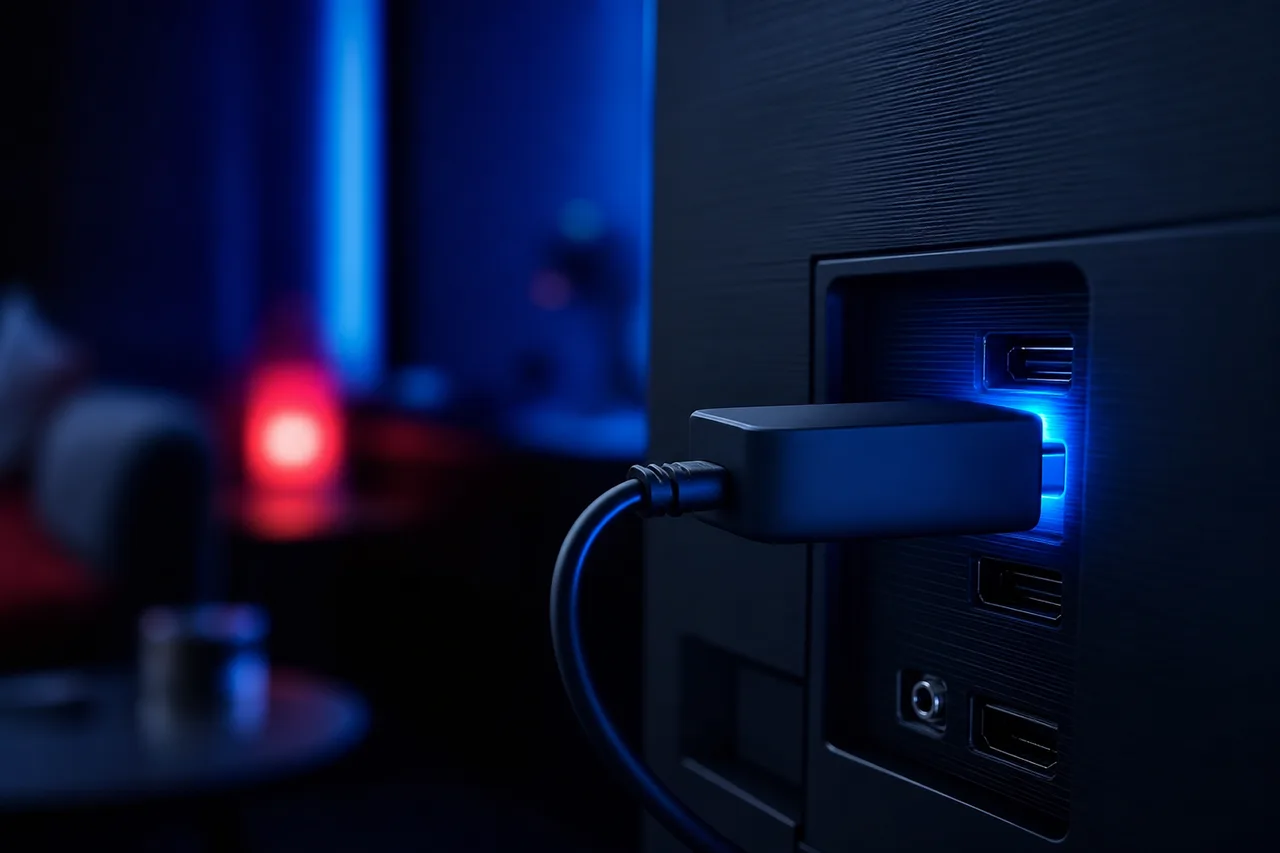
A stream has to be decoded before it becomes a picture, and decoding takes work. Older sticks and entry-level boxes can play HD all evening and then struggle with 4K, especially when their memory is full or they run warm. Their small wireless antennas also pick up less signal than a TV or a full-size box.
Signs the device is struggling
The menus feel slow, the remote lags, the picture freezes while the sound carries on, and a phone on the same Wi-Fi plays the same channel smoothly. Any two of these together point at the device rather than the network.
- Unused apps removed to clear storage
- Stick powered from the wall adapter, not a TV port
- Device out from behind the TV and away from heat
- System and player updated from the official store
- Weekly restart on a set day
Storage is the quiet culprit. When a device runs close to full, the player has less room to work with and the system slows down. Remove apps you never open and clear the cache of the ones you keep. Heat is the other. A stick pressed against the back of a TV, or a box shut inside a closed cabinet, gets warm, and many devices slow themselves down when they get hot. Give them air.
If you have tried all of that and a particular device still cannot handle 4K, the simplest answer is to watch that screen in Full HD, or move the device to a smaller TV and give the main screen something stronger. The devices guide compares smart TVs, Android TV boxes, Fire TV Stick and Apple TV, and the Fire TV Stick guide covers placement and memory housekeeping on a stick in detail.
Line fixed, ready for 4K
The Ultimate 4K Pack is built for a large screen on a steady link. Compare all three packs and durations first.
Player settings that change IPTV buffering
Most supported players, including IPTV Smarters Pro, TiviMate, IBO Player and XCIPTV, offer a few settings that affect how they handle an uneven connection. Names and locations vary from one player and version to the next, so treat the mock-up below as a map rather than an exact copy of your screen.
Typical playback options; your player may use different words or group them elsewhere.
Buffer size sets how much the player keeps in reserve. A larger buffer rides out short dips better, at the cost of a slightly longer wait when you change channel. On an unsteady Wi-Fi link, moving from small to medium or large often reduces pauses noticeably. Video decoder decides whether the device’s dedicated video chip or its general processor does the decoding. Hardware is usually smoother, but on some devices a particular channel plays better in software, so it is worth trying both if one channel misbehaves.
Stream format is an option some players show for live channels. Leave it at the default unless support suggests a change for your device. Auto frame rate, sometimes in the player and sometimes in the device’s display settings, removes the rhythmic stutter described earlier. The player guides on TiviMate and IPTV Smarters Pro show where these options sit in each app. We are independent from the app publishers, so for anything specific to a licence or a paid feature, check the current details on the app’s official website.
Choosing the right quality for the evening
Many channels in the catalogue are offered in more than one quality, often listed as separate entries in the channel list. Choosing the version that suits your connection on a given evening is not a defeat; it is the quickest buffering fix there is.
Step down when
- The house is busy and you just want to finish the show
- The screen is small or far from the sofa
- The device is on 2.4 GHz in a far room
- Someone in the house has an important call
Stay in 4K when
- The TV is large and you sit close to it
- The device is on a cable or strong 5 GHz
- Your evening speed test on the TV clears 25 Mbps easily
- Nothing else heavy is running on the line
On a bedroom TV or a kitchen tablet, the difference between Full HD and 4K is hard to see from normal viewing distance, while the difference in reliability can be large. Save 4K for the screen where it shows, and where the link can carry it. Some households keep two favourites for the same channel, one in 4K and one in Full HD, so switching on a busy night takes a second.
The pack you hold does not change this logic. Whether you watch on the Premium Pack or the Ultimate 4K Pack, every 4K stream asks the same 25 Mbps of the link to that screen. A pack with more 4K content is a pleasure on a wired living room TV, and a source of frustration on a stick two floors away from the router.
Live channels versus series and movies
Live channels and on-demand titles reach you a little differently, and noticing which one buffers can narrow the search further.
| What buffers | Likely reason | Next step |
|---|---|---|
| Live channels only | Live streams have no head start; the player cannot load far ahead of the broadcast | Increase buffer size, check the link to that screen |
| Series and movies only | Large files start in high quality and the link cannot keep up at first | Give it a moment to start, or choose a lower quality version |
| One channel only | That single stream may be having a moment at the source | Try another version of it, or report it to support |
| Everything, everywhere | The link, the device or the line | Ethernet test and notes |
A single channel that misbehaves while every other one plays smoothly is the one case where the problem is probably not in your home. Note the channel name as it appears in your list, the time and the device, and send it to support. That kind of precise report is easy for the team to check and act on.
Series and movies have an advantage: a player can load ahead of where you are watching. If a film pauses in the first minute and then plays smoothly, the link was simply catching up. If it keeps pausing throughout, treat it like a live channel problem and follow the same tests.
IPTV buffering at the busiest hours in Ontario
Across Ontario, the busiest stretch of the day for home internet is the evening, when people get home, eat and settle in front of a screen. Weekends, holiday evenings and storm nights when everyone stays in can be busier still. If your buffering lines up with those times, two different things may be going on, and they call for different responses.
The first is your own household. More people at home means more devices online, more calls and more updates, all on the same line and the same Wi-Fi. That part is yours to manage, with the cable test, quality of service and a few house rules. The second is the neighbourhood. Internet lines are shared beyond your front door, and some areas slow down at peak hours. You cannot fix that from the living room, but you can prove it.
If a cable straight into the router still slows down at the same hour every night, the problem has left your house. Your notes are what turns that hunch into something your internet provider can check.
To build that proof, run a speed test on a device wired to the router at a quiet hour, then again at the busy hour, for several days. If the wired evening readings fall well below what your plan promises and below what the stream needs, share the log with your internet provider. Meanwhile, watch the busiest evenings in Full HD and keep 4K for quieter hours. For households in cottage country or on rural lines, the same logic applies with more force; the IPTV across Ontario page has notes on homes outside the big cities.
A four-evening buffering diary
When the pattern is not obvious, a short diary turns guesswork into evidence. Four evenings are usually enough. Keep it on your phone and fill it in while you watch, not the next day from memory.
- Evening one
Watch as usual and note every pause
Write the time, the device, the room, the channel or title and whether it was live or on demand. Run one speed test on the device.
- Evening two
Same hour, cable in
Connect the same device by cable and watch at the same time. Note whether the pauses changed.
- Evening three
Another device, same spot
Play the same kind of content on a different device in the same room. A phone or laptop will do.
- Evening four
One fix, then compare
Apply the fix your notes point to, such as moving the router or changing the band, and compare with evening one.
By the end, your diary usually answers the question on its own. Pauses that vanished on the cable mean Wi-Fi. Pauses that followed one device mean that device. Pauses at the same hour on every device and every link mean the line. If the diary still makes no sense, it becomes the best possible message to support, because it contains exactly the facts the team would otherwise have to ask you for one by one.
What to send support
The device and player you use, the pack, whether the device is on Wi-Fi or a cable, the quality you were watching, the hours when it paused, your speed test readings on the device, and whether another device in the same spot behaves differently. Never send your password in a public message; support can identify your account without it.
Three hypothetical homes and how they fixed buffering
The households below are invented examples, not customers. They show how the same few tests lead to quite different fixes depending on the home.
The living room TV pauses every evening. The router sits in the basement furnace room. On a long cable carried upstairs for one night, the pauses stop.
Then: a mesh point on the main floor, TV wired to itEvery screen slows around eight. The diary shows a console and two laptops updating nightly at the same hour.
Then: updates moved to overnight, TV given router priorityOnly the bedroom stick buffers, and only in 4K. A phone in the same spot plays smoothly.
Then: stick moved off the back of the TV, Full HD for that roomNotice what none of them did: none bought a new internet plan first, none reinstalled the player five times, and none changed their login. In each case the fix matched the pattern, and the pattern came from a few evenings of careful watching. That is the approach worth copying, whatever your home looks like.
Notice too that two of the three fixes cost nothing. Rescheduling updates and moving a stick a few centimetres cost nothing but a few minutes, which is why they come before any purchase. When equipment does help, as with the mesh point in the bungalow, the test results show exactly where to put it.
Mistakes that make buffering worse
Some common reactions to buffering feel productive but leave the real cause untouched, or even add a new problem on top of the old one.
Do not chase the wrong fix: reinstalling the player, deleting the login or switching players rarely cures buffering when the cause is a weak signal, and it costs you your favourites and guide settings. Prove where the problem is with the cable test first. And never lend your login to another household to see whether it plays better there: two homes on 1 simultaneous connection will interrupt each other constantly, and credentials are meant for one household only.
- Testing speed beside the router instead of on the device
- Changing several things at once and losing track of what worked
- Leaving the stick pressed against the back of the TV
- Running 4K over 2.4 GHz to a room two floors away
- Forgetting that a second screen is playing on the same login
- Buying a faster internet plan before testing the Wi-Fi
- Never restarting the router or the device
The faster-plan mistake is the most expensive one. If the Wi-Fi link to your TV is the bottleneck, a faster line simply arrives at the router and goes no further. Fix the link first. Upgrade the plan only if wired tests at the busy hour show that the line itself falls short of what your screens need.
Related help and next steps
Buffering touches many other topics on this site. The pages below go deeper on the pieces that matter most for a smooth picture, from the login fields to the programme guide and the plans themselves.
Plans run for 1, 3, 6 or 12 months, paid once in Canadian dollars by card or PayPal, with no contract and no automatic renewal. The VIP Premium Pack adds 27,000+ channels, 61,000+ series and 155,000+ movies in HD, Full HD and 4K, so you can match the quality to your link on any given night. See current prices on the plans page.
Still pausing after the tests
Send your notes to support by e-mail or WhatsApp. The team answers 7 days a week in English and French.
FAQ
Why does my IPTV buffer only in the evening?
Evenings are when your household, your Wi-Fi neighbours and your area’s internet lines are busiest. Test on a cable at that hour: if the pauses stop, fix the Wi-Fi; if they continue, log wired speed tests and talk to your internet provider.
My speed test looks good. Why does it still buffer?
The test was probably taken beside the router or at a quiet hour. Run it on the device that buffers, at the hour it happens, three times in one evening. Large swings between readings point to an unsteady link.
Does 4K buffer more than HD?
It needs more: about 25 Mbps per 4K screen against 10 Mbps for HD and 15 Mbps for Full HD. If 4K pauses, switch to the Full HD version for the evening and improve the link to that screen afterwards.
Will a new router fix IPTV buffering?
Sometimes, especially if yours is old or single-band. Try placement, a weekly restart, the 5 GHz band and the cable test first. Many homes fix buffering without buying anything.
Can other devices in my home cause buffering?
Yes. Game updates, cloud backups, security cameras and video calls all share the line. A second stream on the same login also breaks the one-connection rule, and one of the two will stop.
Should I increase the buffer size in my player?
On an uneven Wi-Fi link, a medium or large buffer often reduces pauses. Channel changes may take a moment longer. Not every player offers the setting, and the name varies.
Why does the picture stutter every few seconds without stopping?
That regular stutter usually comes from a frame rate mismatch between the device and the TV. Turn on match frame rate or auto frame rate in the device or player settings.
Only one channel buffers. Is that my connection?
Probably not, if every other channel plays smoothly. Try another version of that channel if your list has one, and send support the channel name, the time and your device.
Will clearing the player cache delete my login?
In most players, no. Clearing the cache removes stored temporary data and keeps your profile. Reinstalling the player is different: it erases the login, favourites and guide settings.
When should I contact support about buffering?
After the restart, the second-stream check and the cable test, if every device still pauses. Include the device, player, connection type, quality, hours and speed readings. Support answers 7 days a week in English and French.